Website
Your Website is a page of your own at handle.pixture.io. Customers open it on their phone to see who you are, find your nearest booth, buy a photo session, design their own frame and get their photos back. At the end of this page your Website is live and you have a link to put in your bio, on a poster or on a QR code.
The Website is a Pix Pro feature. See Who can publish.
What Your Website Does
- Sell photo sessions online. Customers buy a session on their phone before they reach the booth. They pick a booth, a package and a frame, pay by QR code or card, and get a code by email to type at the booth. The money goes to your own payment gateway, and prices come from your booths, so there is nothing to set twice. See The shop.
- Look like your business. Use your logo, colours and fonts from Brand, or pick a ready-made theme. Open with a full-screen home poster, a photo or video with your headline and a button. Choose the header layout, wallpaper, button style and font. See Set it up.
- One link for everything. Your shop, Frame Lab, photo lookup, branches, price list, event albums and upcoming events, plus WhatsApp, Call, Email, YouTube, image galleries and any other link. Put it in your Instagram bio, on a poster or on a QR code. See Links.
- Customers design their own frame. Frame Lab opens in your colours. Customers build a frame on their phone, pay, and use it at the booth. See Frame Lab.
- Customers find their photos. Get my photos lets a customer type their booth code and get their photos back, for 60 days. See Get my photos.
- Help customers find a booth. A booth picker with search, a map link, opening hours and WhatsApp for every branch. With the queue line on, each booth shows how many people are waiting. See What customers see.
- Show your events. Add event album cards and your upcoming events. Guest photos stay in the album, never on the page itself.
- Bring photo guests back. On every guest photo page, your logo and the Website item in the menu lead to your Website. Someone who came for their photos lands on your shop and your booths.
- Safe by default. Every link is checked for scams when you add it and again every day, and visitors can report a page. See Safety and reports.
Set it up
Open Pix Design > Website. The editor has a settings panel on the left and a phone-sized preview on the right that updates as you change things. Your changes save by themselves; the status next to the title shows Saving, Saved, Draft or Live.
The sections on the left:
| Section | What it controls |
|---|---|
| Home | A full-screen poster customers see first. Switch Show home on, then add an Image or Video, a Logo, a Headline, a Subline and the Button text |
| Links | The buttons on your page. Tap the dots on a button for Edit, Share, Hide or Archive |
| Header | Your profile: layout (Classic, Hero or Banner), profile image (your logo by default), Title, Bio and your social icons |
| Booths | The booths you sell from: a picture and a location for each, plus Details |
| Frame Lab | The look of the Frame Lab start screen |
| Theme | Colours, wallpaper, button style and font |
Links
Tap to add a button. Your own booth buttons are ready to use:
- Buy a photo session opens your shop.
- Design your own frame opens Frame Lab.
- Get my photos opens photo lookup.
- Branches lists every branch with directions.
- Price list shows the prices from your booths.
- Event album is a card that opens one event album.
- Upcoming events shows where your booth goes next.
You can also add WhatsApp, Call, Email, YouTube, an Image gallery, a Heading, a Text block, or any plain Link or Collection of links. Paste a link into the search box and Pixture picks the right kind of button.
You can add your Instagram profile as a link or a social icon. Showing your latest posts on the page is not available yet.
Header and socials
In Header, tap Add a social icon to add Instagram, TikTok, YouTube, Facebook, X, WhatsApp or Email. Each icon shows the brand's logo.
Booths
The Booths section lists the booths you sell from. Add a picture and a location for each one. Tap Details to add Opening hours, a Google Maps link and a WhatsApp number for that branch.
Prices are not set here. They come from each booth's Pricing tab.
Theme
Pick a ready-made theme (Your Brand uses your logo and colours from Brand, or choose Cream, Night, Coral, Mint or Mono), then change the wallpaper, buttons, colours and font if you like.
Publish
- In the address box at the top, type the handle you want. Pixture suggests one from your business name. It shows Available or the reason it cannot be used.
- Tap Publish.
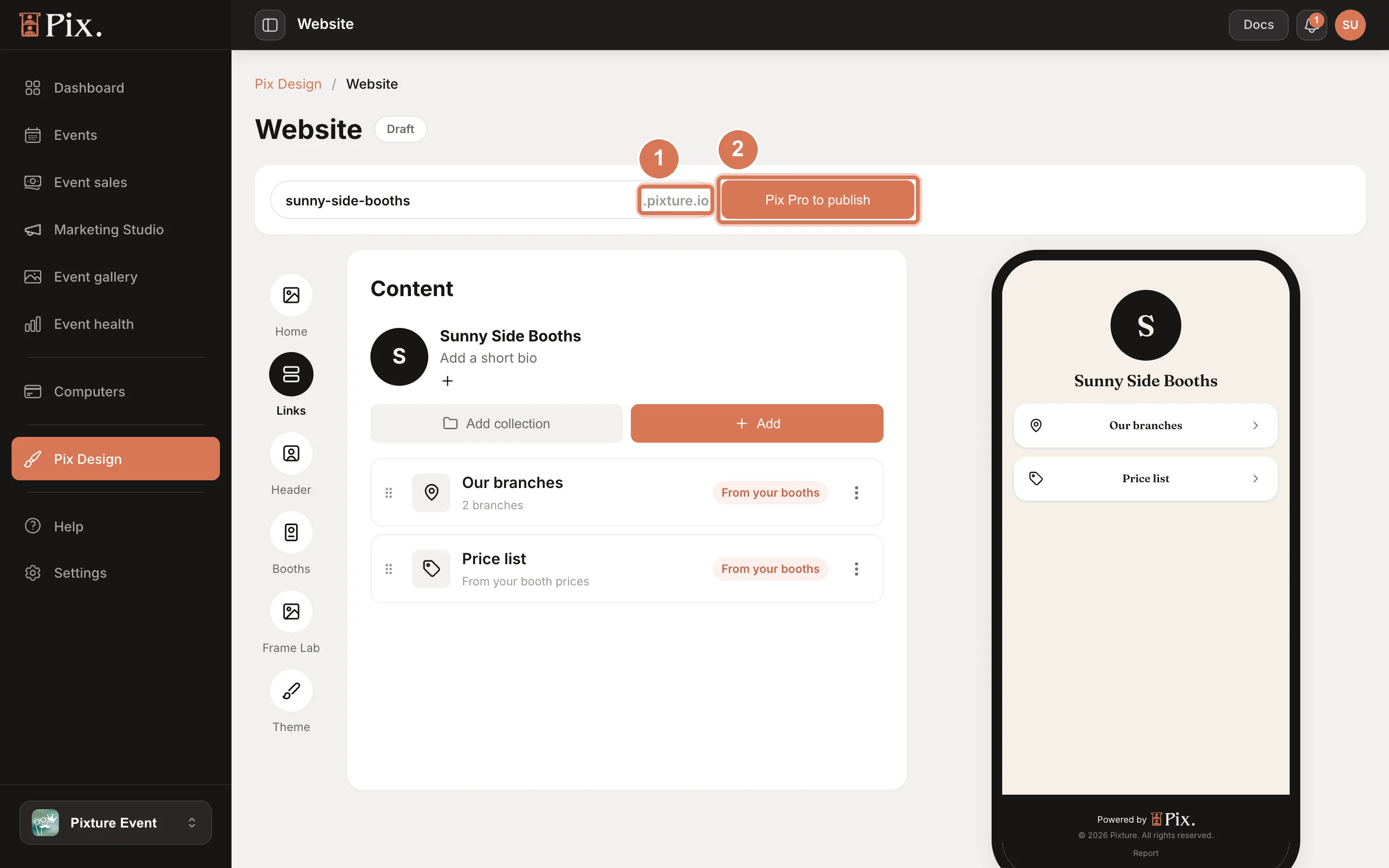
Your page is live at handle.pixture.io. The status changes to Live. Copy link copies the address, and the Share option on any button copies a link straight to that button.
A handle is 3 to 30 letters, numbers and dashes. The error messages are Too short, Letters, numbers and dashes only, Not available and Taken. Some words are kept back for Pixture, such as shop, support and docs.
The handle is claimed the first time you publish.
What customers see
A customer who opens your page sees, in order:
- The home poster, if you turned it on.
- Your profile: logo, title, bio and social icons.
- Your link buttons.
- A booth picker: Choose a booth with a search box (Search a booth or city), a map link for each branch, your opening hours and WhatsApp, and, if you use a Multi-Booth group, the booths grouped together. When the queue line is on, each booth shows how many people are in line.
The page opens in English or Indonesian, following the customer's phone.
An event album on the page appears as a cover card with a link to the album. Guest photos are never shown on the page itself. See Public links.
The shop
Buy a photo session opens your shop. The customer:
- Picks a booth.
- Picks a package (the sessions and prints you offer), and Additional sessions or Copies if they want more.
- Picks a frame: one of your designs, or Create or upload yours in Frame Lab. A premium frame adds an extra charge, once per order.
- Types their email. It is required, because the code is sent there.
- Taps Proceed to Pay and pays by QR code or card.
After payment the customer sees a code to type at the booth, and gets the same code by email. If your queue line is on, the order also gets a place in line, and the customer can tap See your place in line.
The prices come from the booth's Pricing tab, and the money goes to the gateway you set up. See Sell Sessions Online. The shop on your Website does not replace the booth's own shop link and QR code; those keep working.
Frame Lab
Design your own frame opens Frame Lab in your colours. Customers build a frame on their phone, pay, and use the code at the booth. In the Frame Lab section of the editor you set the picture (Poster, Logo, Yours or None), the layout (Side, On top or Full photo), the Headline, the line under it and the Button text.
Frame Lab prices and settings stay in Marketing Studio > Frame Lab.
Get my photos
Get my photos is a page where customers type the code they used at the booth and get their photos. A code bought for several sessions shows one link per session. If the photos are not ready yet, the customer sees "No photos for this code yet. Photos appear after your session at the booth." Photos stay for 60 days, like every share page.
Safety and reports
- Links are checked. When you save a link, Pixture checks it for scams and harmful sites. A link that fails cannot be added ("This link can't be added"). Saved links are checked again every day, and a link that turns bad shows as Link blocked in the editor and is hidden from the page.
- Visitors can report a page. Every page has a Report link at the bottom. The visitor picks Scam, Adult content, Hate or Other, and Pixture reviews it.
- Event guests are protected. Guest photos never show on the page itself, only a cover card and a link to the album.
Who can publish
You need Pix Pro, paid Monthly or Yearly. A trial or an Event Pass does not count. Without Pix Pro the publish button says Pix Pro to publish.
FAQ
What happens if my Pix Pro ends? Your page stays online for 6 months, but you cannot edit it. A banner says "Your page is still online. Renew Pix Pro to edit it." with a Renew Pix Pro button. Renew in that time and everything is as you left it. After 6 months the page goes offline and the handle is released.
Can I change my handle? Yes. Tap Change address, type a new one and tap Save address. The old link stops working straight away, so update your bio, posters and QR codes.
Can I take the page down? Tap Unpublish. The page goes offline, and the handle stays yours for 30 days. After that it is released.
Who sees my page? Anyone with the link. It is a public page.
Do I have to use the shop, Frame Lab and photo lookup? No. They are buttons. Remove or hide any you do not want.
Where do customers pay? In your shop, with the payment gateway you set up for your booths.