Gallery
Gallery holds every photo your booths uploaded: the finished composite of each photo session and the single shots behind it. Use it to pull a photo for a guest who lost their link, collect consented photos for social media, or clear out a test day.
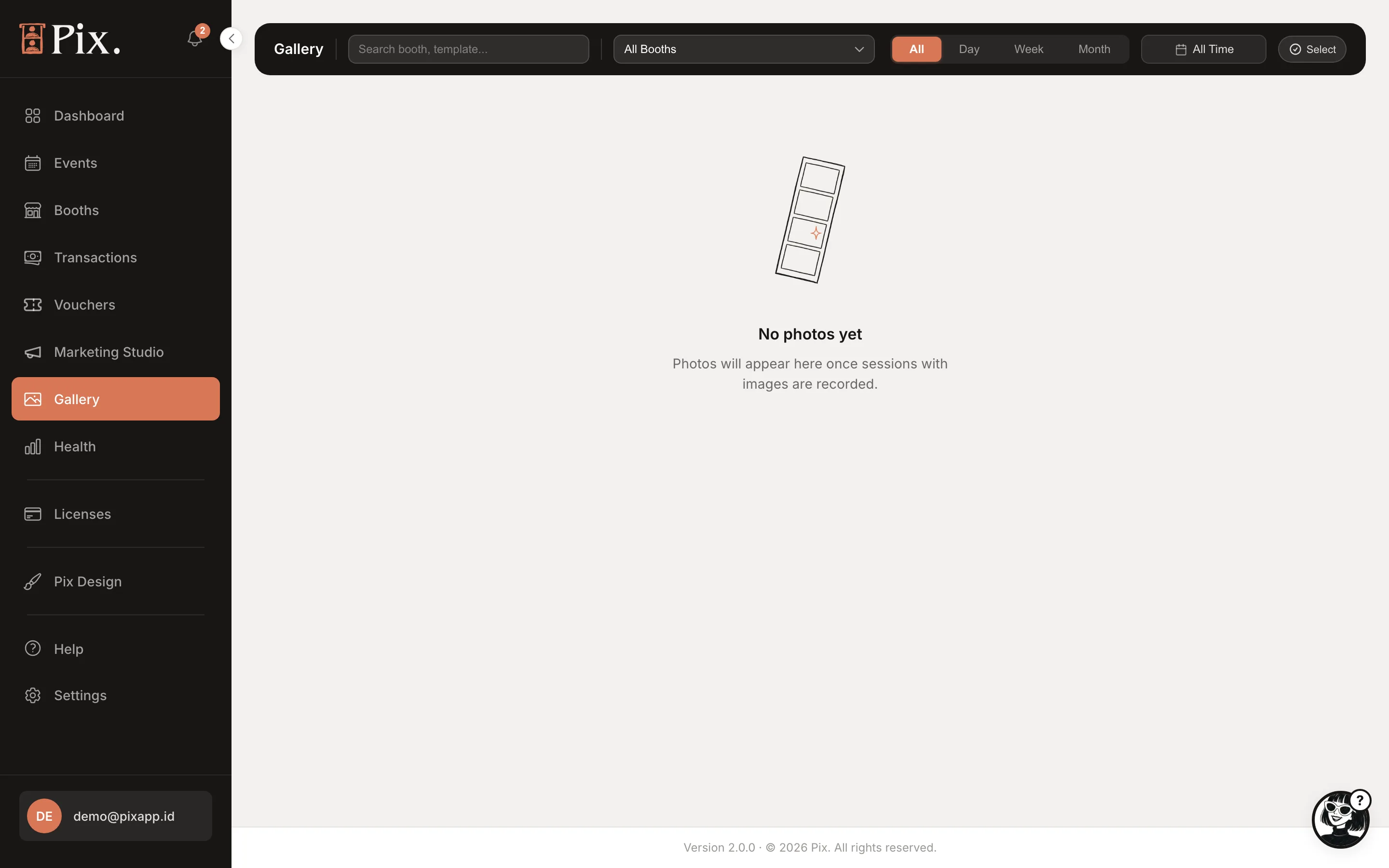
Filters and Search
| Control | What it does |
|---|---|
| Search | Matches the booth or template ("Search booth, template...") |
| All Booths | Limits the grid to one booth |
| All | A second filter beside the booth picker; leave it on All to see every photo |
| Day / Week / Month | The period |
The newest photos come first. Scroll down to load older ones, or narrow the period.
Working With Photos
Hover a photo, or open it, for the per-photo actions.
| Action | What it does |
|---|---|
| Download | Saves the full-size file to your computer |
| Delete | Hides the photo from the Gallery and starts the 30-day window described below |
| Camera settings | Shows what the camera used for this shot, handy when one booth's photos look different from another's |
Opening a photo session shows its composite and each single capture, with the booth, template and time.
Bulk Actions
- Click Select.
- Tick the photos you want, or click Select All for everything in the current filter.
- Click Delete Selected.
Use a booth and period filter first so Select All takes only what you mean it to.
Deleting and the 30-Day Window
Deleting does not erase a photo at once. It disappears from the Gallery and from the guest's sharing page immediately, but the files stay in storage for 30 days before they are removed for good. There is no restore button in the dashboard: if you delete something by mistake, contact Pixture support within those 30 days with the booth and roughly when the photo was taken. After 30 days nothing can be recovered.
Consented Photos
When the Marketing consent prompt is on in Marketing Studio, the photos of guests who tap Yes, I agree are collected in the gallery below the consent settings on the Content tab, so you can find photos you are allowed to reuse without asking twice. Performance counts them as Consented photos.
Photos of an Event
Photos captured during an event also appear on the event's own Album tab and, while Link Sharing is on, in its public album. Deleting from either place removes the photo from both.
A rehearsal produces real uploads. Filter the Gallery to the booth and the day, then Select All and Delete Selected, so the Dashboard's Templates Usage and Session counts reflect guests rather than staff.