Booth Pricing
Every booth has its own prices, set on Booths > [booth] > Pricing. The tab shows a live preview of the booth's payment screen on the left, so you see what guests will see before you save. Bonus Session, Frame Lab and the consent prompt are not here: they live in Marketing Studio.
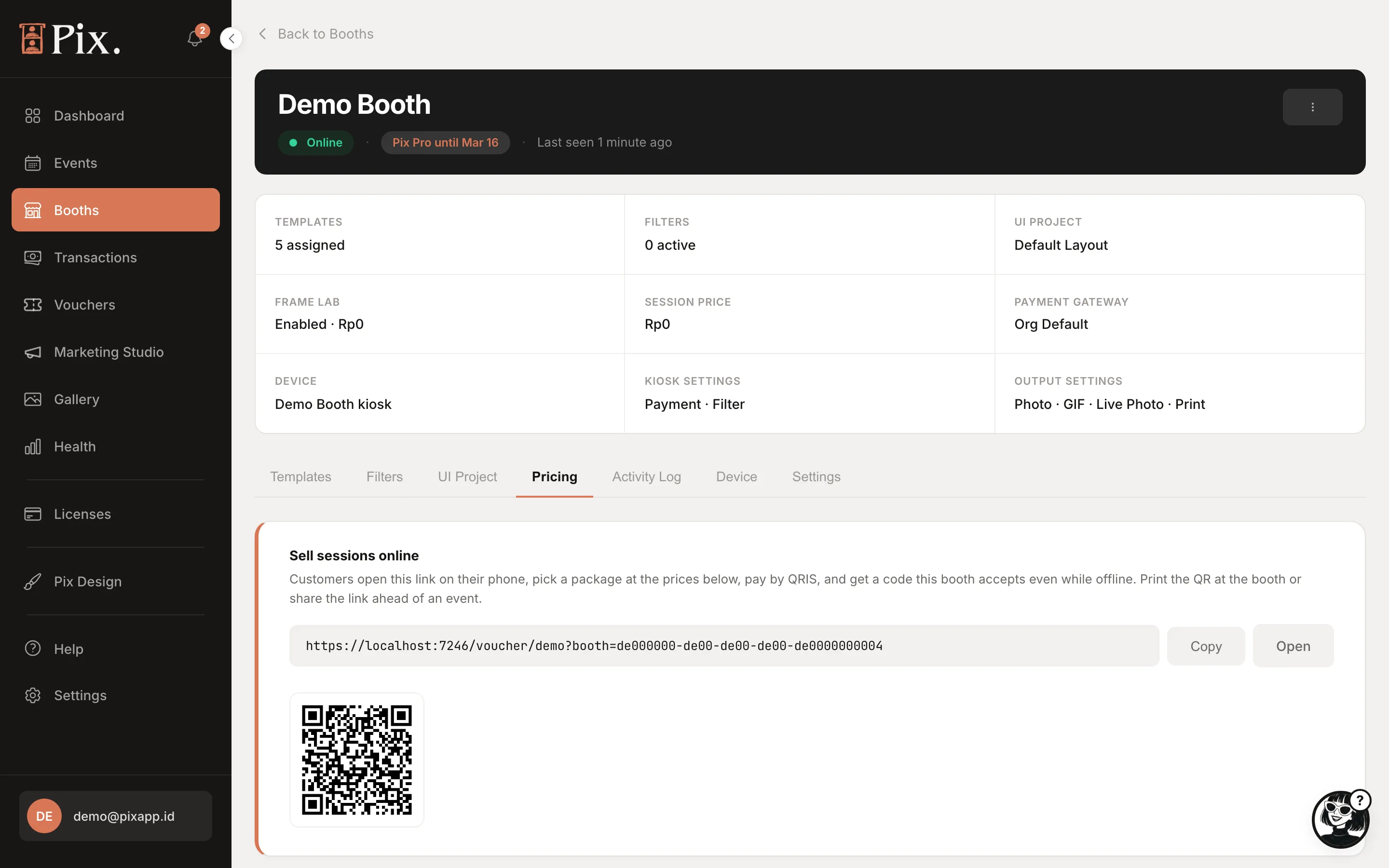
Sell Sessions Online
The card at the top is this booth's online shop. Guests open the link on their phone, pick a package at the prices below, pay, and get a code the booth accepts even while offline. Print the QR at the booth or share the link ahead of an event. Online payment uses QRIS in Indonesia and card through Stripe elsewhere. Copy and Open are next to the link. The booth needs Pix Desktop App 1.1.101 or newer to accept the 7-character codes. See Sell Sessions Online.
Payment on This Booth
The switch under the Pricing heading decides whether guests pay at all.
| Setting | What the booth does |
|---|---|
| On | "Guests pay the prices below at the kiosk." |
| Off | Every photo session is free and the booth skips the Payment screen. Your prices are kept, so switching back on restores them |
Free sessions are a switch, never a price of 0. The form refuses 0 and tells you to switch payment off instead. Booths on Pix Starter always run free, with the watermark.
Price & Packages
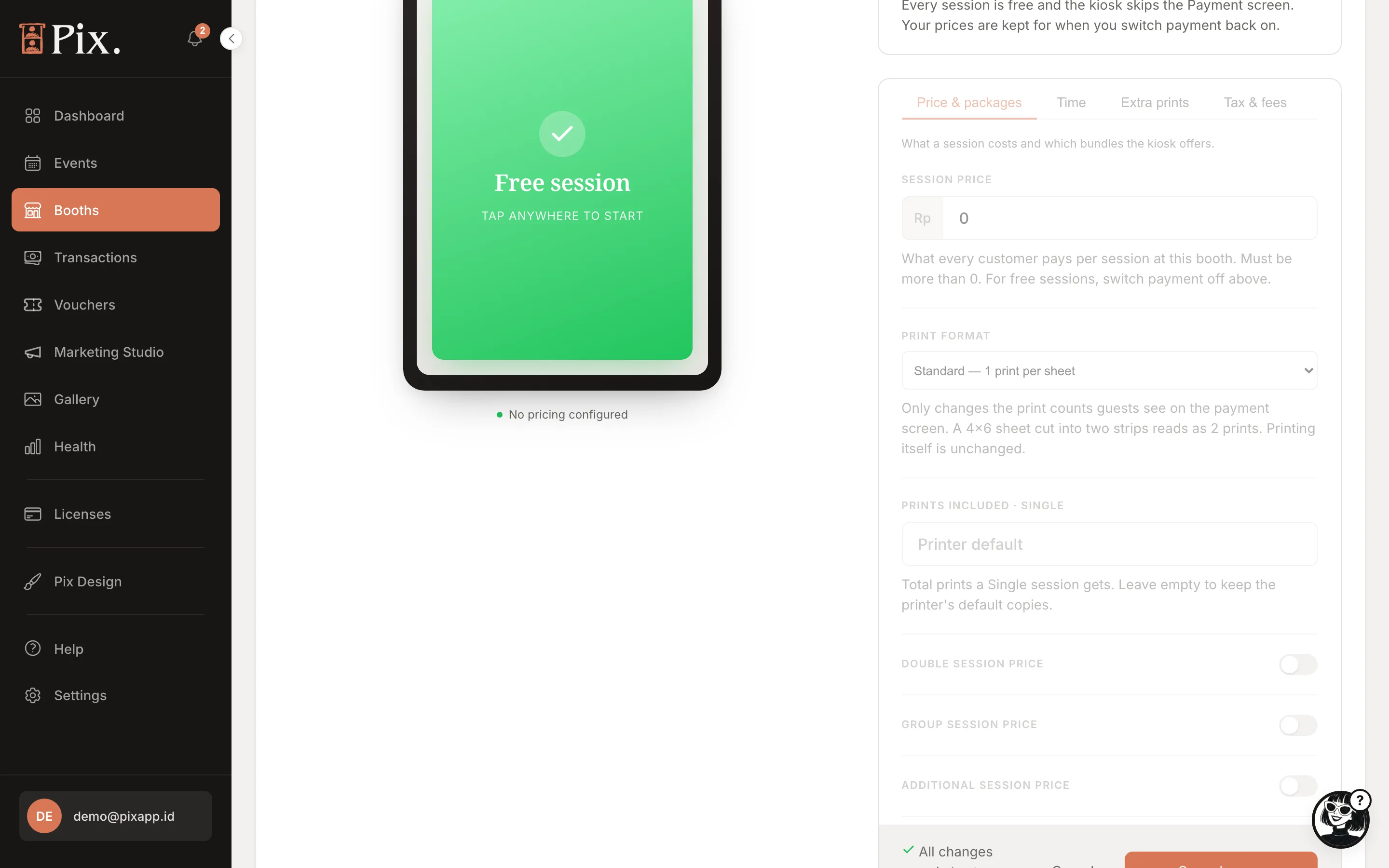
| Field | What it sets |
|---|---|
| Session price | What one photo session costs, in the booth's currency. Must be above 0 |
| Print format | Standard (1 print per sheet), 2 inch cut (2 per sheet) or Triple strip (3 per sheet). Display only: the booth shows guests how many pieces they take home without changing what the printer produces |
| Prints included | Sheets printed for a Single session |
| Double session price | Switch on to sell two sessions as one package, with its own Prints included |
| Group session price | Switch on to sell four sessions as one package, with its own Prints included |
| Additional session price | Switch on to let a guest add sessions on top of a package, at this price each |
Every print count on this tab is a number of sheets. A 4x6 sheet with a 2 inch cut is one sheet to the printer and two prints to the guest, so keep Prints included at 1 and set Print format to 2 inch cut; the payment screen then shows two prints. Setting the count to 2 would print two sheets.
Packages need a payment method that can charge a variable amount. A QR gateway or Stripe can; a fixed-price coin box cannot. See Hardware Payments.
Time
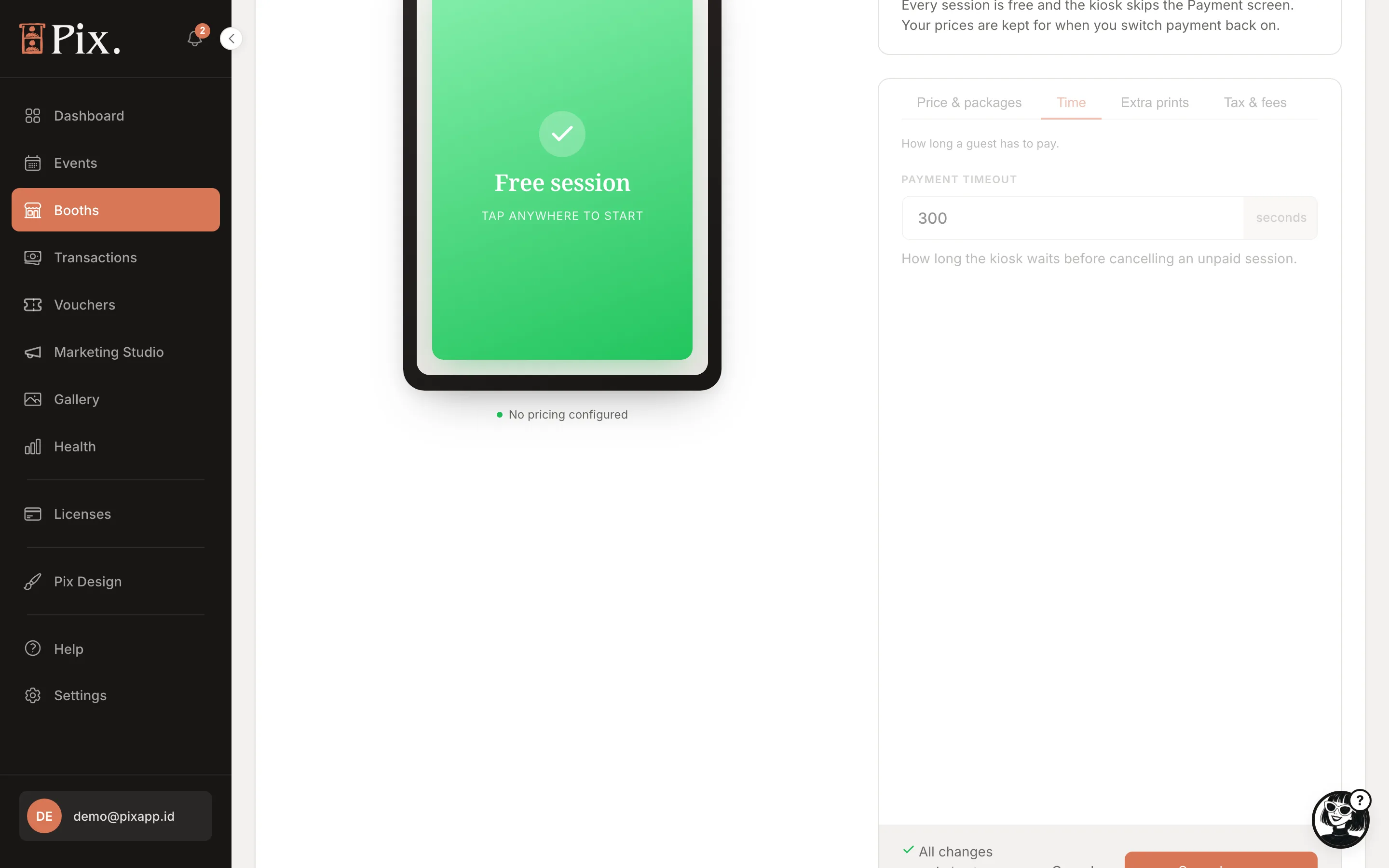
Payment timeout is how long the booth waits for a payment before returning to the start screen, from 30 to 1800 seconds.
Extra Prints
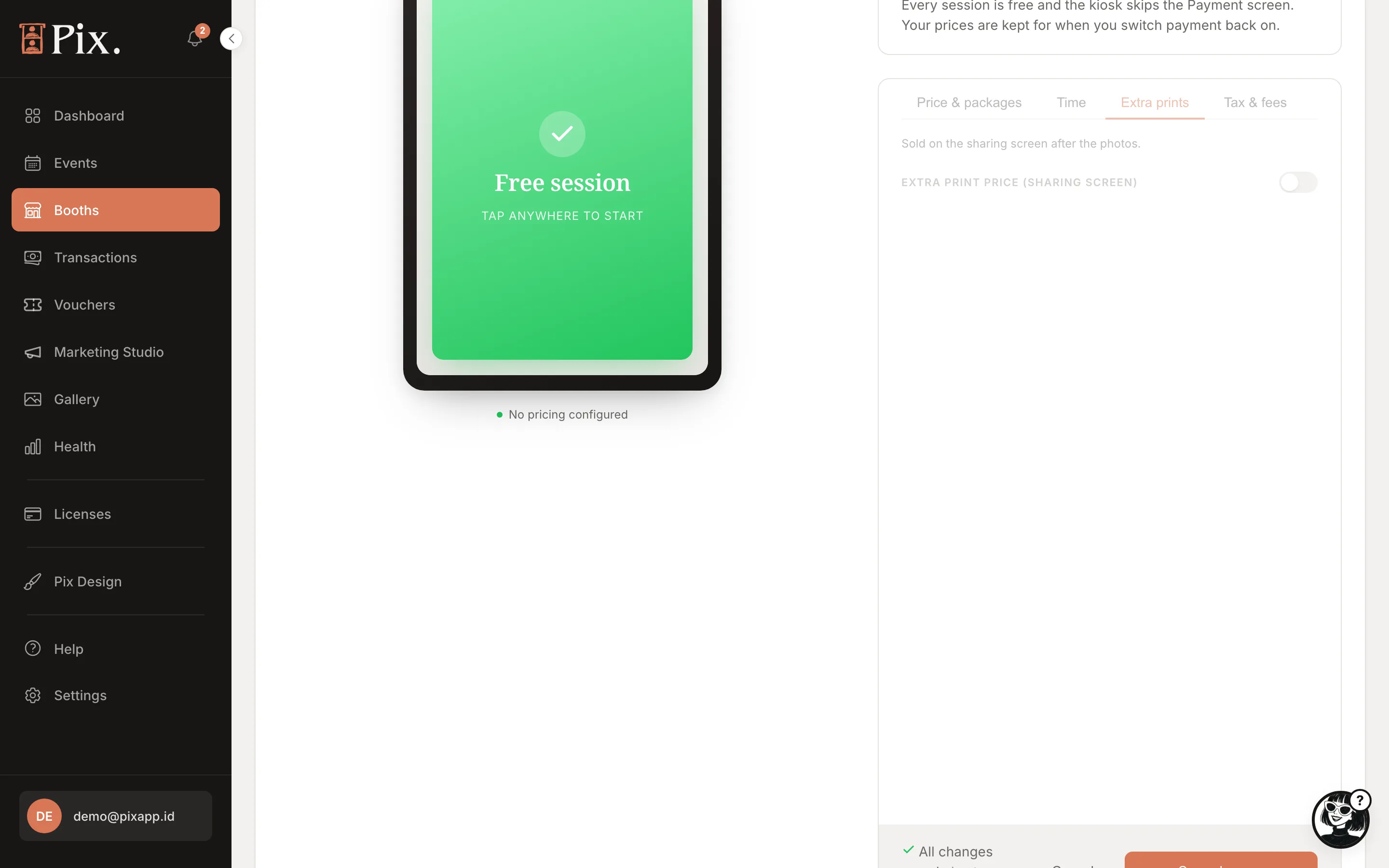
Switch on Extra print price (sharing screen) to sell more copies after the session, on the sharing screen. Leave it off to hide the option.
Tax & Fees
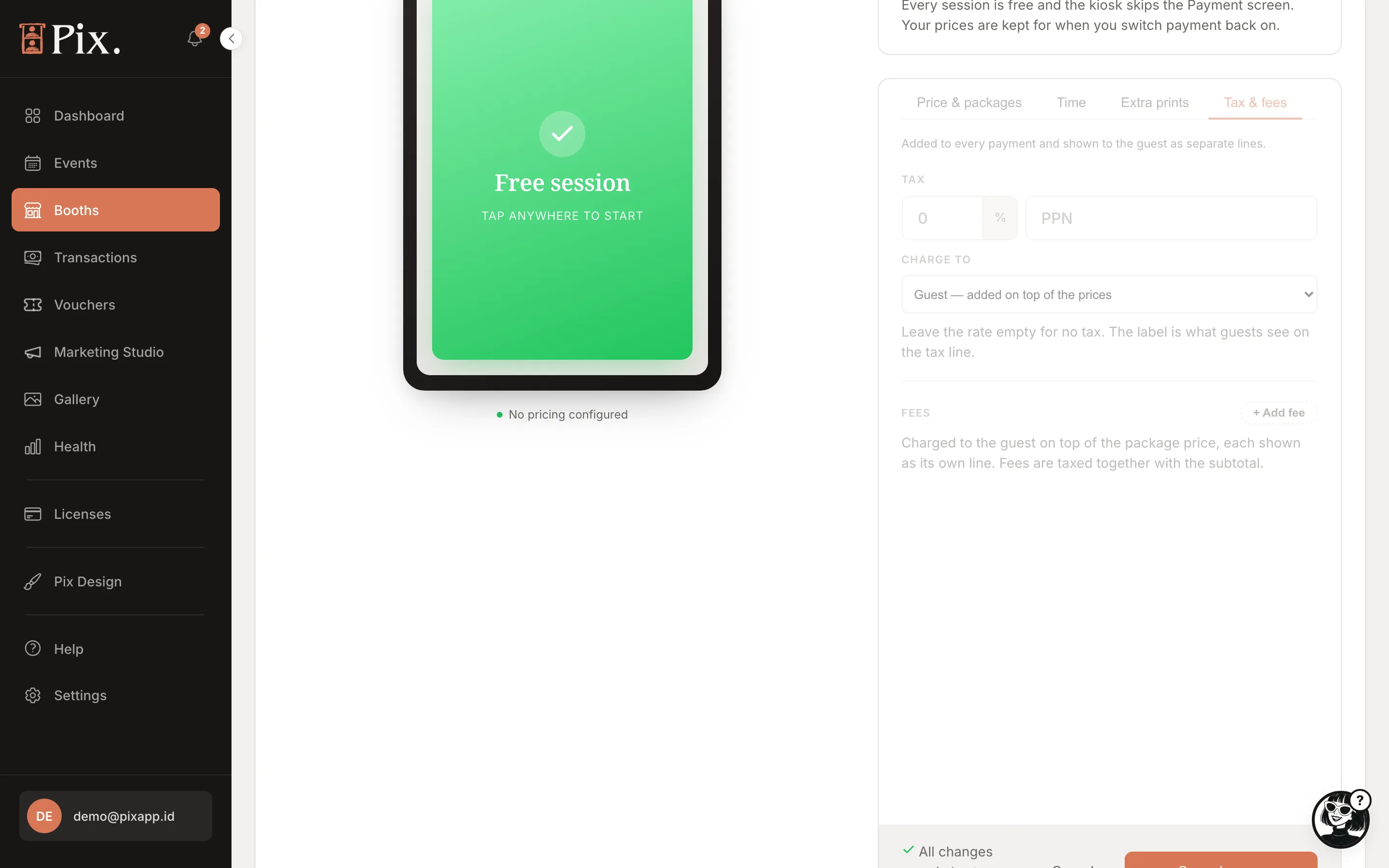
| Field | What it sets |
|---|---|
| Tax | A percentage and a label, for example 11% and "PPN" in Indonesia, or your local VAT or sales tax |
| Charge to | Guest: added on top of the prices. Included in the prices: shown as incl. on the payment screen |
| Fees | + Add fee adds a named fee, as an amount or a percentage of the subtotal, shown as its own line |
Saving
Any change shows the save bar: "Unsaved changes" with Cancel and Save changes. Prices reach the booth on its next check-in.
Currency
Prices are in the booth's currency, set under Settings > Currency on the booth page: the organization default, or a different one for this booth. Reports keep each currency apart and never convert. Fixed-amount vouchers work only at booths in their own currency. A currency other than rupiah needs Stripe as the gateway.
AI Portraits
Beta accounts see one more card, AI portrait on the share page: switch on Sell AI portraits on the share page with a Price per portrait, and optionally Offer a print at this booth with a Digital + print price, then Save. See Sell AI Portraits.
Create a Free Session voucher and run a real photo session to check the payment screen, the print count and the sharing screen before guests do.