Health
Health is the page to open when a booth misbehaves, or before an event starts. It lists every booth with its status, what the booth is reporting, today's count, the paper level and when it last checked in.
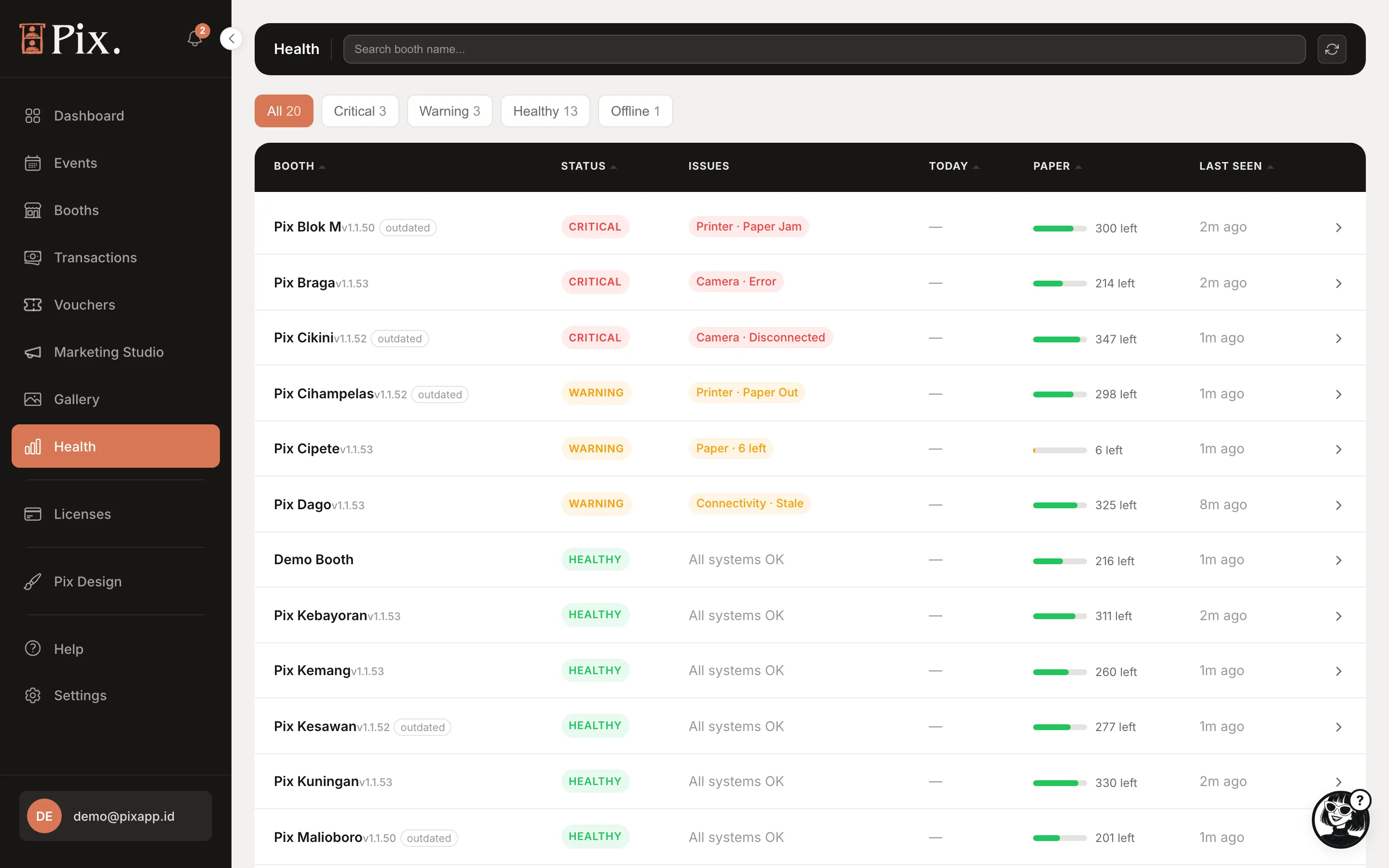
Filters
Search by booth name, and filter by All, Critical, Warning, Healthy or Offline.
Columns
| Column | What it shows |
|---|---|
| Booth | The booth's name |
| Status | Healthy, Warning, Critical or Offline |
| Issues | What the booth is reporting, in plain words |
| Today | Sessions so far today |
| Paper | The printer's remaining media, where the driver reports it |
| Last seen | When the computer last checked in |
Online or Offline
The booth checks in every 5 minutes while it runs. A booth is Online when its last check-in is within the last 12 minutes, and Offline after that. The same rule is used on the Booths page, the Dashboard and the booth's activity log, so they never disagree.
Offline does not always mean something is wrong. A booth switched off outside opening hours is Offline too. Look at Last seen: a booth that went quiet at closing time is fine, one that went quiet mid-afternoon needs a call.
What the Signals Mean
| Signal | What it tells you | Where to look next |
|---|---|---|
| Camera | The booth cannot see or talk to the camera | Cable and power, then the setup page for your camera in Supported Cameras |
| Printer | The printer is missing, paused or in error | The printer itself, then Printer Setup |
| Paper | Media is low or out | Reload; the count comes from the printer driver |
| Uploads | Photo sessions are waiting to upload, usually on slow venue Wi-Fi | Nothing is lost; guests' QR links open once the queue clears. See Offline Mode |
| Disk | The computer is running out of space | Clear old files on the booth computer |
| Memory | The computer is short of memory | Restart the Pix Desktop App |
Booth Detail Panel
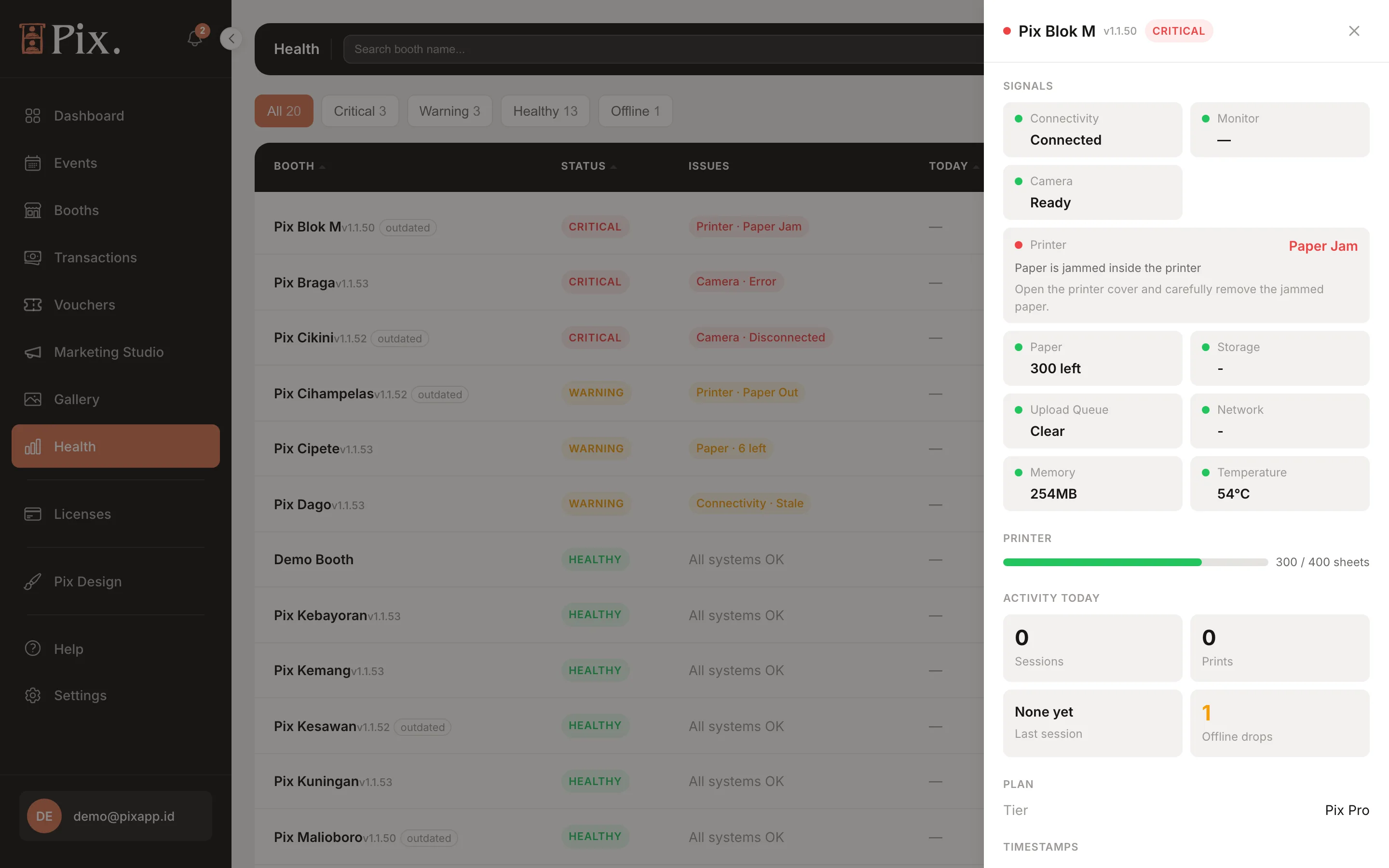
Click a booth row to open its detail panel: the signals above with their last values, today's sessions and prints, and the recent errors from this booth.
Error Records
At the bottom of the page, Error records lists the errors your booths reported. Pick a range (Last 24h, 7 days, 30 days or On a specific date) and click Download CSV to send the file to Pixture support, or to keep for your own records.
App Version and Updates
The version of the Pix Desktop App each computer runs is listed on the Devices page, in the Version column. The current version is 1.1.115. The booth updates itself; see Software Updates.
Health lists booths by booth name. A name like "Grand Mall L2" makes this page readable at a glance; rename from the chevron menu on the Booths page.