Dashboard Overview
The Pixture dashboard is a web app at pixture.io. Nothing to install: it works in any modern browser, on a laptop, a tablet or a phone. Your booths run the Pix Desktop App; the dashboard is where you set them up, price them, watch them and get paid.
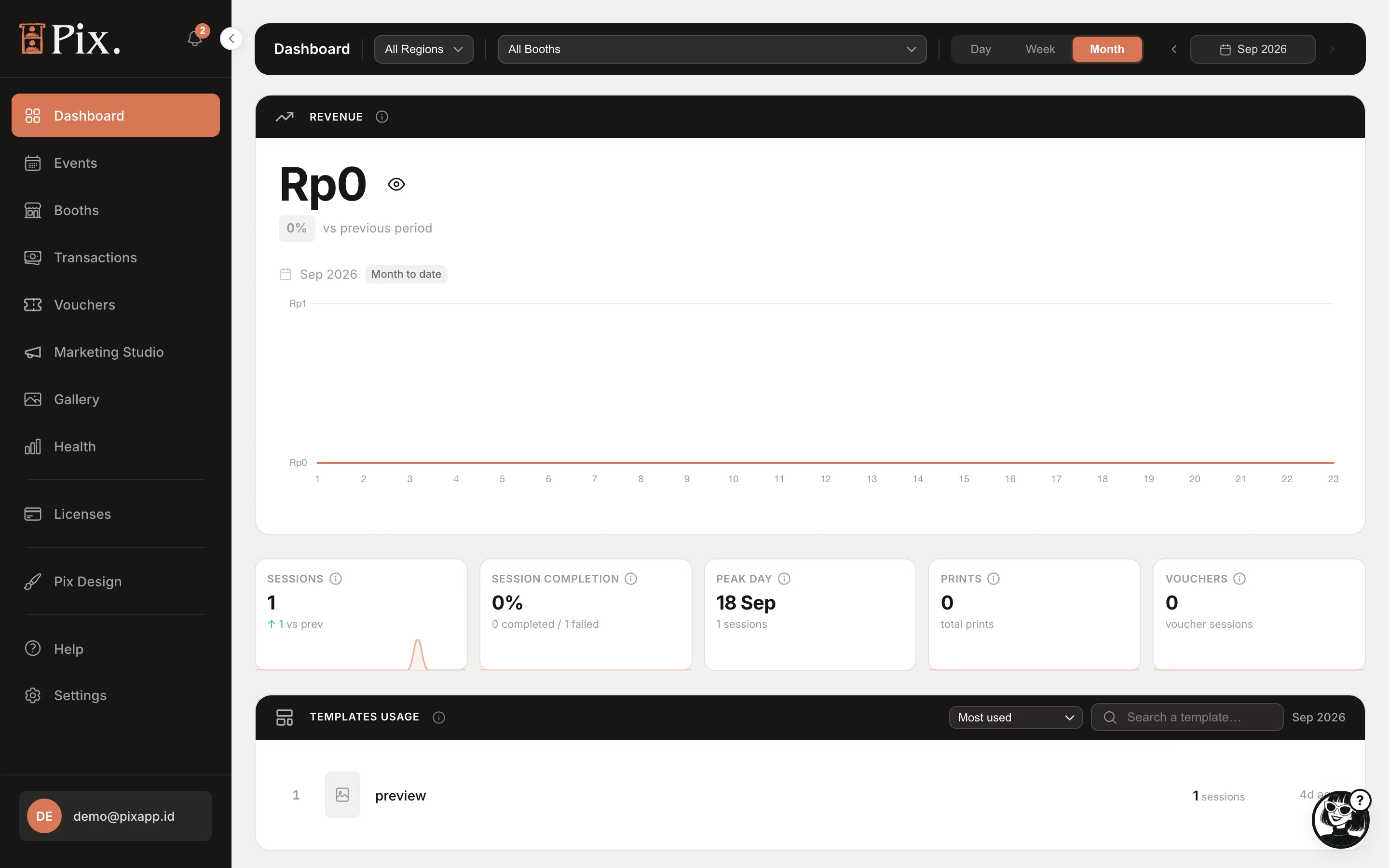
The Sidebar
The sidebar lists the pages in this order. Your role decides which ones you see.
| Page | What it is for |
|---|---|
| Dashboard | Revenue, photo sessions, prints, vouchers, top booths and health for a day, week or month |
| Events | A booking pointed at your booths for a set of dates, with its own pricing, templates and a public album |
| Booths | One page per booth: templates, filters, screen design, pricing, activity log, device and settings |
| Transactions | Every payment, searchable, filterable and exportable to Excel |
| Vouchers | Free, fixed-amount or percentage codes, one at a time or in batches |
| Marketing Studio | Consent prompt, audience, Bonus Session, Frame Lab, campaigns and performance. Pix Pro only |
| Gallery | Browse, download and delete what your booths captured |
| Health | Which booths are online, their camera, printer, paper and error records |
| Devices | The computers running Pix Pro, your subscription, Event Passes and Buy license |
| Pix Design | Template Editor, UI Editor, Photo Filters, GIF/Video overlay, Microsite and Pix AI (beta) |
| Help | Opens a chat with Lucy, the dashboard assistant |
| Settings | Organization, preferences, members, payment gateway, profile, billing, security and data |
Marketing Studio is not in the sidebar on Pix Starter. It appears once your account is Pix Pro.
Around the Sidebar
- Updates bell. At the top of the sidebar. Announcements from Pixture, and the place to reopen the free trial offer if you chose Save for later.
- Account menu. The button at the bottom shows your initials and email. Open it for Settings, Language and Log out. Beta accounts also see their Pix AI credits here.
- Organization switcher. Shown only when you belong to more than one organization. Everything in the dashboard is scoped to the organization you have selected.
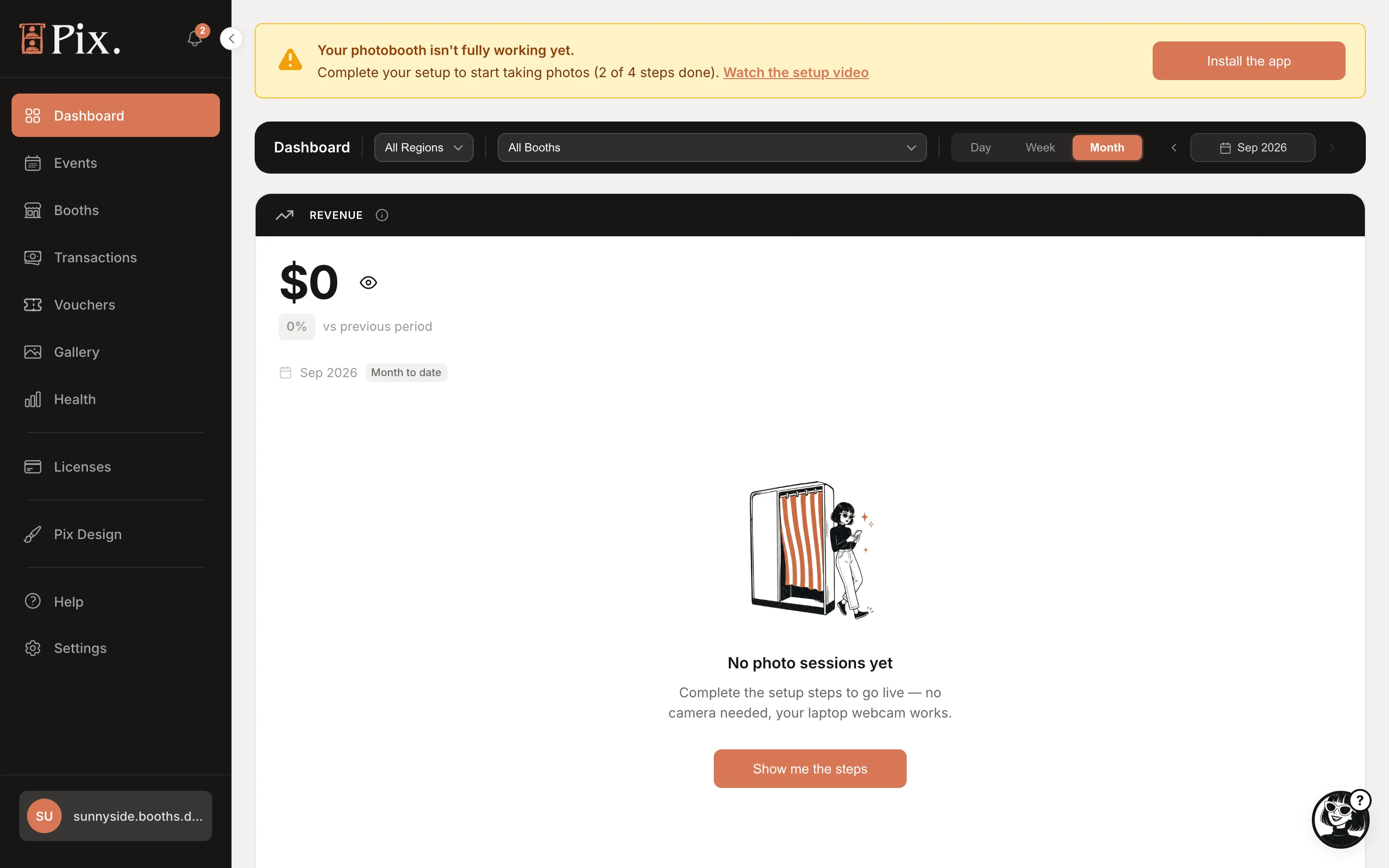
The Setup Banner
A new account sees a banner on every page until setup is done: "Your photobooth isn't fully working yet. Complete your setup to start taking photos (2 of 4 steps done)." It offers Watch the setup video and Install the app. Follow Pair your first booth to finish the steps.
Help and Lucy
Help in the sidebar opens a chat panel with Lucy, the dashboard assistant. Ask how something works or where a setting lives, in plain words.
Currency Switcher
If your booths trade in more than one currency, the money pages (Dashboard, Transactions, Vouchers and Marketing Studio > Performance) show a row of "Showing" pills, one per currency. Pick one to see its totals. Totals are never combined across currencies, and nothing is converted. Each booth's currency is set on its Settings tab; see Booth Pricing.
Roles and Permissions
Owners and admins see every page. For everyone else, the role decides which sidebar entries appear and what they can change. Roles are managed from Settings > Members > Manage Roles, where each role picks its permission groups and whether it can reach all booths or none. Invite a team member with + Invite and give them a role at the same time. See Settings.
On a Phone
The dashboard works on a phone. Keep it open at an event to watch sessions arrive and check a booth's health without leaving the floor.
The dashboard is available in English and Bahasa Indonesia. Switch from the account menu, or under Settings > Preferences. The booth's guest-facing language is a separate setting on the same page.