Devices and Pairing
A device is the computer running the Pix Desktop App. Each computer is paired to exactly one booth with a code from the dashboard. Everything about the computer lives on the booth's Device tab.
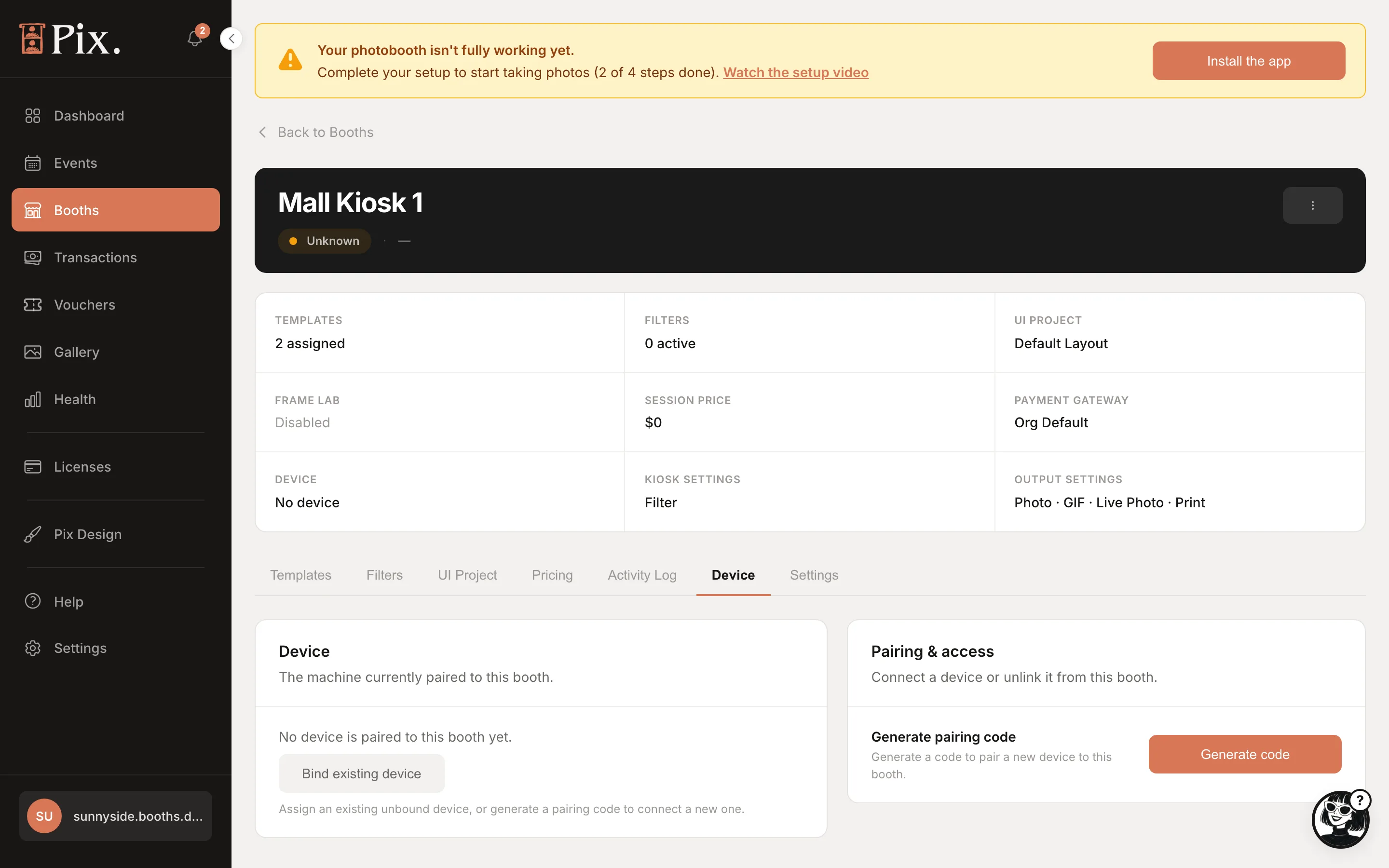
Pair Your Booth First
A booth with no computer shows the status Unknown, a dash for the plan and "No device" in the grid. The first time you open it, a popup says "Pair your booth first: [booth name] isn't paired to a device yet. Generate a code and enter it on the booth app to go live." with Generate pairing code and Maybe later.
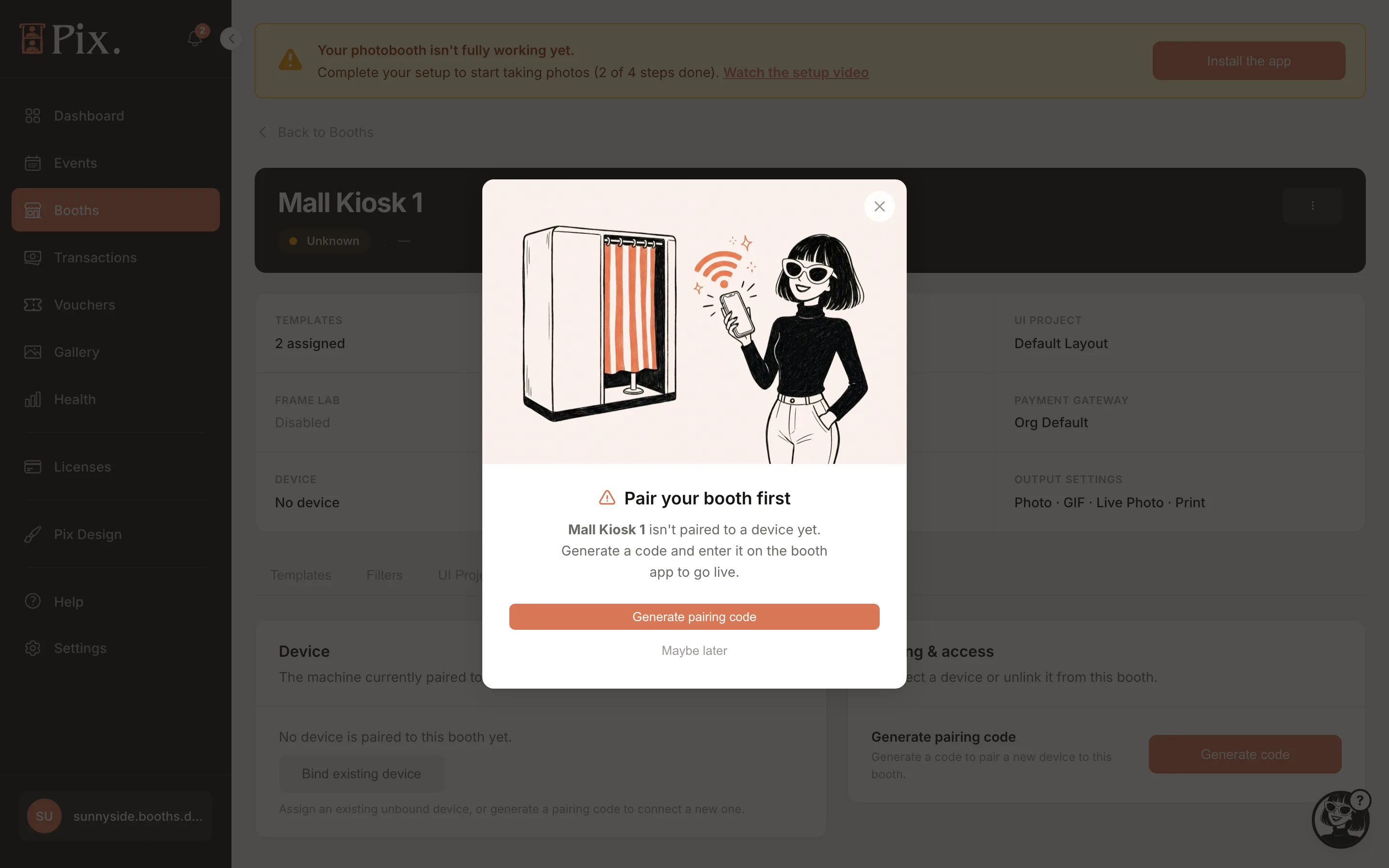
Pairing a Computer
- Install the Pix Desktop App on the booth computer. See Download the Desktop App.
- On the booth's Device tab, under Pairing & access, click Generate code. The Pair Pixture App modal shows a 6-digit code with "Enter this code in the Pixture App to link it to [booth name]." and a countdown from 10 minutes. Use Copy Code, or Regenerate if it expires.
- Type the code on the booth's pairing screen.
- Click Done. The computer downloads the booth's templates, screen design, filters and prices and goes to the start screen.
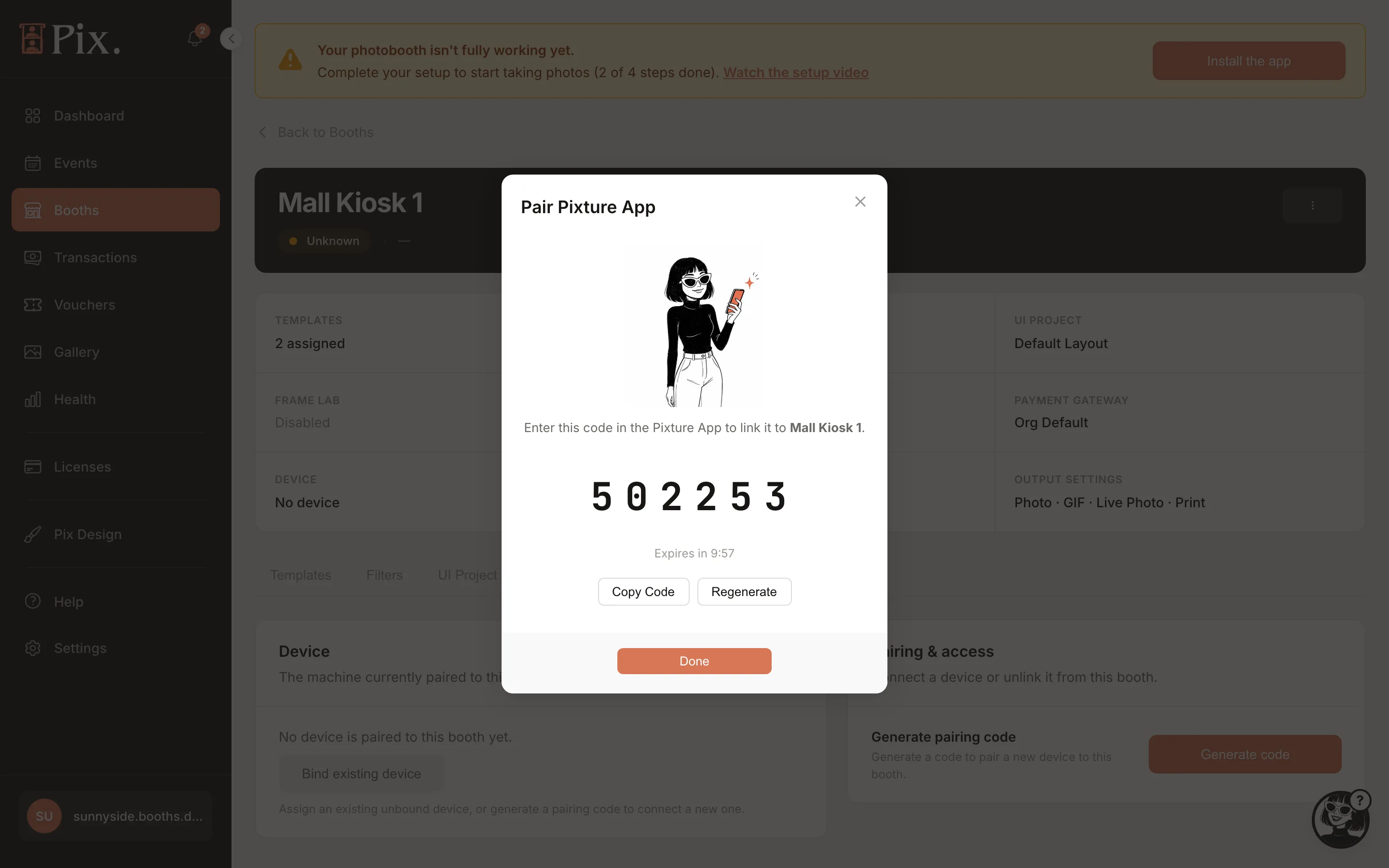
On a Pix Pro account, a spare place on your subscription attaches itself at this first check-in, so the computer runs Pix Pro straight away. An Event Pass is never started automatically: use one at the booth when the day starts.
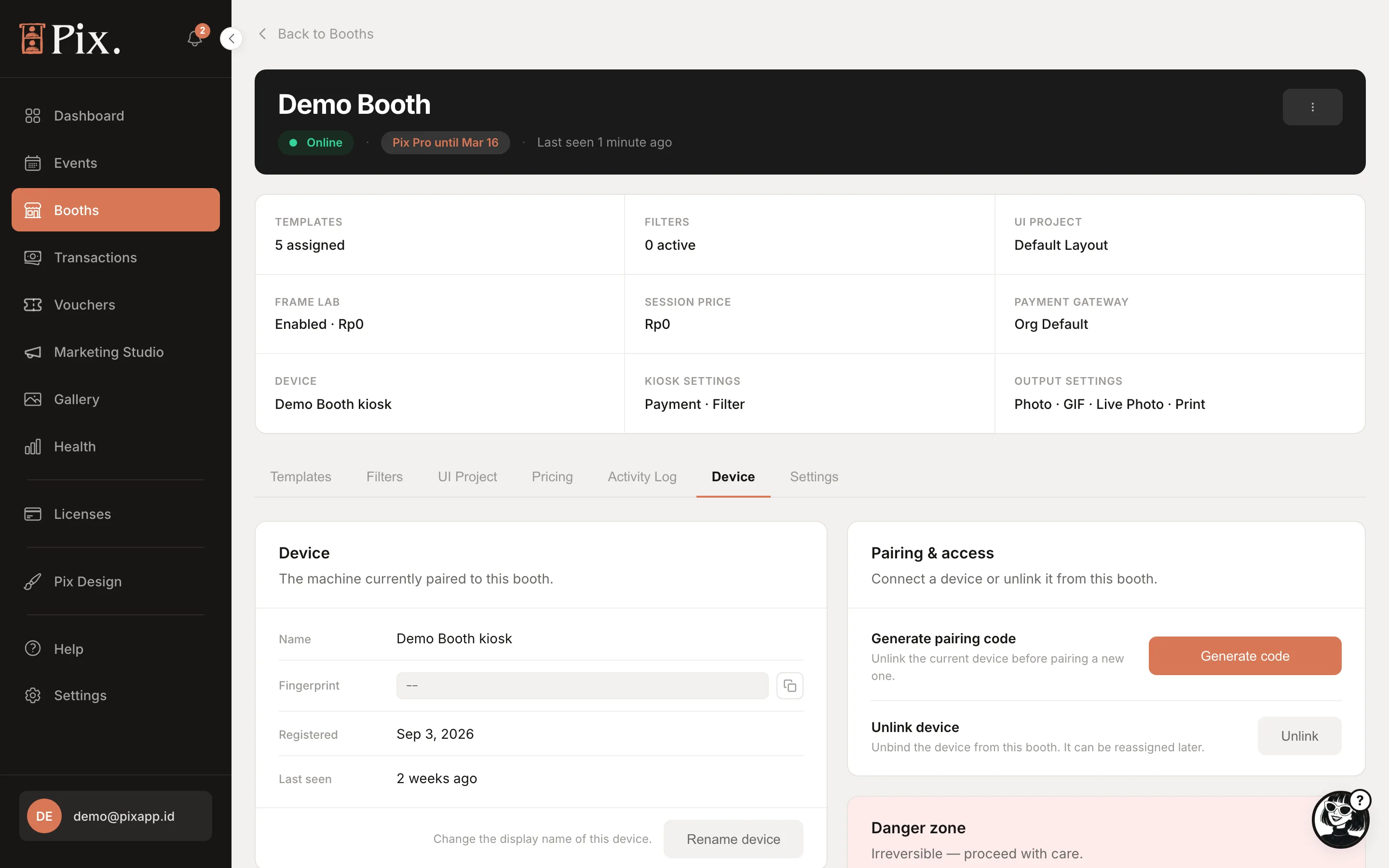
The Device Card
| Field or button | What it is |
|---|---|
| Name | Click Rename device to name it by place ("Mall Kiosk PC 2"); the Devices page lists it by this name |
| Fingerprint | The computer's hardware id, with a copy button |
| Registered, Last seen | When it was paired and when it last checked in |
| Bind existing device | Shown only while nothing is paired: attach a computer that is already registered on your account |
| Generate code | Greyed out while a computer is linked |
| Unlink | Detaches the computer from this booth |
| Remove | In the Danger zone: permanently retires the device record |
Unlink, Remove or Deactivate
Three actions look alike and do different things.
| Action | Where | What happens |
|---|---|---|
| Unlink | Booth > Device | The computer returns to the pairing screen and stops acting as this booth. Pix Pro from a subscription or the free trial returns to your account; a running Event Pass stays on that computer. Photo sessions already uploaded stay in your account |
| Remove | Booth > Device, Danger zone | Retires the device for good. Use it for a computer you have sold or scrapped |
| Deactivate | Devices page | Frees the computer's place on your subscription for another computer. The computer stays paired but cannot start a session until a place is free again. On an Event Pass, deactivating ends it; it cannot be moved or used again |
Logging out of the booth does the same as Unlink. Unlink a computer before you sell it, repurpose it or send it for repair.
Replacing a Computer
- Open the booth's Device tab. If Generate code is greyed out because the old computer is still linked, click Unlink first.
- Click Generate code and pair the new computer.
The booth's settings live in the dashboard, not on the computer, so the new machine is identical after pairing. Pix Pro from a subscription or the trial reaches it at its first check-in; an Event Pass stays with the computer it was used on. Replacing a booth's computer always works, even on Pix Starter.
One Computer per Booth
Two computers cannot be paired to the same booth at once. Unlink the first before you pair the next.
When Pairing Is Refused
- Pix Starter runs one computer. Once one booth has a paired computer, Generate code on a second booth is refused. Add a device, buy an Event Pass or start the free trial first.
- Pix Pro with every device in use. The modal shows "Device limit reached" with Try Again. Deactivate a computer on the Devices page or click Buy license there, then generate the code again. If you hold an unused Event Pass, the computer pairs anyway and waits, blocked, until you use the Event Pass on it at the booth.
- Event booths are never refused or blocked: they run watermarked outside a live event and the event covers them on the day. See Events.
Taking Pix Pro off one computer and giving it to another happens only on the dashboard: Deactivate or Unlink the first, and the next computer that checks in picks it up. The booth's operator menu can use an Event Pass, but only for the computer it runs on.