Add a Second Computer or Move Pix Pro
In this tutorial you will add a device to your subscription so a second booth computer runs Pix Pro, pair that computer, move Pix Pro from an old computer to a new one, and use an Event Pass for a single event day. Allow about 15 minutes, plus checkout.
Before You Start
- Owner or billing access to the Pixture dashboard.
- The new computer with the Pix Desktop App installed, and a booth created for it (see Set Up a Booth From Scratch).
- A card for checkout; in Indonesia, QRIS, bank transfer or a card.
How Devices Work
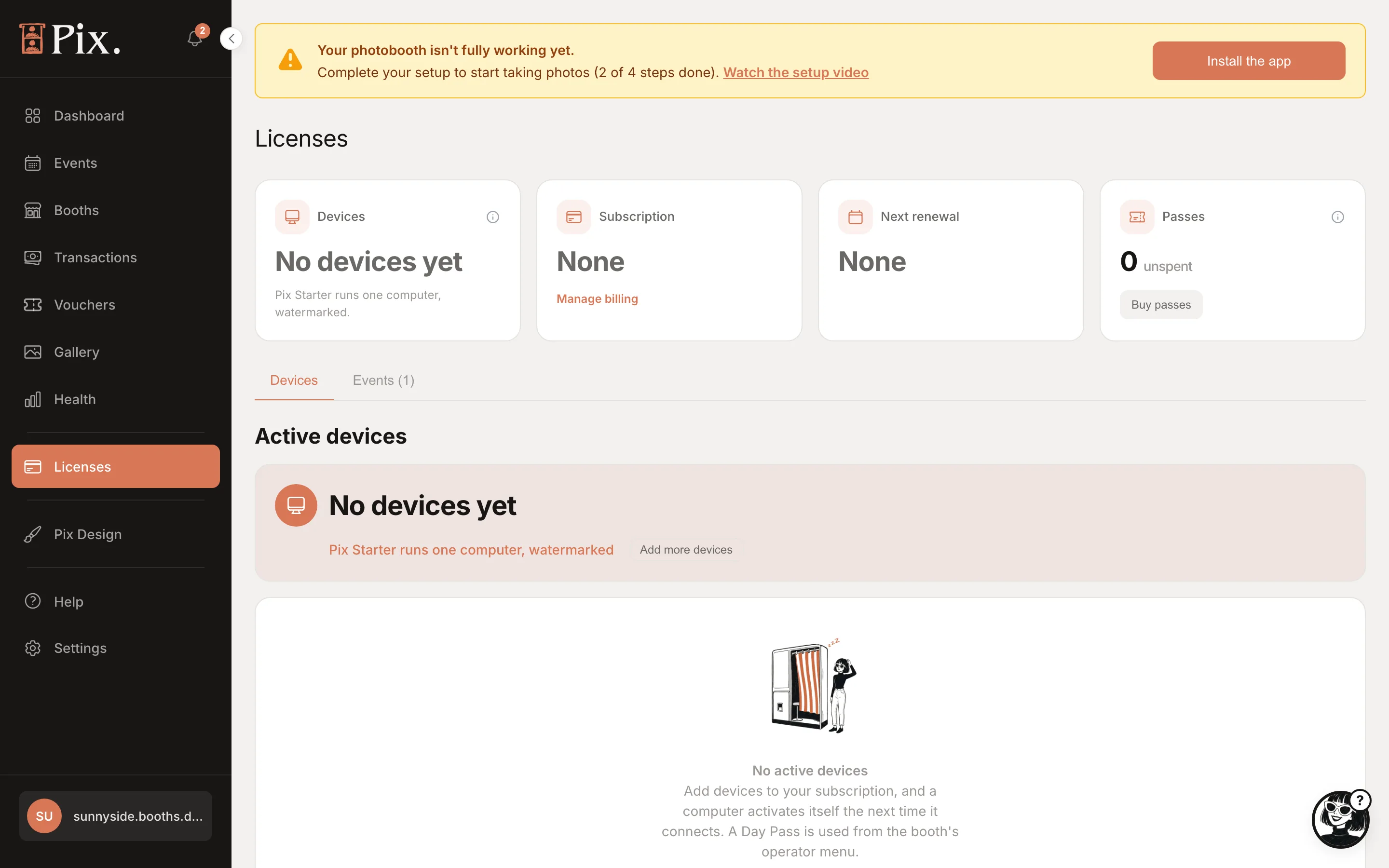
One device on your subscription runs one computer. The Devices page counts them: Devices 2 of 3 means three places, two in use. A computer with a place runs Pix Pro. On a Pix Pro account, a computer without a place is Blocked: it stays paired and keeps its settings, but will not start a photo session until you deactivate another computer or add a device. Pix Starter has no subscription: one computer is paired and everything is watermarked.
A spare place attaches itself. The next computer that connects takes it, so you never assign a computer by hand; you only Deactivate the one you want to free.
Step 1: Add a device to your subscription
- Click Devices in the sidebar and check the Devices card.
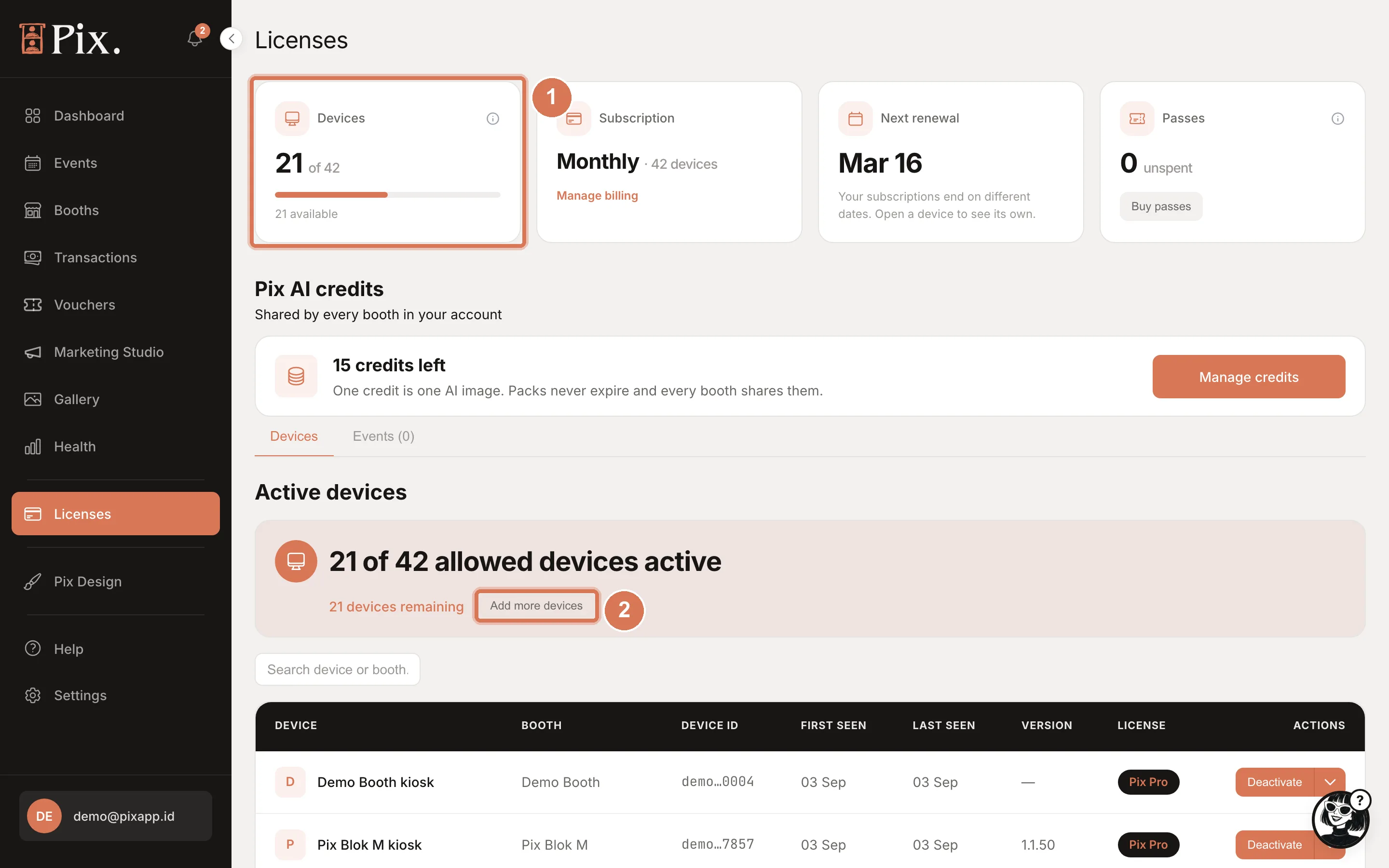
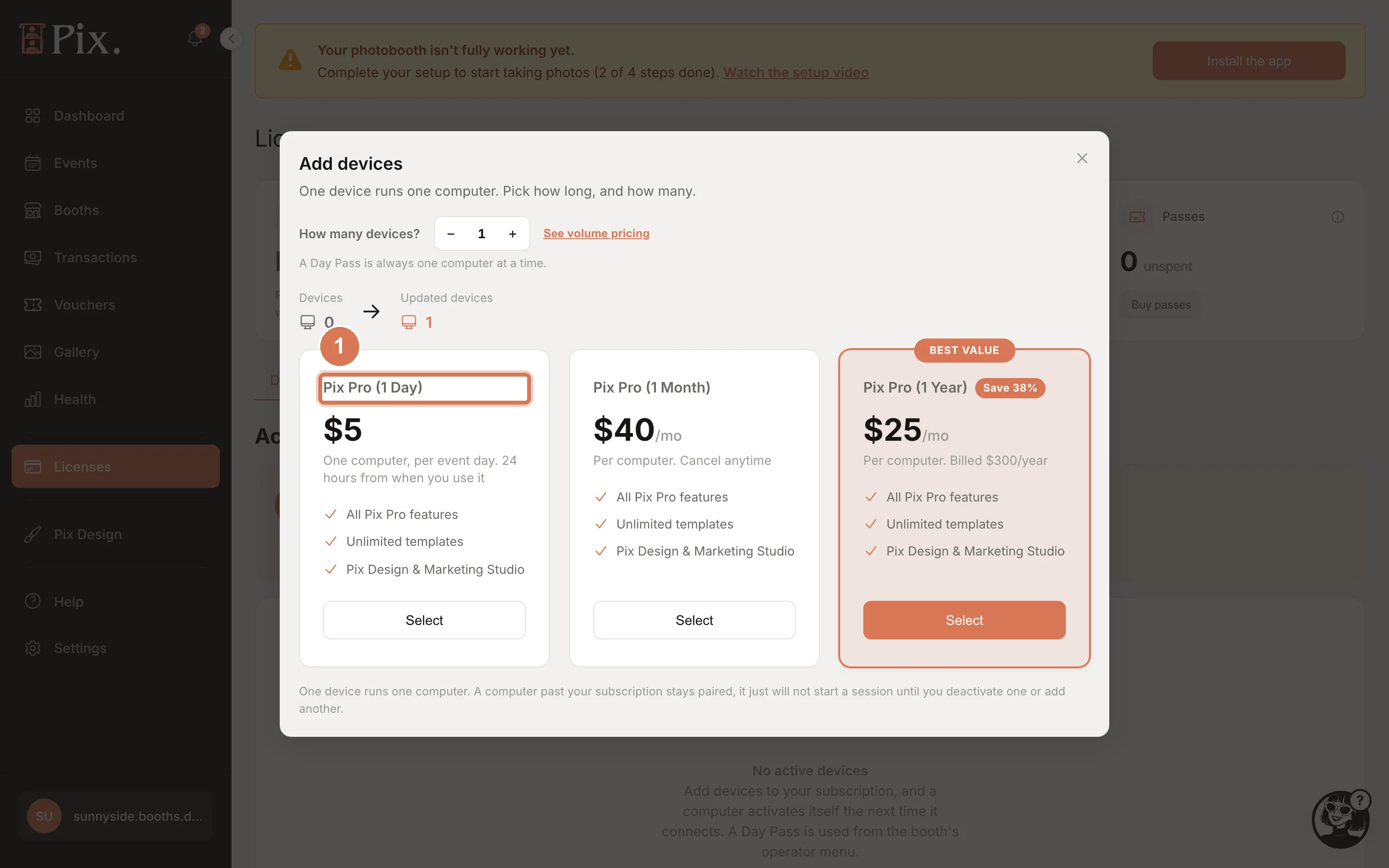
- Click Buy license, then Pix Pro. The checkout reads "One device runs one computer. Pick monthly or yearly, and how many."
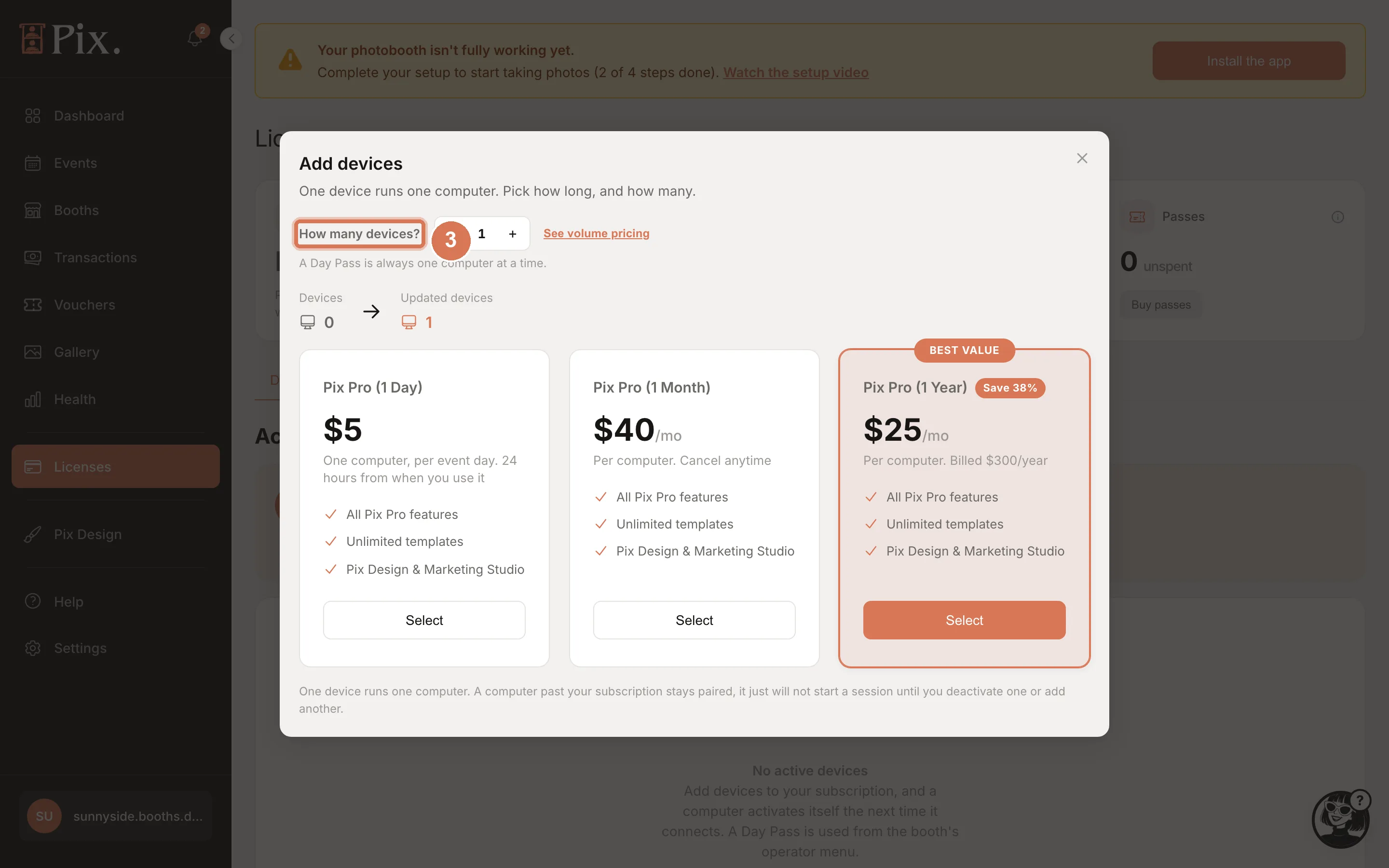
- Set How many devices? The counter shows Devices now and Updated devices after the purchase.
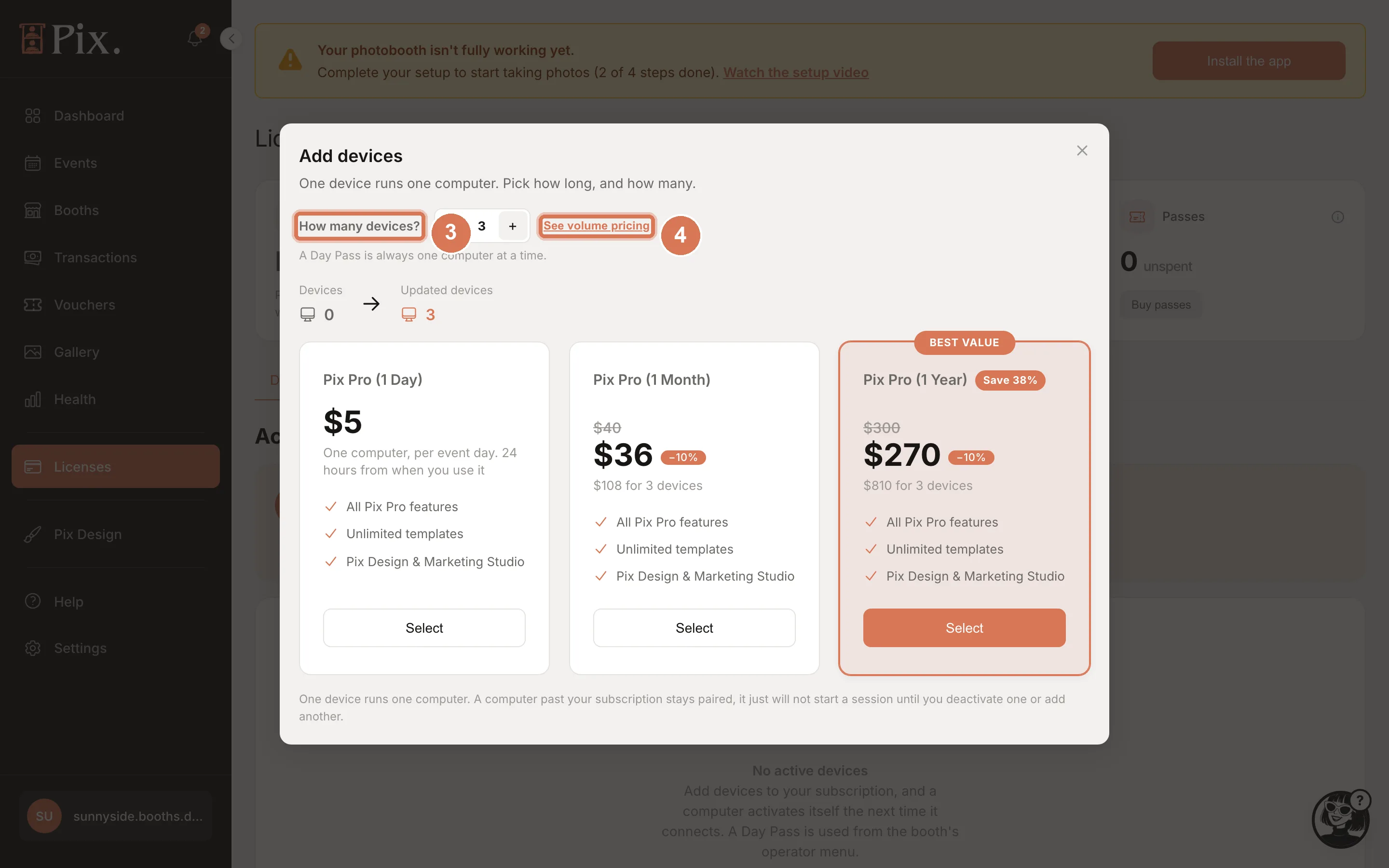
- Click See volume pricing to see how the per-device price changes with quantity; several devices bought together cost less each.
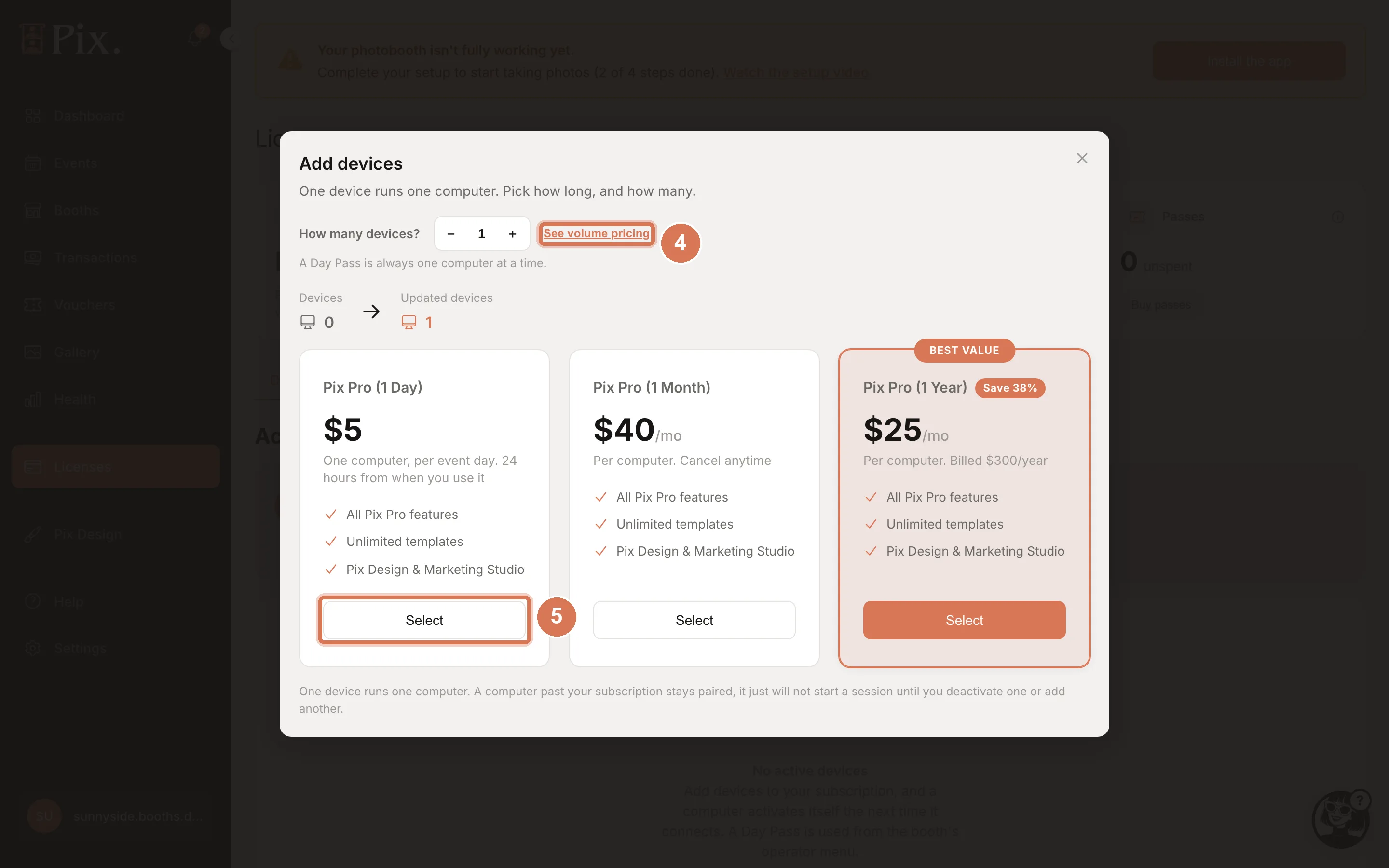
- Click Select on Pix Pro (1 Month) ($40 per computer per month, cancel anytime) or Pix Pro (1 Year) ($25 per computer per month, billed $300 per year, marked BEST VALUE) and complete checkout. If you already pay by card, a Confirm this charge step shows the amount and Add and pay.
From Indonesia the same modal shows rupiah prices, prepaid: Pix Pro (1 Month) Rp 850.000 and Pix Pro (1 Year) Rp 6.500.000, with a promo code field.
Step 2: Pair the new computer
- Open Booths, click Configure on the new booth, open the Device tab and click Generate code.
- Enter the 6-digit code in the Pix Desktop App on the new computer within 10 minutes.
- The computer takes the free place on its first check-in and appears under Active devices with Pix Pro in the PLAN column.
Buy first, then pair: when every place is taken and there are no unused Event Passes, the pairing code is refused with "Device limit reached".
Step 3: Move Pix Pro to another computer
You are retiring a booth computer and want its Pix Pro on the replacement. Nothing is bought; the place moves.
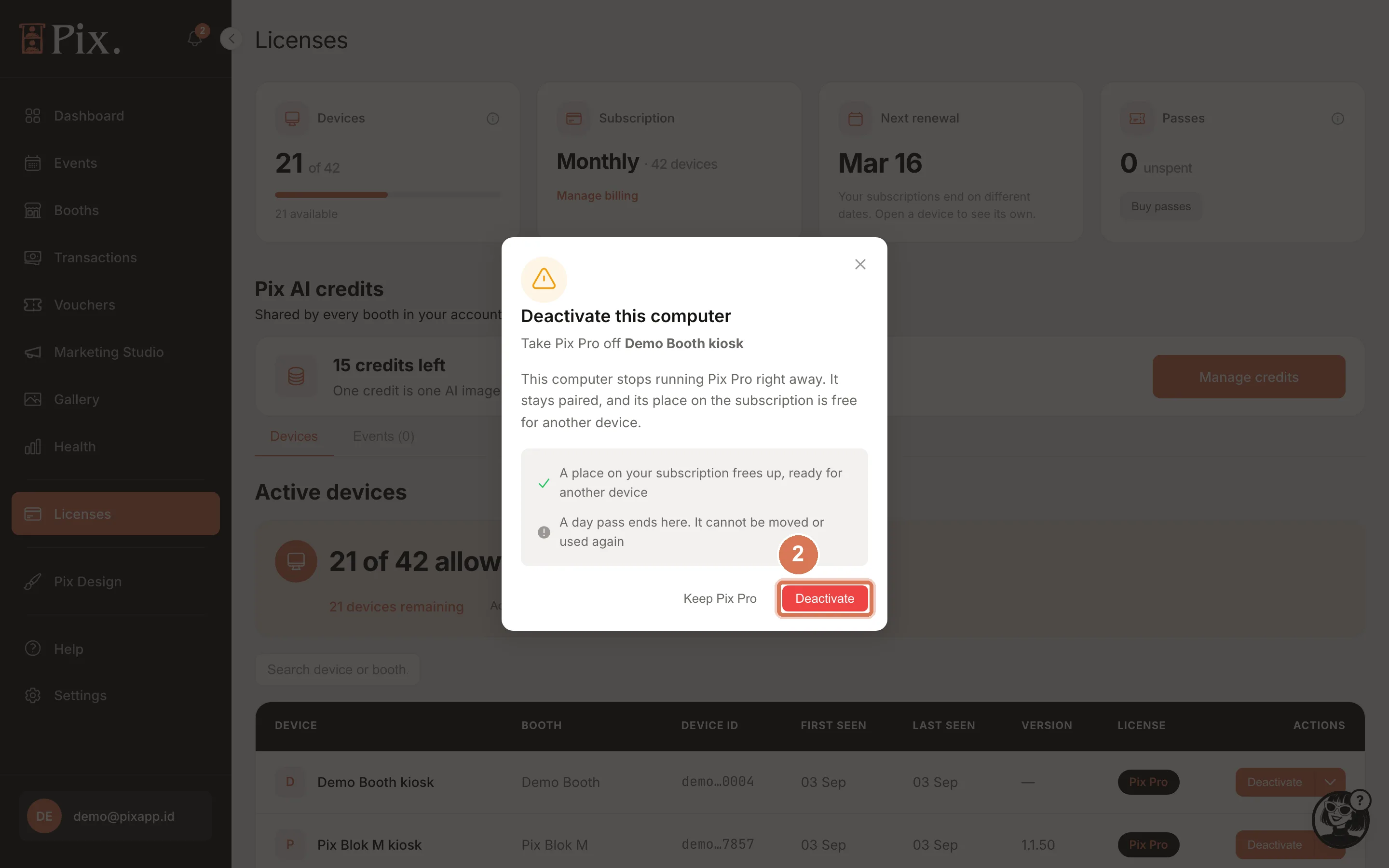
- On Devices, find the old computer under Active devices and click Deactivate.
- In Deactivate this computer, read the note: a place on your subscription frees up. Click Deactivate, or Keep Pix Pro to back out.
- Pair the new computer (Step 2). If it is already paired and Blocked, just leave the Pix Desktop App running: the next computer that checks in takes the place.
Two other actions free the place as well: logging the booth out (operator menu > Logout) and Unlink on the booth's Device tab. Both return Pix Pro, or the free trial, to your account, and the next computer to check in takes it. An Event Pass does not move; see Step 4.
If several Blocked computers are online, the first one to connect after you deactivate takes the freed place. Deactivate while only the intended computer is running the Pix Desktop App.
Step 4: Use an Event Pass for one event day
An Event Pass is 24 hours of Pix Pro on one computer, starting from the moment you use it at the booth: $5 (Rp 85.000).
- On Devices, click Buy Event Passes on the Event Passes card (or Buy license and pick Event Pass), choose how many and pay. The card shows how many are unused.
- On the day, at the booth: on an event, tap Use Event Pass when the booth asks "Use an Event Pass for today?". Otherwise open the operator menu (tap the top-right corner twice within 3 seconds and enter the PIN if one is set) and tap Use an Event Pass on this computer. The button appears only while the computer has no Pix Pro. The booth must be online at that moment.
- The operator menu badge now reads Event Pass until a time. The booth warns on its idle screen 60 and 15 minutes before the Event Pass ends; when it ends, a popup says "Your Event Pass has ended" and guests see "Please call the operator."
Rules that only apply to Event Passes:
- An Event Pass is used at the booth, never from the dashboard.
- An Event Pass ends where it started. Deactivate on a computer running an Event Pass ends it; it cannot be moved or used again. Logging the booth out leaves the Event Pass on that computer.
- A computer paired while you hold unused Event Passes stays Blocked until one is used on it. Pixture never starts an Event Pass for you, since that would start the 24 hours without asking.
Step 5: On Pix Starter
Pix Starter has no subscription. Devices reads "No devices yet", one computer is paired, and every photo, print and GIF carries the Pixture watermark. A second computer is refused at the pairing code. To run more computers, start the 3-day free trial (one computer) or click Buy license.
Before Pix Pro Ends
- A subscription that will not renew warns 7 days and 1 day ahead by email and a dashboard banner, and the booth page badge shows the end date (Pix Pro until a date).
- A failed renewal charge sends an email and shows a banner at once. The PLAN column reads Pix Pro, payment failed and the booth shows a payment-failed banner. You have 3 days to fix the card under Settings > Pixture billing before the computer is Blocked.
- An Event Pass or the free trial warns on the booth idle screen 60 and 15 minutes before the end.
- When the last place ends, the account returns to Pix Starter, watermarked.
Check It Worked
- The Devices card counts the new computer, and its row under Active devices shows Pix Pro with today's FIRST SEEN date.
- Booths shows Pix Pro under PLAN for that booth.
- The booth operator menu badge reads Pix Pro, and a test session has no watermark.
Troubleshooting
| Symptom | Cause | Fix |
|---|---|---|
| Pairing shows "Device limit reached" | Every place is taken and there is no unused Event Pass, or this is a second computer on Pix Starter | Deactivate a computer, add a device or buy an Event Pass. Pix Starter runs one computer |
| The new computer is paired but Blocked | No free place, or you hold unused Event Passes and none is used on it yet | Deactivate another computer or add a device; or Use an Event Pass on this computer |
| Deactivate freed a place but the new computer is still Blocked | It has not checked in yet, or another computer took the place | Make sure the Pix Desktop App is running and online; check Active devices |
| An Event Pass disappeared after Deactivate | Deactivate ends a running Event Pass | Buy another Event Pass; deactivate only subscription computers you mean to move |
| PLAN reads Pix Pro, payment failed | The renewal charge failed | Update the card under Settings > Pixture billing within 3 days |
| Booth badge reads "Pix Pro ended, reconnect to check" | The computer was offline when its period ended | Reconnect it; the booth checks again |