Install the Pix Desktop App
By the end of this page the Pix Desktop App, the booth software that runs your photobooth, is installed on the booth computer and open on its pairing screen. The current version is 1.1.115.
Before You Start
- A Mac on macOS 13 or later (Apple Silicon or Intel), or a Windows 10 or 11 (64-bit) PC.
- At least 3 GB of free disk space. The booth warns you below that and cleans up its cache below 1 GB.
- Internet access for the download, pairing and updates.
Download
-
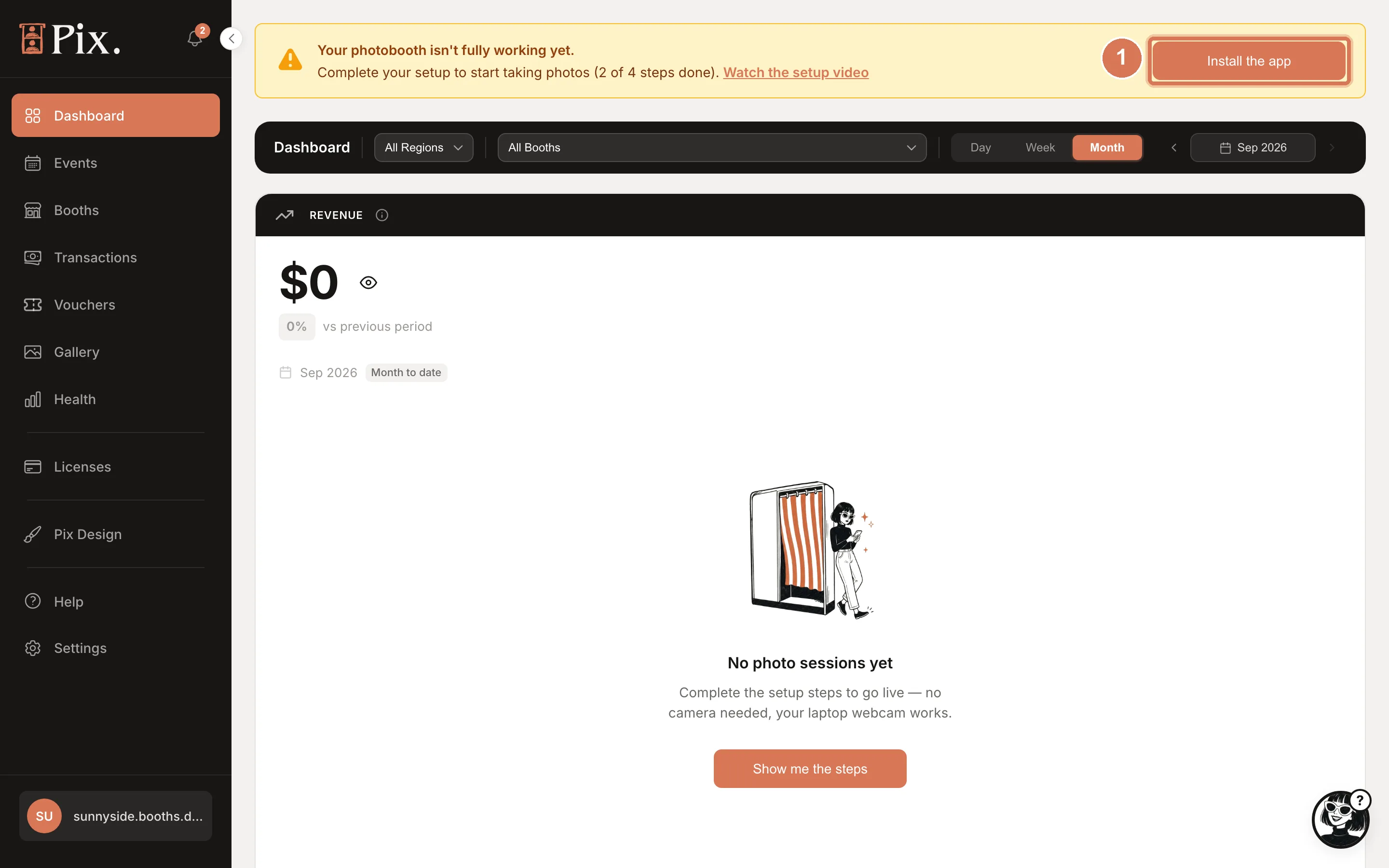
Go to pixture.io/download. The page highlights the build for the computer you are on; every build is listed. You can also get there from the setup banner in your dashboard by clicking Install the app, or from Settings > Download App.
-
Pick the installer: the macOS disk image (one build for both Apple Silicon and Intel Macs) or the Windows installer. On Apple Silicon, version 1.1.115 or newer encodes live photos, filters and GIFs natively, with no Rosetta needed.
Install on macOS
- Open the downloaded
.dmgfile. - Drag Pix into your Applications folder.
- Open Pix from Applications. The first time, macOS may ask you to confirm because the app came from the internet. Click Open.
The macOS build is signed and notarised, so there are no further prompts.
Install on Windows
- Run the downloaded
.exeinstaller. - Follow the prompts. The default install location is fine.
- Open Pix from the Start menu or the desktop shortcut.
The Windows installer is not code-signed yet, so SmartScreen shows a warning the first time you run it. Click More info, then Run anyway.
First Launch
The app opens full screen on the pairing screen. There are two ways in:
- Pair the booth: type the 6-digit code from the booth's Device tab in the dashboard. This is the normal path; the full steps are in Pair Your First Booth.
- Try it without an account. Tap this to run the booth unpaired with the built-in frames and screens. It prints if a printer is set up and puts the Pixture watermark on everything. There is no cloud upload and no QR code sharing in this mode. When you are ready, open the operator menu and tap Pair to your Pixture account.
The app updates itself: it checks for updates on its own, downloads them in the background and restarts when the booth is idle. See Software Updates.