Pair Your First Booth
By the end of this page the booth computer is linked to a booth in your dashboard, has downloaded that booth's templates and screen design, and is showing its start screen. The dashboard shows the booth as Online with the computer's name. Pairing takes two minutes.
Before You Start
- The Pix Desktop App is installed and open on its pairing screen on the booth computer.
- You are logged in to the dashboard on any other device, for example your phone.
- A booth to pair. Quick setup already created one; you can also create a new one below.
Steps
-
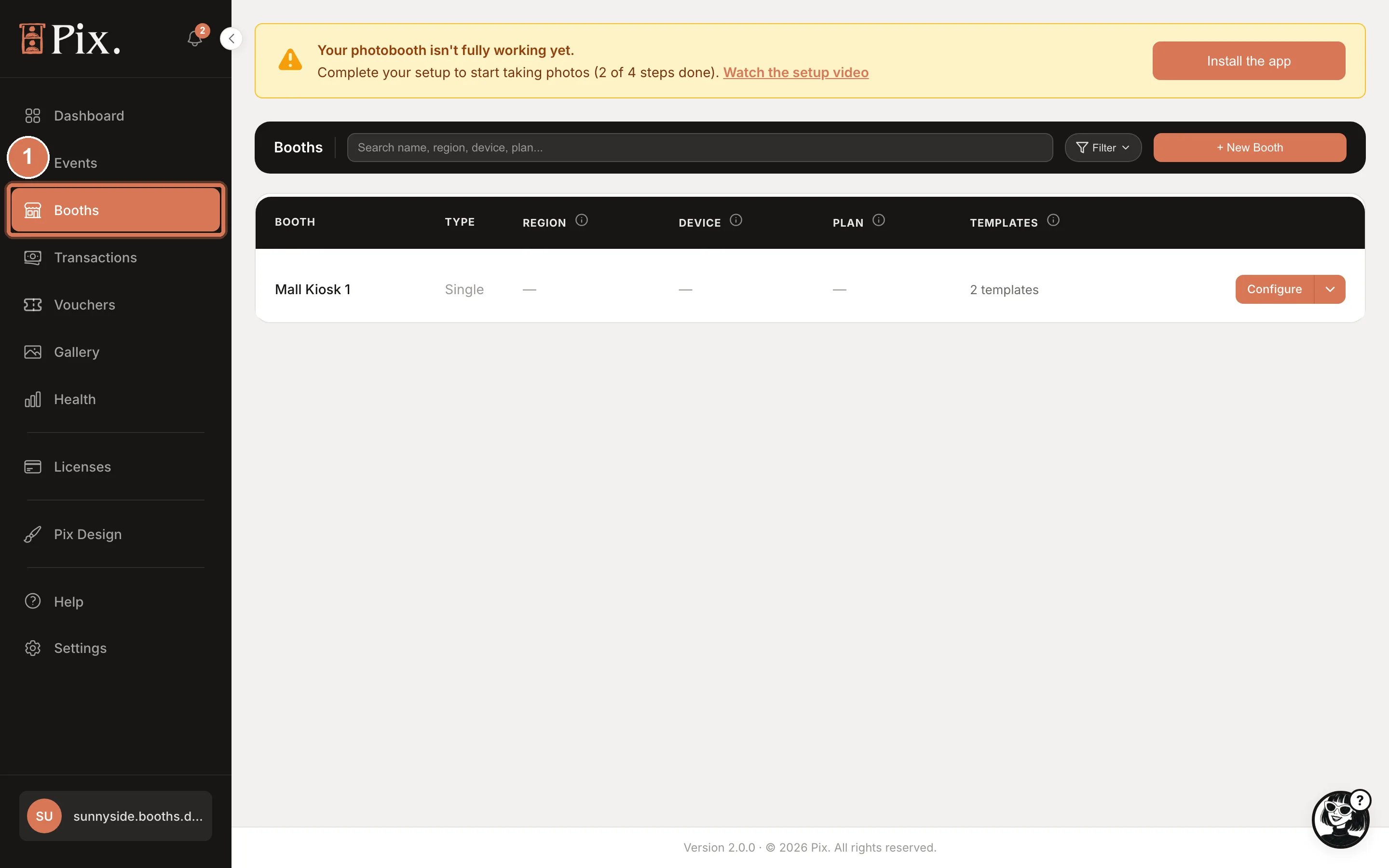
Open Booths in the sidebar. The booth from Quick setup is listed with no device and a dash in the Plan column.
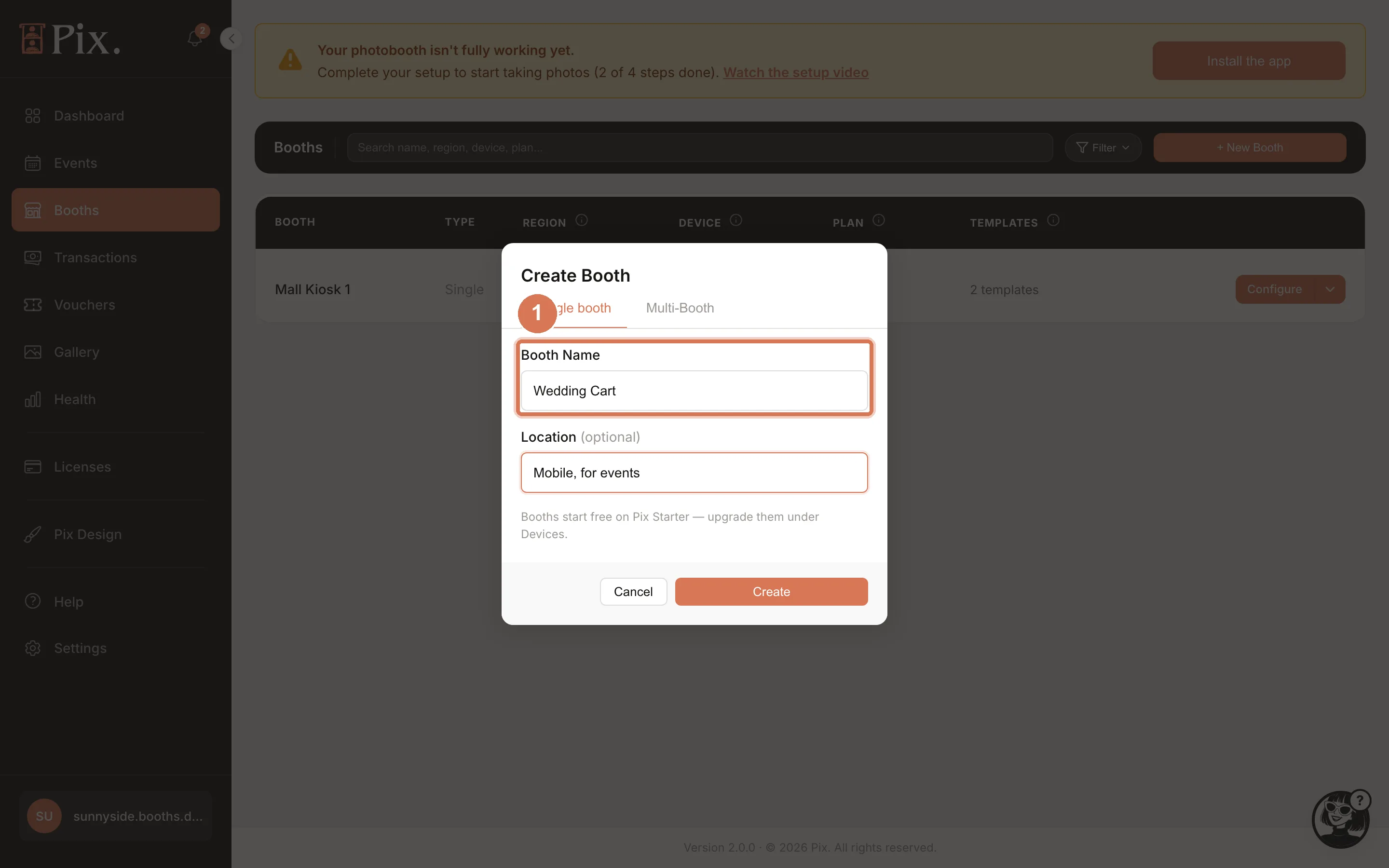
To add another booth, click + New Booth, stay on the Single booth tab, enter a Booth Name and, if you like, a Location, then click Create. Booths are free, so create one for every photobooth you run.
-
Click Configure on the booth. The first time you open a booth that has no computer, a popup says "Pair your booth first" and explains that the booth is not paired to a device yet. Click Generate pairing code.
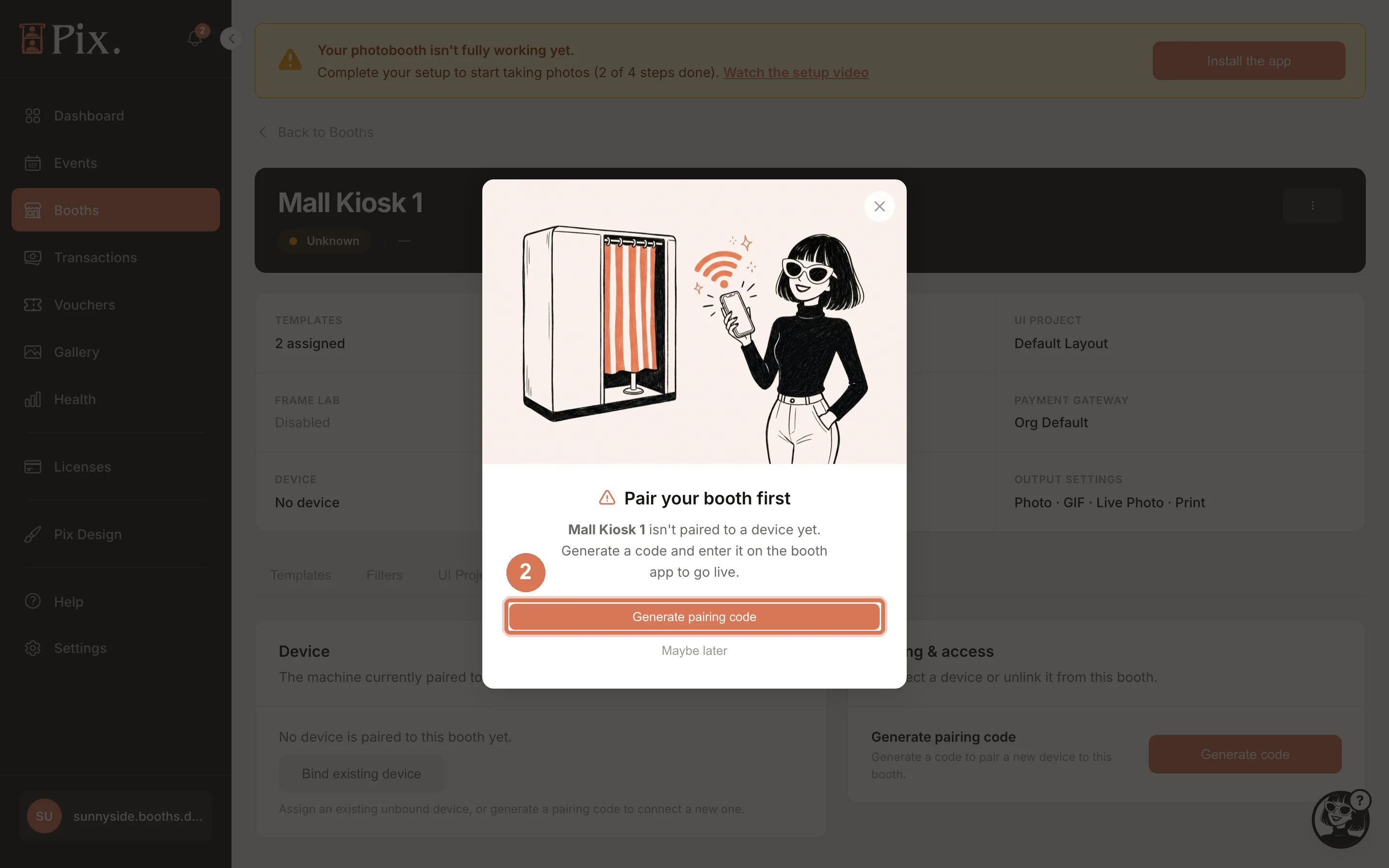
If you clicked Maybe later earlier, open the booth's Device tab and click Generate code under Pairing & access instead. Both open the same modal.
-
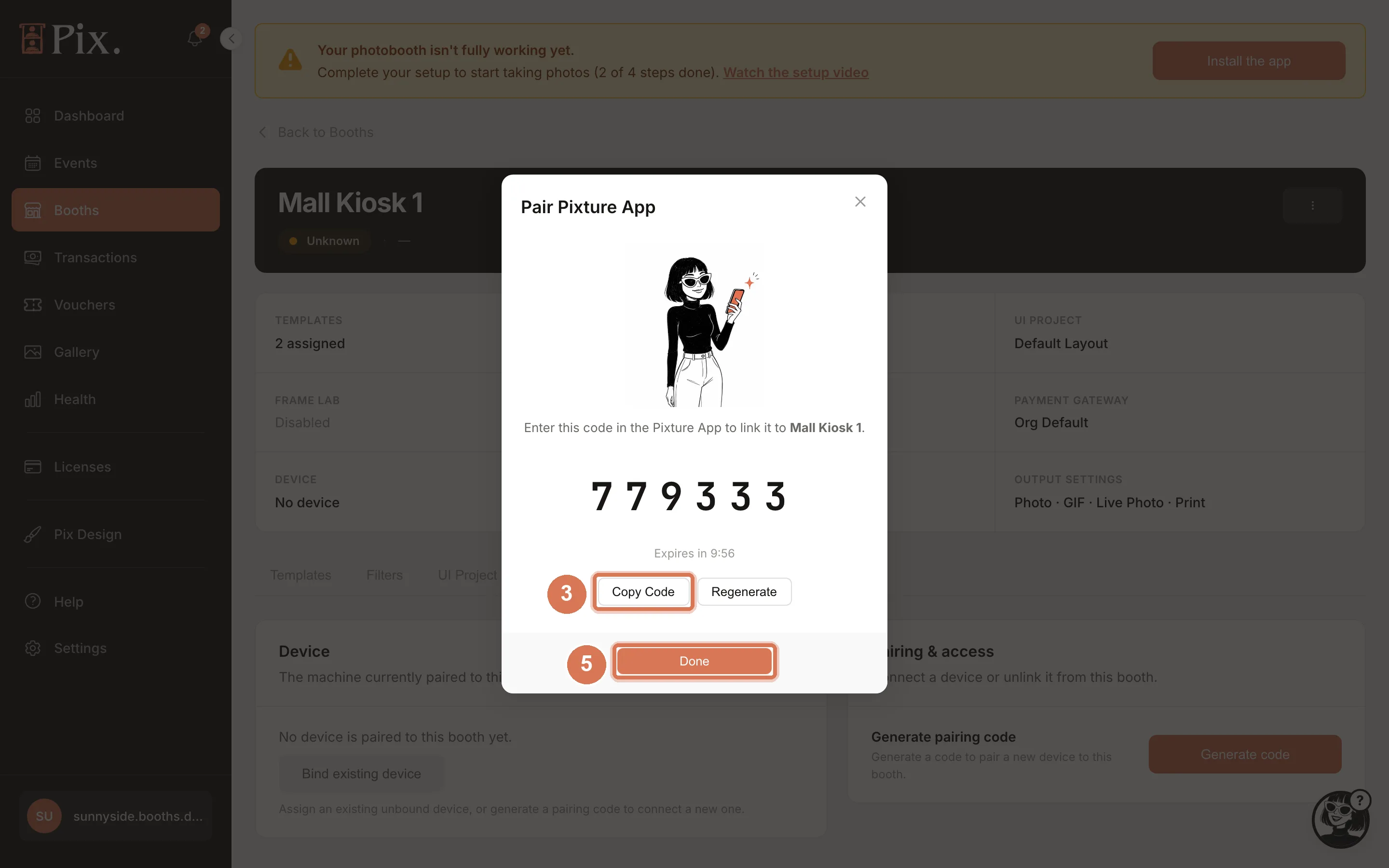
The Pair Pixture App modal shows a 6-digit code and the line "Enter this code in the Pixture App to link it to" your booth. The code expires in 10 minutes; the countdown is on the modal. Copy Code copies it, Regenerate makes a fresh one.
-
On the booth computer, type the 6 digits on the app's pairing screen.
-
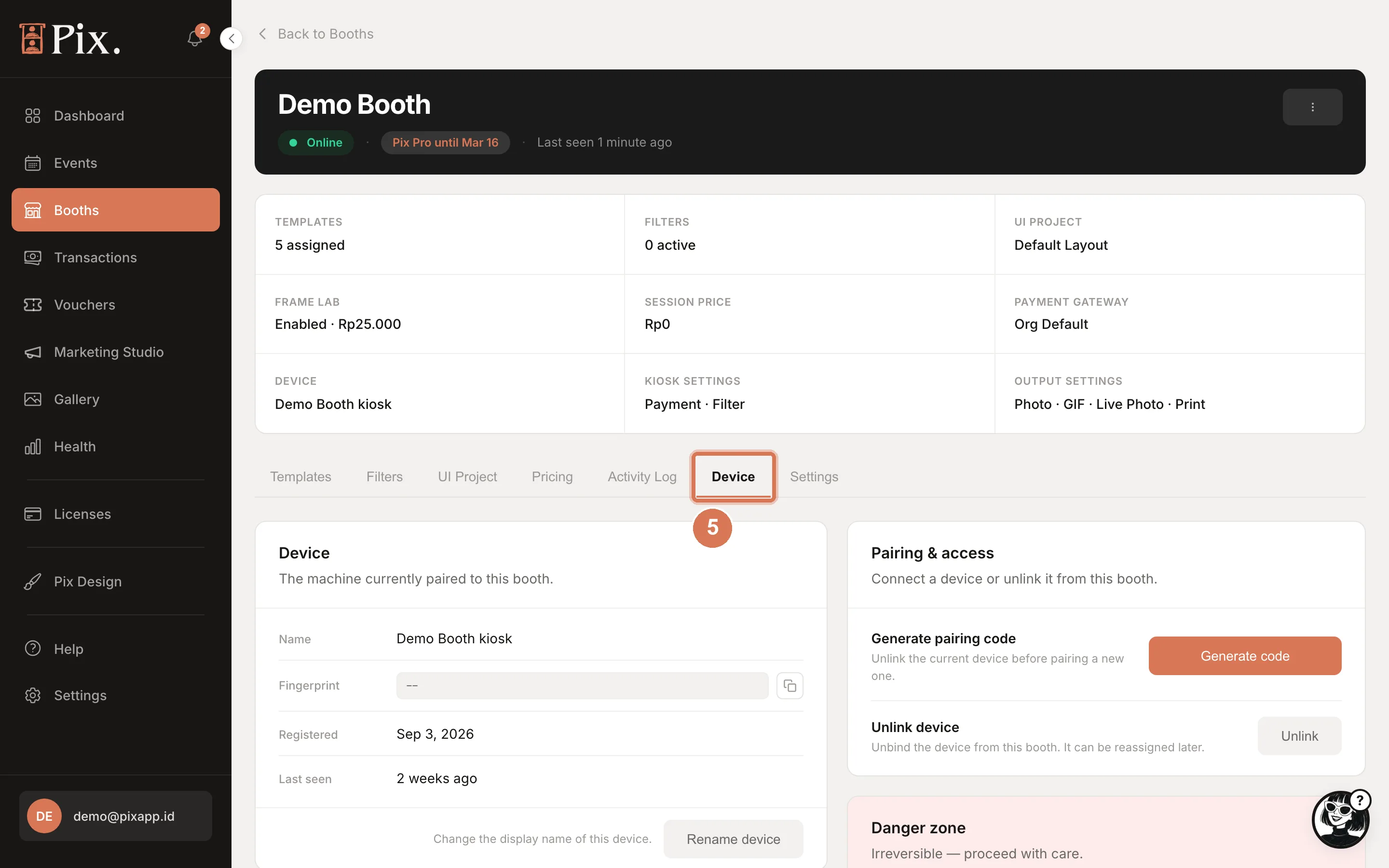
The booth downloads its templates, screen design and pricing and shows the start screen. Click Done on the modal. Back in the dashboard, the booth's status turns Online and the Device tab shows the computer's name, its fingerprint and when it was last seen.
What Happens Next
- The badge on the booth. Open the operator menu on the booth (tap the top-right corner twice within three seconds). The footer shows the booth name, your email and a plan badge: Watermarked on Pix Starter, Pix Pro, Trial until … or Event Pass until … once the computer holds Pix Pro. See Pix Pro on the Booth.
- On Pix Starter, one computer is all the account runs. Pairing a second computer is refused at the code. Replacing the computer on a booth that already has one works: click Unlink on the Device tab, then generate a new code for the new computer.
- On a Pix Pro account, a spare place on your subscription attaches itself to the computer when it checks in. If every place is taken, the computer stays paired but cannot start a session until you click Deactivate on another computer or Buy license on the Devices page. If the modal reports "Device limit reached", free a place and click Try Again.
- One computer per booth. The Generate code button is disabled while a computer is linked. To move the booth to a different computer, Unlink the old one first. Pix Pro and the free trial follow to the new computer; an Event Pass stays where it was used.
- Online means a recent check-in. The booth checks in every few minutes; the dashboard shows it Online when it has been heard from in the last 12 minutes.
Pair from your phone. Open the dashboard in the phone's browser, generate the code, and type it on the booth while standing in front of it.