Queue Line
A queue line lets customers get a number on their phone, walk away, and come back when the display calls them. Each booth has its own line, so a customer waiting for Booth A is not stuck behind someone waiting for Booth B. At the end you have a line running on your booths, a display on a TV, and a phone ticket for every customer.
The queue line is a Pix Pro feature. It lives inside a Multi-Booth group, and every booth in the group needs the Pixture Photobooth 1.2.37 or newer.
Before you start
- A Multi-Booth group with your booths in it. See Multi-Booth Setup.
- Pix Pro on your account.
- Pixture Photobooth 1.2.37 or newer on each booth. Booths on an older version are listed in a warning at the top of the Queue tab ("1 booth needs app 1.2.37 or newer"). Tap Show to see which ones, and update them.
Step 1: Turn the line on
- Open Booths and open your Multi-Booth group.
- Go to the Queue tab.
- Under Queue line, pick a mode.
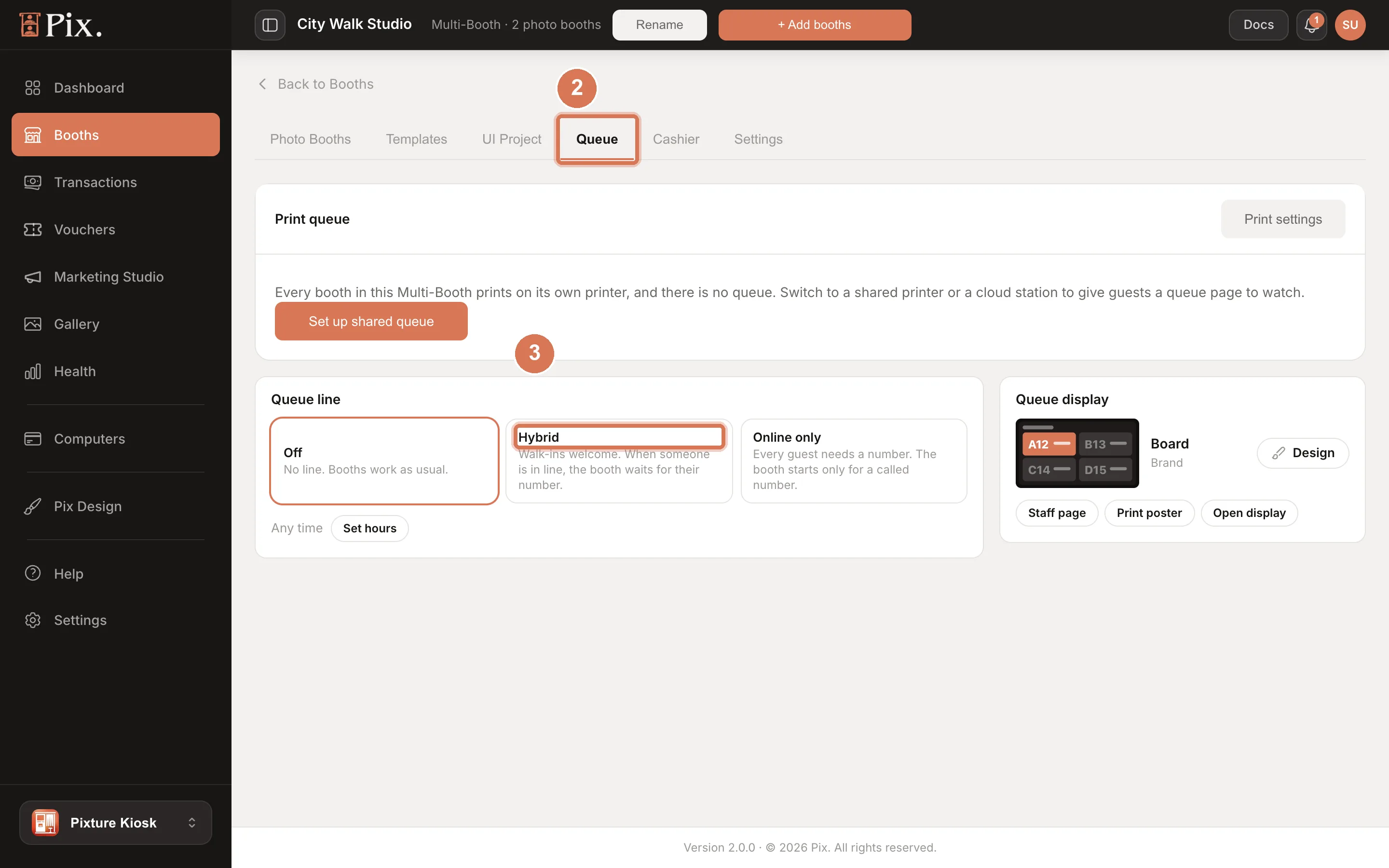
| Mode | What happens |
|---|---|
| Off | No line. Booths work as usual. |
| Hybrid | Walk-ins are welcome. When someone is in line, the booth waits for their number. |
| Online only | Every customer needs a number. The booth starts only for a called number. |
Your choice saves as soon as you tap it.
Step 2: Check the booth letters
Each booth gets its own line, named by a letter: A, B, C and so on. The letters I and O are skipped, so they are never mixed up with 1 and 0.
Numbers count per booth, per day. Booth A hands out A1, A2, A3. Booth B hands out B1, B2, B3. Tomorrow each line starts again at 1.
Once the line is on, the Booth letters section shows each booth with its letter and how many people are in line. To change a letter, tap it, then tap a new one. Letters already used by another booth are greyed out. Take out of line removes the booth from the queue. Waiting numbers carry over.
Step 3: Set opening hours (optional)
The Queue tab shows Any time by default: the line takes numbers all day. Tap Set hours, choose Opens and Closes, and tap Save. The line then takes numbers only between those hours. Clear goes back to Any time.
If someone has a number when the line closes, they keep their place. Their ticket stays valid, and they are first in line when it opens again.
Step 4: Show the display and the poster
The Queue tab has three buttons.
- Open display opens the queue display, the page you put on a TV. See Queue Display.
- Print poster opens a ready-to-print A4 sign with a QR code and the steps, in English and Indonesian.
- Staff page opens the page your staff use to run the line.
Put the display where customers can see it and the poster next to the booths. The QR on both leads to the join page, where customers pick a booth and get a number.
How customers get a number
A customer gets a number in one of three ways. In each case they pick the booth they want.
- Buy in your Website shop. The booth chosen at checkout is the booth whose line they join.
- Central Cashier. A sale at the counter, or online, gives a number too. See Multi-Booth Setup.
- Already have a code. On the join page, the customer taps Already have a code?, types the code, and gets a number for it. Customers reach the join page from the QR on the display, the poster or the booth.
A code works at every booth in the group, even when its number belongs to one booth's line.
A Central Cashier code expires 2 days after it is bought. A customer who has a number for it keeps their place until then.
What the customer sees
After getting a number, the customer's phone shows a live ticket page. It has their number, the booth, how many people are ahead and a rough wait. They should keep the page open: it buzzes and chimes when they are called.
When their number is called:
- The ticket page shows It's your turn and the booth to go to.
- They have 2 minutes to reach the booth.
- At the booth, they enter their code to check in.
If they miss it, the ticket says You missed your turn. They tap I'm here, put me back once to return to the line, right after the next person. They keep their code. A second miss sends them to the back.
A ticket for several sessions works as one ticket: the customer plays all their sessions back to back when called.
What the booth does
With the line on, the booth shows the line. A free booth calls the next number in its own line. In Hybrid, a booth with nobody waiting works as usual, so walk-ups can pay at the booth. In Online only, the booth starts only for a called number. A customer who types a code when it is not their turn sees a message with their place in line.
Run the line from the staff page
Open Staff page on the Queue tab. Each booth has a card with its line. For each ticket you can:
- Call a number to a free booth early. The line calls the next number on its own whenever a booth frees up.
- Skip a number. The customer sees that they missed their turn.
- Put back a missed number into the line.
- Move to another booth. The ticket keeps its number and its place in time. A12 moved to Booth B is still A12.
- Close line or Open line for a booth, for example during a break.
- Sell at the counter to sell a session to a customer standing in front of you. It uses your Central Cashier products and prices, and the customer gets a number.
Limits
- The queue line needs Pix Pro and Pixture Photobooth 1.2.37 or newer. An older booth is listed in the Queue tab warning.
- Central Cashier codes expire 2 days after purchase.
- A booth without a letter never calls a number. It shows as not in line.
- Letters run A to Z without I and O. A group with more booths than letters cannot give every booth a line.
FAQ
Why is the display silent?
Browsers block sound until someone taps the page. Tap the screen once, or tap the Tap for sound pill. On a TV that nobody is next to, start Chrome with --autoplay-policy=no-user-gesture-required so sound works without a tap. See Queue Display.
What happens if a customer misses their call? After 2 minutes the booth moves on to the next number. The customer's ticket says You missed your turn, and they tap I'm here, put me back once to return to the line. They never lose a paid session.
Can I move a ticket to another booth? Yes. On the Staff page, open the ticket's menu and choose Move to. The ticket keeps its number and its place in time.
What if the line closes with people still waiting? They keep their place and are first when the line opens again.