Pixture Manager for iPhone
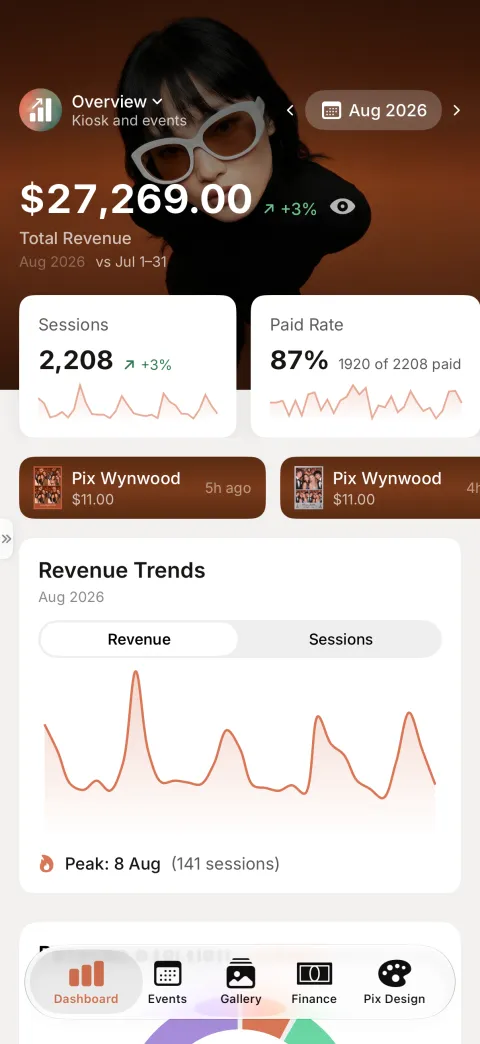
Pixture: Photobooth Manager is the dashboard as an iPhone app. Watch revenue, run events, pair computers, check booth health, answer alerts and edit templates from your phone. It uses the same account as the dashboard at pixture.io: anything you change in the app shows on the website, and the other way round.
The app manages your account. It does not take photos: your booths still run the Pixture Photobooth app on a computer.
Get the App
- On your iPhone, open the App Store and search for Pixture, or open Pixture: Photobooth Manager.
- Tap Get. The app is free and needs iOS 18 or later.
- On your home screen it is called Pixture Manager.
The app is made for iPhone. An iPad can install it, but it runs at iPhone size.
Sign In
The start screen offers Continue with Google, Continue with Apple and or continue with email. Use the same method you use on the website. The button you used last carries a Last used chip.
With email, enter your Email, tap Continue, then your password and Sign in. Forgot password? sends a reset link.
When you come back to the app, it asks for Face ID (Unlock Pixture). Changing prices or a booth's UI project asks for Face ID or your passcode again.
The app opens the organization you last picked on the website. To switch, log in to pixture.io, pick the other organization, then reopen the app.
Create an Account
New here? Tap Create an account. With Google or Apple you skip straight to your business details. With email the app asks, one screen at a time:
- What's your email? Then Check your email for a 6-digit code.
- Create a password.
- What's your business called?
- Your WhatsApp number, then Enter the code sent by WhatsApp. No WhatsApp? Tap No WhatsApp? Use email instead.
If someone invited you to their team, you see You've been invited. Tap Accept invitation to finish on the website.
Quick Setup
A new account opens Quick setup: your Business name, a Booth Name, Currency, Timezone and an optional Location. Then Connect your booth shows a pairing code: install the booth app on your computer and type the code there. Tap Skip to do it later.
Until your first booth is live, the Dashboard shows a checklist card, Your photobooth isn't live yet, with three steps: Install the app, Pair your photobooth and Run a test session. Send link to my computer sends you the download link (pixture.io/download), so you can open it on the computer that will run the booth.
Find Your Way Around
The tab bar at the bottom has five tabs:
| Tab | What it is for |
|---|---|
| Dashboard | Revenue, sessions, paid rate, revenue trends, top templates, booth health and the latest sessions |
| Events | Your events, live ones first. Accounts without events see Booths here instead |
| Gallery | Photos from every booth |
| Finance | Transactions. Shown to people allowed to see money |
| Pix Design | Brand, Template Editor, UI Editor, Photo Filters and more |
The side menu holds everything else. Swipe in from the left edge of the screen, or tap the small tab on the left edge. It lists Dashboard, Finance, Vouchers, Promo, Payment Gateway, Booths, Events, Health, Computers, Gallery, Users and Pix Design, with the notifications bell at the top. Your role decides which items you see.
The workspace switcher sits at the bottom of the side menu and at the top of the Dashboard. On an account with events it switches between Overview, Pixture Kiosk and Pixture Event, the same as the website. See Pixture Event, Pixture Kiosk and Overview.
Lucy, the Pixture guide, is one tap away on every screen. See Notifications, Lucy and Settings.
Do These on the Website
A few things live only on pixture.io. The app says so when you reach them.
- Buying. Pix Pro, Event Passes and Pix AI credits are bought on the website, under Computers. The app shows what you have but sells nothing.
- Creating or editing UI projects. The app can assign a UI project to a booth. Design it in the UI Editor on the website.
- Creating or editing promos. The app lists them.
- Connecting a payment gateway. The app lists gateway transactions. Set the gateway up under Settings on the website; see Create a payment gateway.
- Connecting Instagram, downloading a whole event album and detailed organization settings.
- Switching organization and accepting a team invitation.
- Very large templates. Artwork over 15 MB and some cut-out slots need the website's Template Editor.
Language and Dark Mode
The app's screens are in English. Lucy answers in your phone's language. The app follows your iPhone's light or dark setting.