Money, Gallery and Pix Design on iPhone
Finance
The Finance tab is your list of transactions. Filter by Paid, Pending or Failed and by Date range, and Export the list. Open a transaction for its Breakdown. If a payment looks stuck, Check with payment gateway asks the gateway for its latest status.
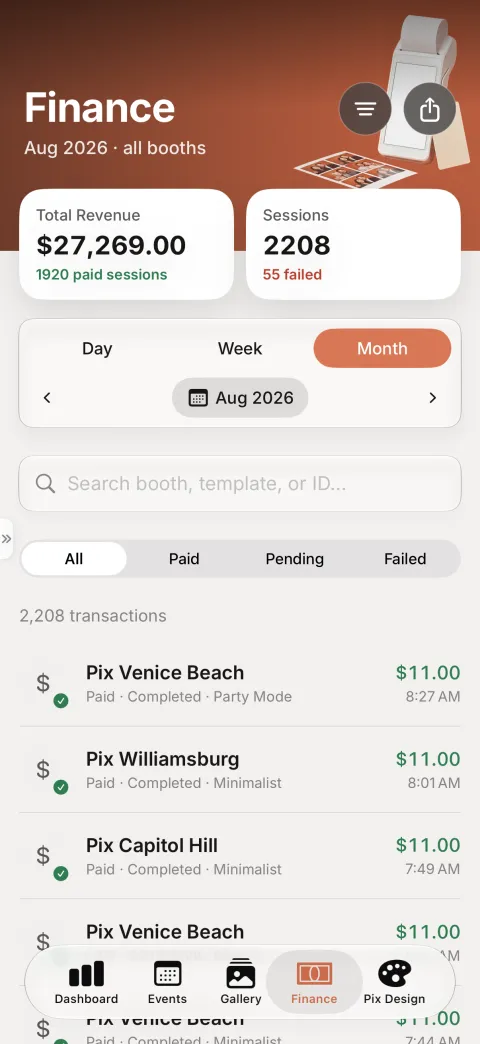
Finance shows only to people whose role can see transactions. See Transactions.
Payment Gateway
Payment Gateway (side menu) lists the payments your gateway received. Validate Transaction checks one against the gateway. Connect or change the gateway itself on the website; see Create a payment gateway.
Vouchers and Promo
Vouchers shows your codes and Batches. New Voucher creates one on the spot, for example a free session for a customer at the counter. See Vouchers.
Promo lists your promos. Create and edit them on the website, in Marketing Studio.
Gallery
The Gallery tab shows photos from every booth. Narrow it with All booths. Tap Select to pick several photos, then Share or Delete them. Press and hold a session for Open Softfile, which opens the photo page guests get from the QR code, or Share to send its link.
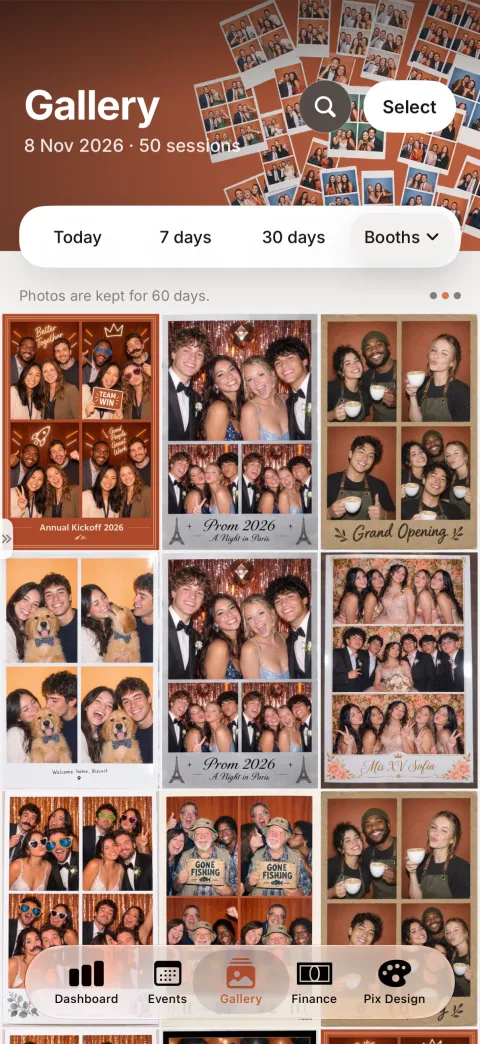
Photos are kept for 60 days. To download a whole event album at once, use Download all on the web. See Gallery.
Users
Users manages your team, with tabs for Members, Invitations and Roles. Invite a teammate sends an invitation. Open a role to choose its permissions and its Booth access. See Settings > Members.
Pix Design
The Pix Design tab has the same areas as the website, as round buttons along the top: Brand, Website, Template Editor, UI Editor, Photo Filters, GIF/Video overlay, Microsite and Pix AI. Website shows on accounts with a Website, and Pix AI on accounts in the beta.
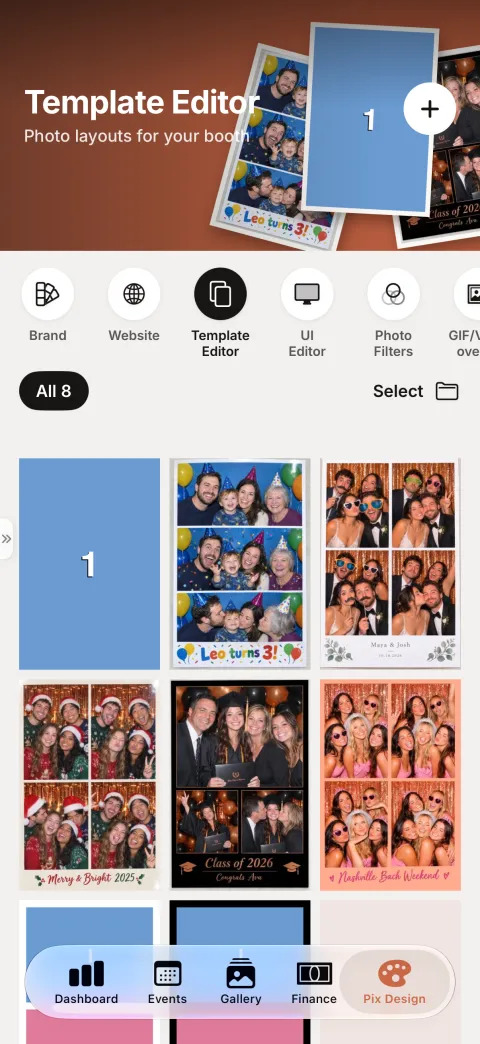
| Area | On the iPhone |
|---|---|
| Brand | Logo, colours and fonts |
| Website | Home, links, shop and photos. Publish and Share it |
| Template Editor | Photo layouts for your booth (below) |
| UI Editor | Buttons, backgrounds and screens. See your UI projects; Edit on the web opens the website editor |
| Photo Filters | Colour grading for every photo. Add filter |
| GIF/Video overlay | Frames on GIFs and videos. Add overlay |
| Microsite | The page guests get photos on. Copy to booths |
| Pix AI | AI styles guests can choose. Browse styles |
Edit a Template on Your Phone
Tap + in the Template Editor to start a template, or tap one to edit it. The editor has Undo and Redo, Replace artwork, Template settings, Select several, Remove background, Add a QR code and Arrange. Tap Save when you are done.
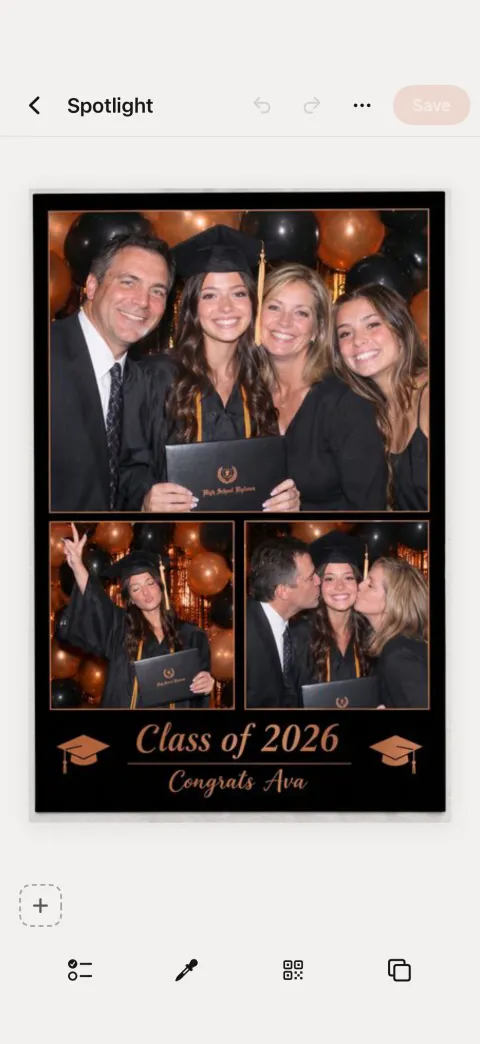
Artwork over 15 MB and some cut-out slots need the website's editor. See Creating Templates.