Events, Booths and Health on iPhone
Everything you need on the floor of an event, from your phone. For the full picture of each feature, see its dashboard page linked below.
Events
The Events tab lists live events first, then the ones coming up and the past ones, each with how many computers it uses. Tap New event to create one, or Filter by date to find an old one.
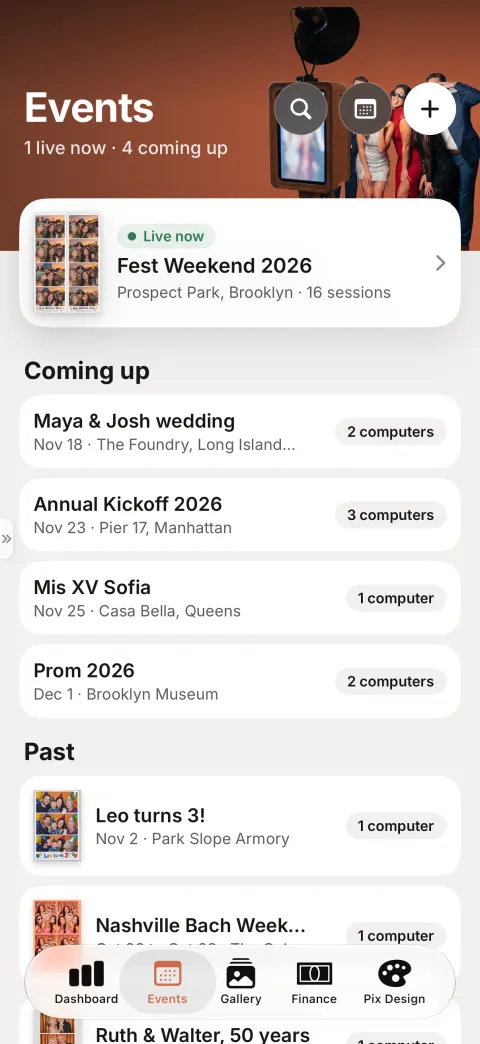
Create an Event
New event walks you through one question per screen:
- Name your event
- What can guests do? Pick the booth modes: Photo, Video, 360/Slow-mo, Studio, Notes, Photographer or Mingle.
- What do guests take home? Prints, GIF, Live photo or Singles.
- When and where?
- Which designs? The templates for this event.
- Free or paid?
- Ready to go. Check the summary and tap Create event.
The Event Page
Open an event for its page. The buttons at the top are Pair, Share, Slideshow and Edit. Below them:
| Section | What it is for |
|---|---|
| Computers | The computers running this event and their Event Pass or Pix Pro |
| Modes | What guests can do at the booth |
| Outputs | What guests take home. Configure changes it |
| Templates | Add a template, Add a template pack or Create a template |
| Appearance | A live preview of the start screen. Tap it to see it full screen |
| Details | Dates, venue and the Album link |
| Photos | The event's photos so far |
The Report shows how the event went. The More menu has Archive event and Delete event. See Events for what each setting does.
Pair a Computer
On an event page, tap Pair. Pair a computer shows a 6-digit code with a countdown. Type it in the Pixture Photobooth app on the computer. A computer that has never run Pix Pro sees Free trial ready for this computer: 3 days of Pix Pro, no card needed.
For a self-service booth, open Booths, open the booth and tap Generate Pairing Code. The code expires in 10 minutes. See Pair your first booth.
Each computer needs Pix Pro or an Event Pass to run. Buy them on the website, under Computers.
Booths
Booths (in the side menu, or the second tab on accounts without events) lists your self-service booths. Add a booth creates one. A booth's page has:
- Pricing: the booth's prices. Add pricing rule adds one. Saving a price asks for Face ID.
- Templates: Assign or Unassign templates.
- UI Project: choose which UI project the booth shows, or remove it. Design UI projects on the website.
- Settings: Output Settings, Payment Gateway Override and Reset Booth Data.
- Activity Log: what happened at the booth and when.
- Computer logs: Request computer logs asks the booth computer to send its logs, handy when support asks for them.
- The computer itself: Link computer, Rename computer or Unlink computer.
See Booths and Booth Pricing.
Computers
Computers lists each computer with its Pix Pro status and its Pix AI credits. Deactivate this computer takes Pix Pro off it. Adding computers and buying passes happens on the website. See Computers.
Health
Health shows which booths are online and the incidents of the Last 7 days: camera, printer, paper and errors. Tap a booth for its details. Turn on booth alerts to hear about problems without opening the app; see Notifications.
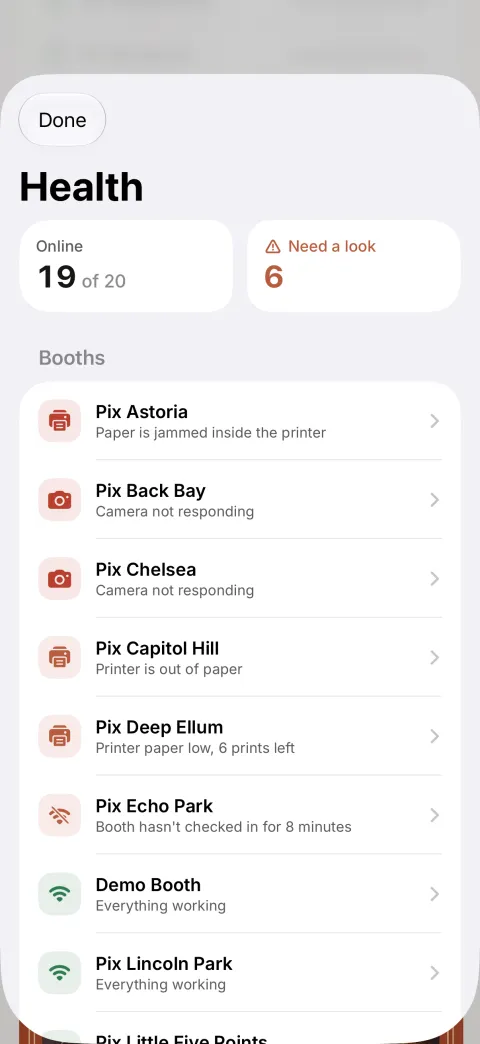
See Health.