Brand
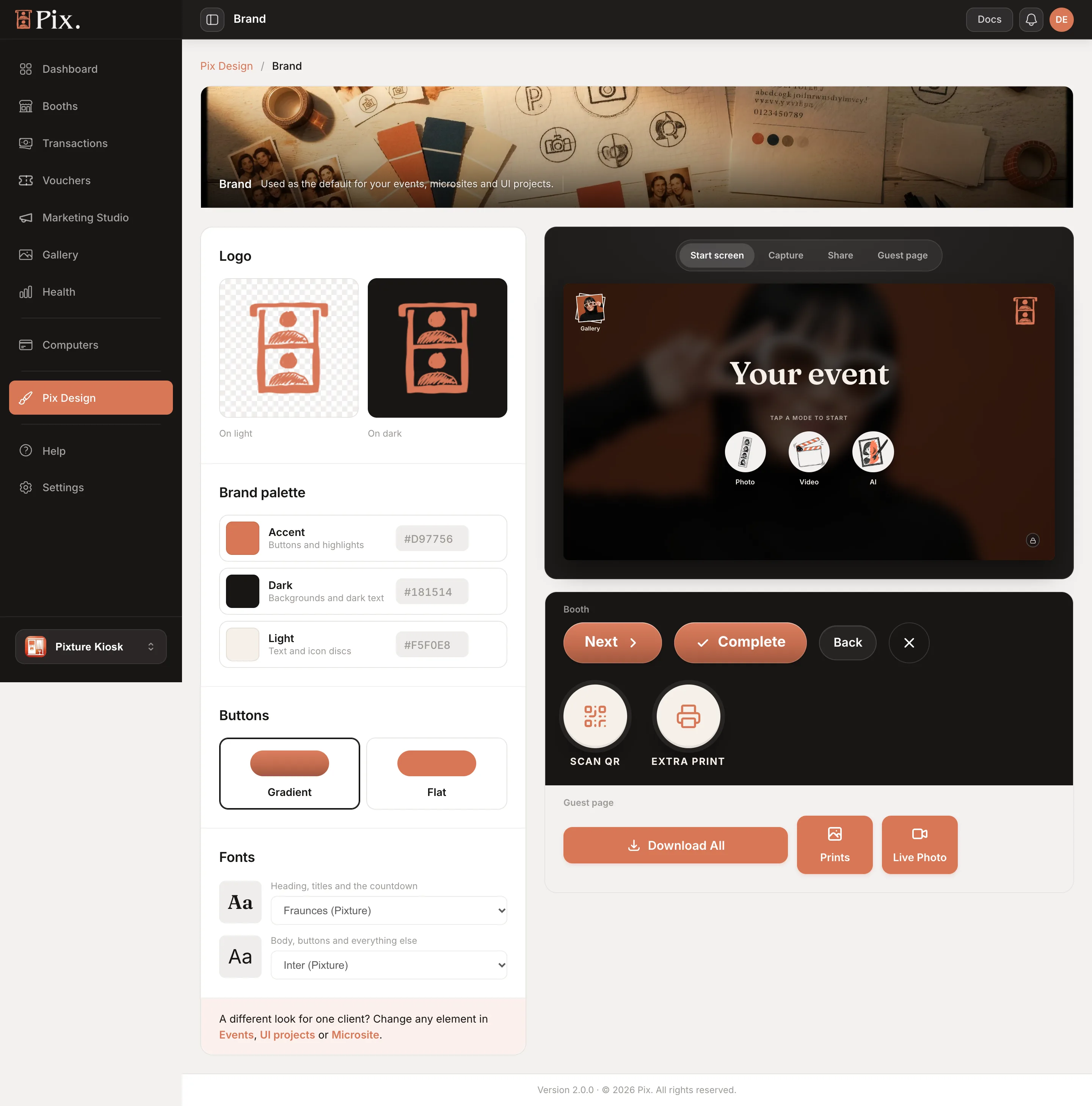
Pix Design > Brand holds your business's look in one place: your logo, three colours, a button style and two fonts. The page reads "Used as the default for your events, microsites and UI projects." Set it once and every new design starts in your colours instead of Pixture's. By the end of this page you will have your brand set and know where it shows up.
Pix Starter and Pix Pro
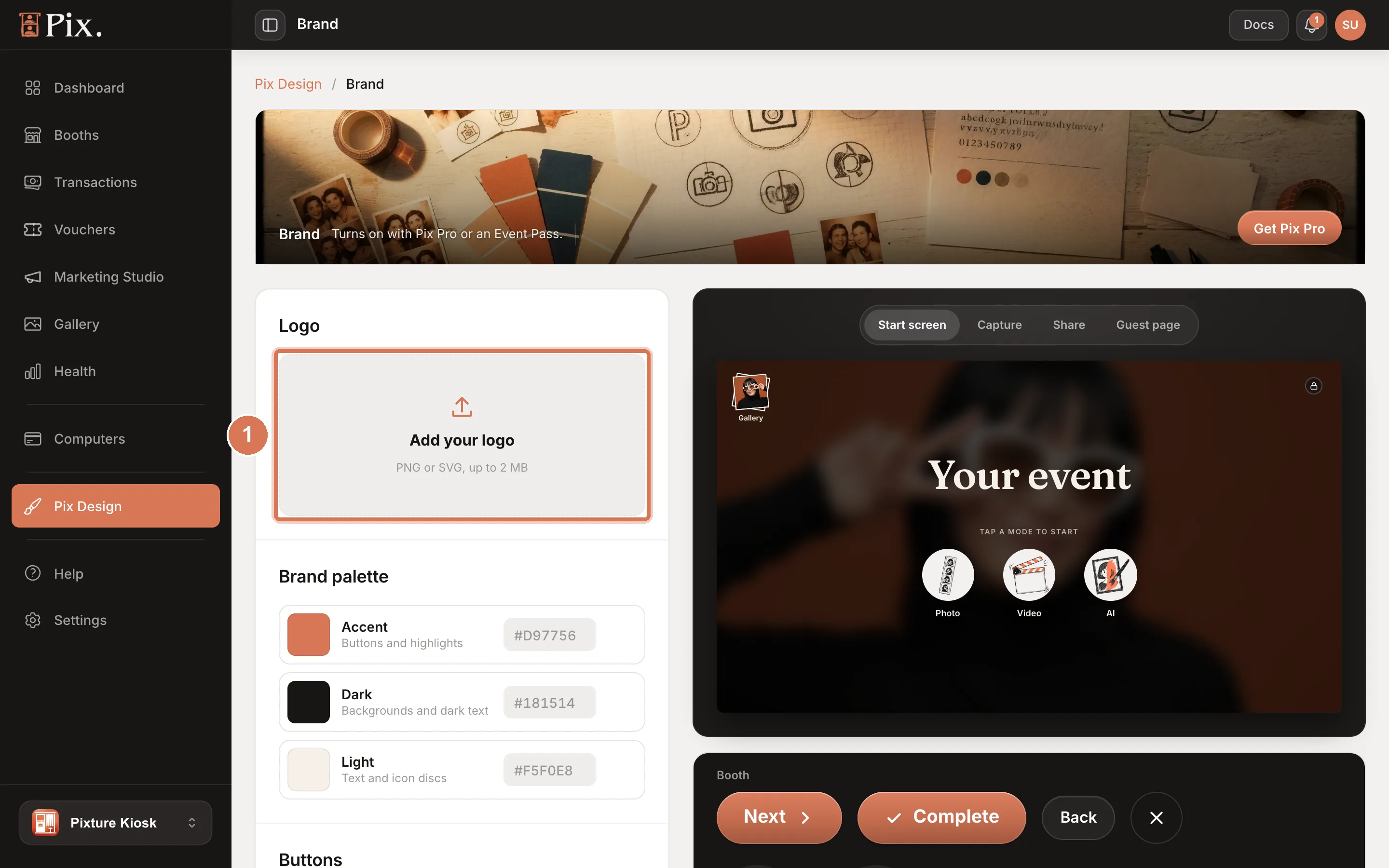
You can set your brand on any plan. It turns on once your account has Pix Pro or an Event Pass running. Until then the page reads "Turns on with Pix Pro or an Event Pass." with a Get Pix Pro button that opens the Computers page. See Choose a plan.
Logo
- Under Logo, click Add your logo and pick a PNG or SVG file, up to 2 MB. A transparent PNG looks cleaner than one with a solid background.
- The logo shows twice: On light and On dark. A dark logo is hard to see on dark booth screens, so click Make a white version to get one made for you, or Upload a light version to use your own.
- Change logo and Remove logo replace or drop it later.
Brand Palette
Three colours, each with a colour picker and a hex box:
| Colour | Used for |
|---|---|
| Accent | Buttons and highlights |
| Dark | Backgrounds and dark text |
| Light | Text and icon discs |
The reset button next to a colour puts the Pixture colour back. The page warns you when a choice will be hard to read, for example an Accent that is very light.
Buttons and Fonts
- Buttons: Gradient or Flat.
- Fonts: a Heading font (titles and the countdown) and a Body font (buttons and everything else). Pick a built-in font or Upload a font (.woff2, .woff, .ttf or .otf).
Every change saves on its own; the page shows "Saved".
Preview
The preview beside the settings shows your brand on four screens: Start screen, Capture, Share and Guest page (the share page customers open on their phone).
Where Your Brand Shows Up
- Events: the booth screens of your events.
- UI projects: the booth screens you design in the UI Editor.
- Share page and album: the page customers open from the QR code, and the event album. See Microsite (Share Page).
Your brand is the default. For one client with its own look, change that event, UI project or microsite on its own page; the rest keep your brand.