Pix AI (Beta)
Pix AI turns a guest's photo into a portrait in a chosen look: a film still, a painted portrait, an anime frame. You pick the looks (presets) your booths offer, and the guest picks one. It is available to beta accounts. Once Pix AI is on for your account, a Pix AI (Beta) card appears in the Pix Design hub, a Pix AI credits card on the Devices page, and a credits line in the account menu.
Guests meet Pix AI on the share page. When you sell AI portraits on a booth, the guest's share page carries a banner to an AI portrait shop. The guest picks one photo and one look, pays through your payment gateway, and receives the portrait as a download, or as a print collected at the booth with a pickup code. See Sell AI portraits. A booth-side AI screen right after capture is still being rolled out; when it reaches your booths, guests will be able to pick a look at the booth as well.
Each generated image costs 1 credit.
The Pix AI Page
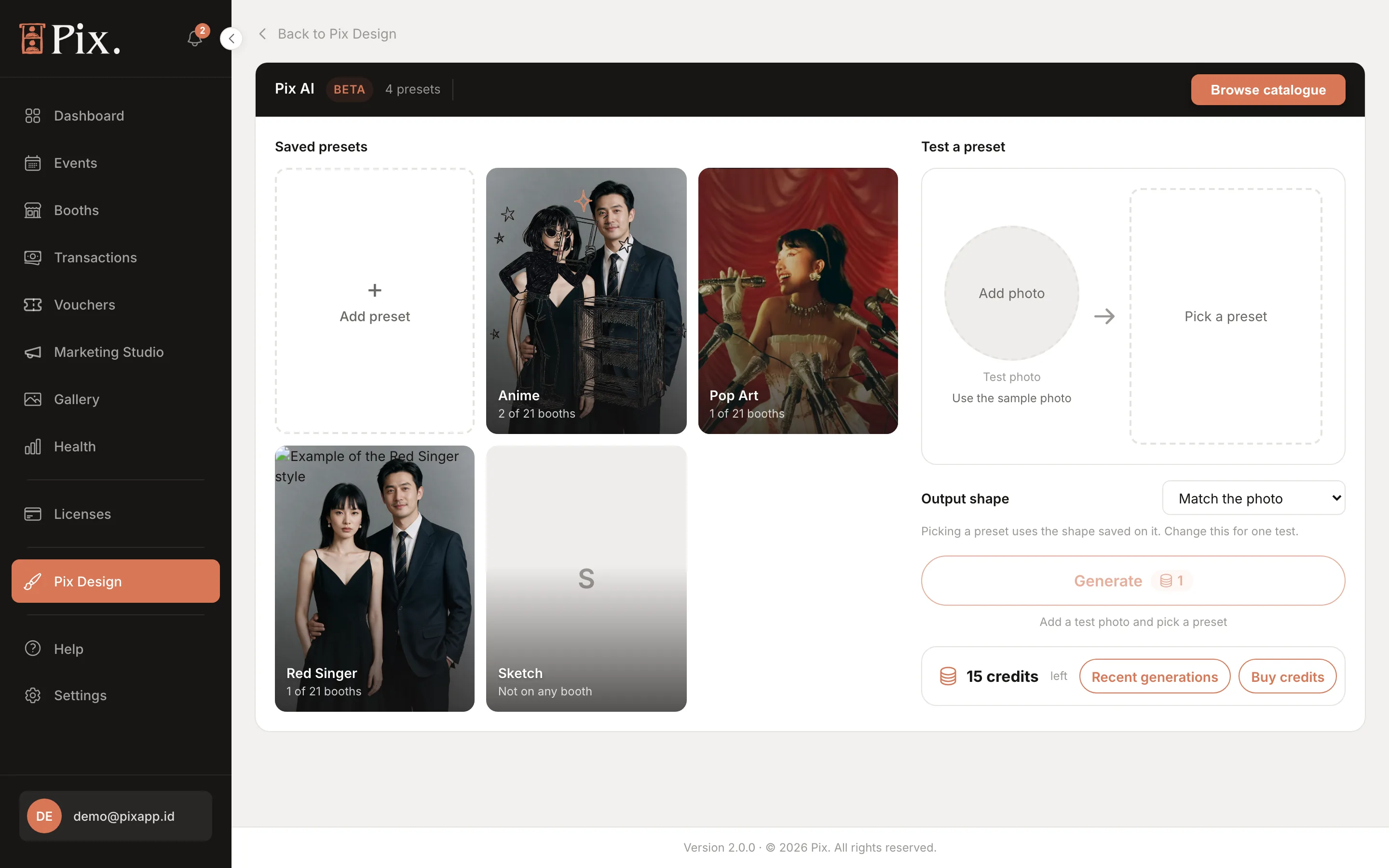
Open Pix Design > Pix AI. The page has four parts.
Saved presets
Your shelf: the looks you have picked from the Pixture catalogue, shown as image tiles with the preset name and the number of booths using it. The dashed + Add preset tile opens the catalogue. Hover a tile to remove it from the shelf.
Each tile has a booth picker. Tick the booths that should offer the look; a look reaches guests only on the booths ticked here.
Browse AI presets
-
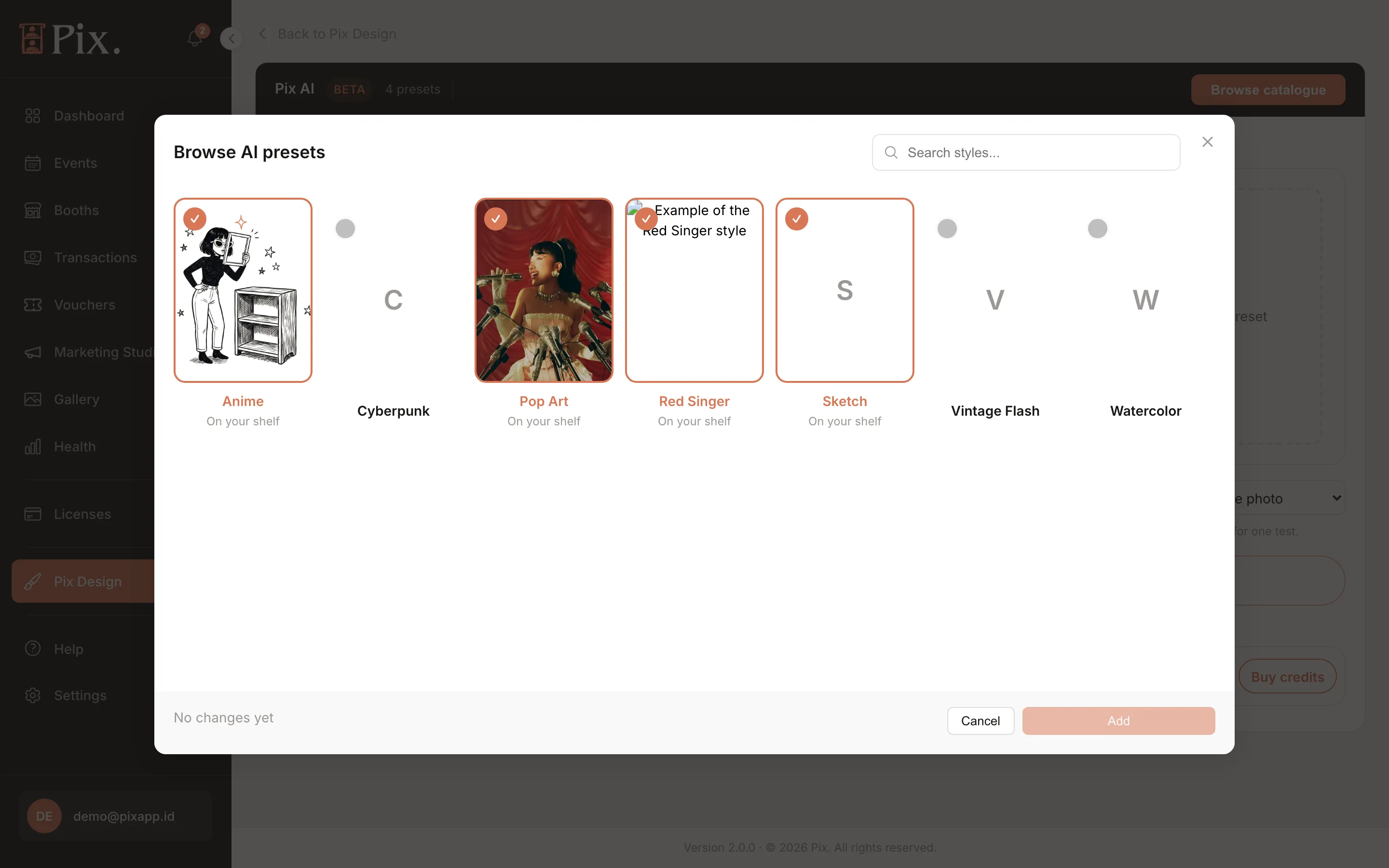
Click Browse catalogue (or the + Add preset tile). The Browse AI presets window opens.
-
Search or scroll the catalogue. Presets already on your shelf are marked.
-
Tick the looks you want.
-
Click Add.
Pixture authors and adds presets over time, so check back for new looks.
Test a preset
Try a look before guests do:
- Pick a preset on the shelf.
- Click Add photo and choose one of your own, or click Use the sample photo.
- Click Generate. The coin pill next to it reads 1: a test costs one credit, like a real generation. Adding a photo never generates by itself.
The result appears in the frame after a short wait, usually under a minute, so you can compare looks on the same face.
Output shape
Output shape sets the shape of the generated images for your account.
Recent generations
The latest images generated for your account, from the share page and your tests, with the preset used. Useful for checking what guests are getting.
Credits
Credits are shared by every booth in your account. Open Devices > Pix AI credits (the Manage credits button on the credits card) to see and buy them.
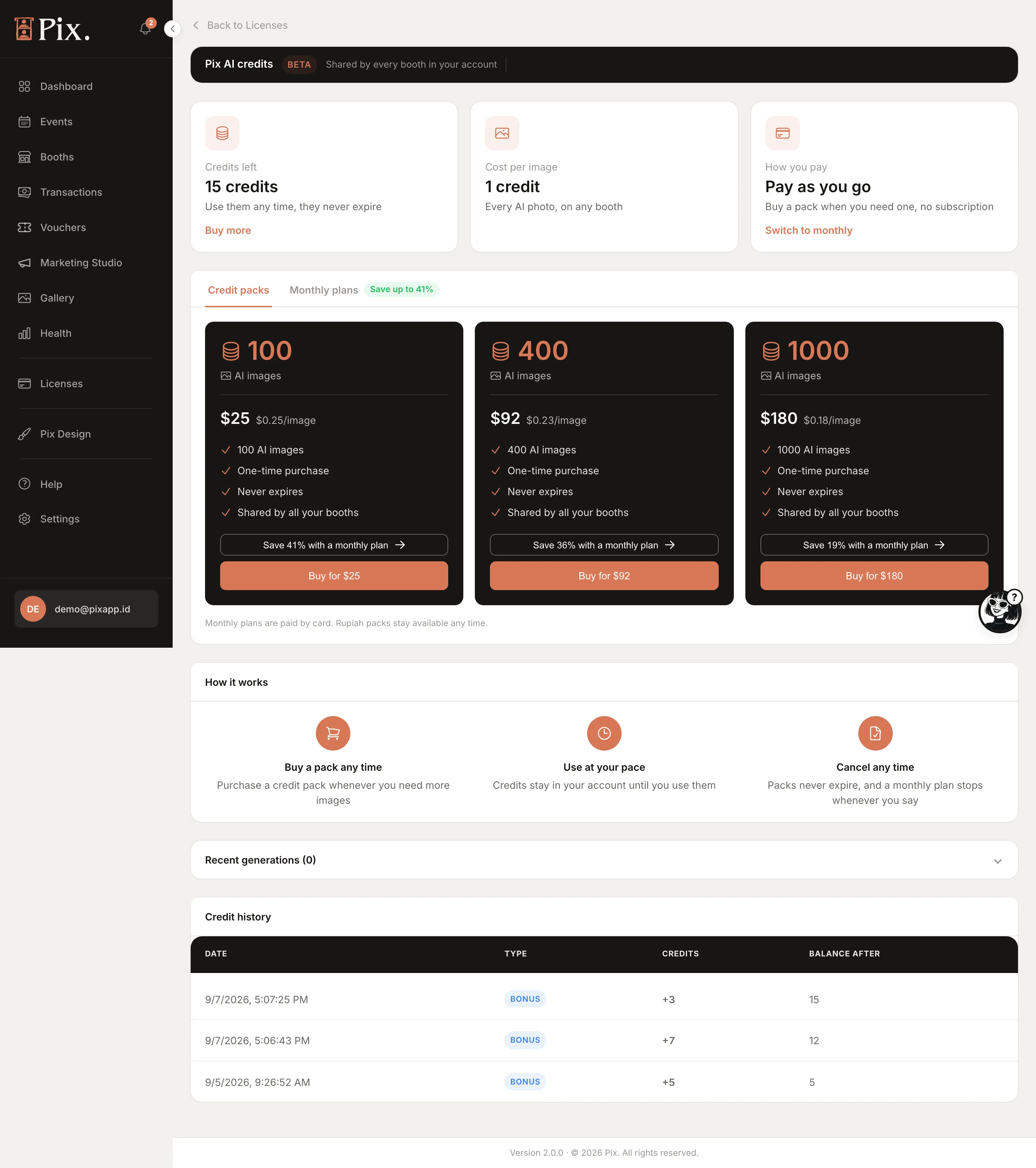
- Credits left and Buy more.
- Cost per image: 1 credit.
- How you pay: pay as you go with credit packs, or a monthly plan. Switch to monthly, Manage plan and Renew live here.
- Credit packs of 100, 400 and 1000 credits, priced in rupiah or dollars depending on where you are; the page shows the current prices.
The account menu at the bottom of the sidebar shows how many credits are left and a Top up credits shortcut, so you notice a low balance without opening Devices.
Generations need credits in the balance. Top up before an event rather than during it.
Selling AI Portraits on the Share Page
The booth's Pricing tab has a card, AI portrait on the share page, for beta accounts:
- Turn on Sell AI portraits on the share page and set the Price per portrait.
- Optionally turn on Offer a print at this booth and set the Digital + print price. The guest gets a 7-character pickup code and types it into the voucher box on the booth's Payment screen; the booth prints the portrait and returns to Start. Keep payment on at that booth so the voucher box is there, and run Pix Desktop App 1.1.110 or newer.
- Click Save.
The booth also needs at least one preset ticked for it on the Pix AI page and an active payment gateway that covers the booth's currency. Sales show on the Transactions page as "AI portrait" or "AI portrait + print". The step-by-step version is in Sell AI portraits.