Vouchers
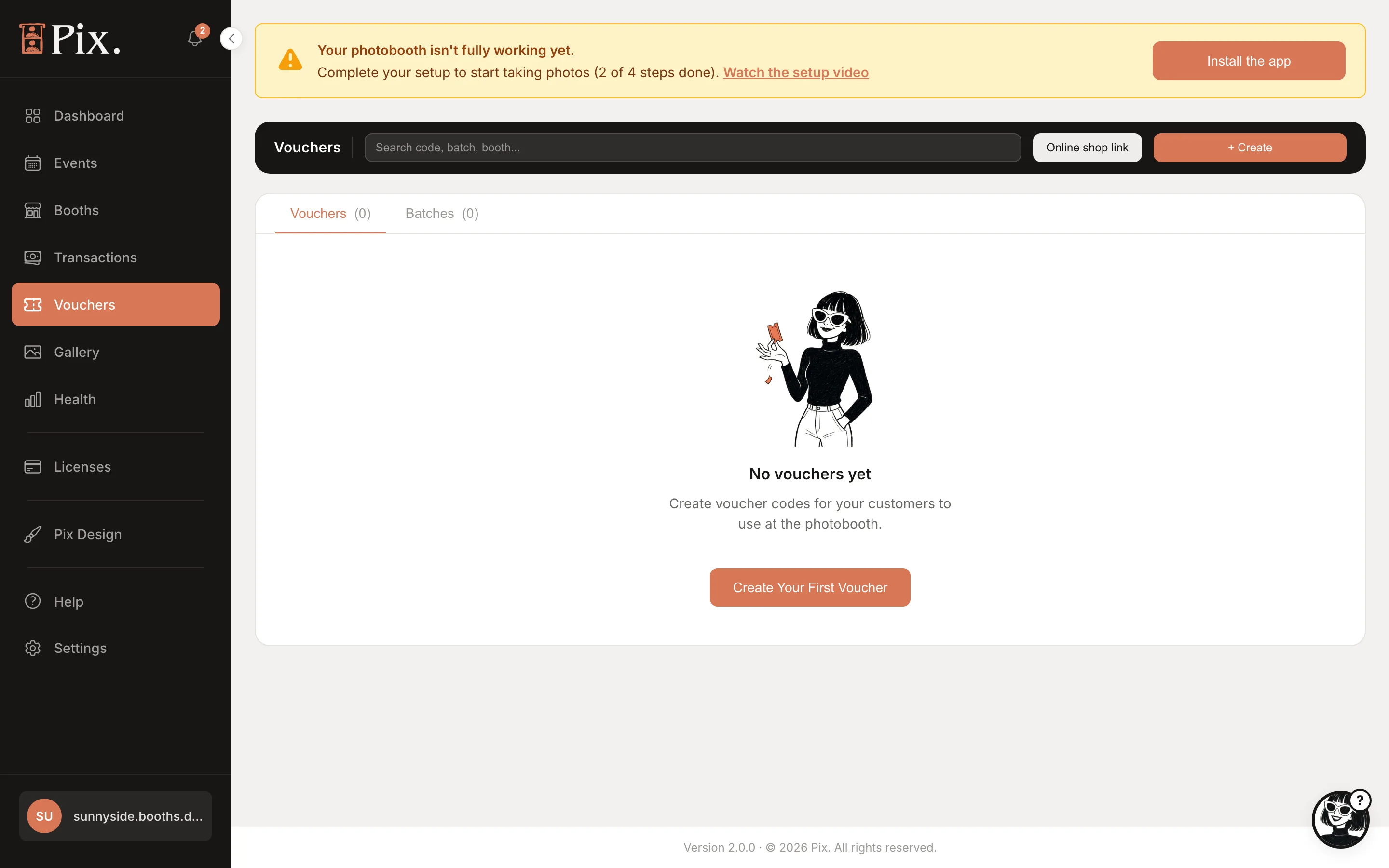
A voucher is a code a guest types into the voucher box on the booth's Payment screen. It can make the photo session free, take a fixed amount off, or take a percentage off. Make them one at a time for a partner or an influencer, or in a batch of up to 1000 for a corporate order or a flyer campaign.
The Vouchers Page
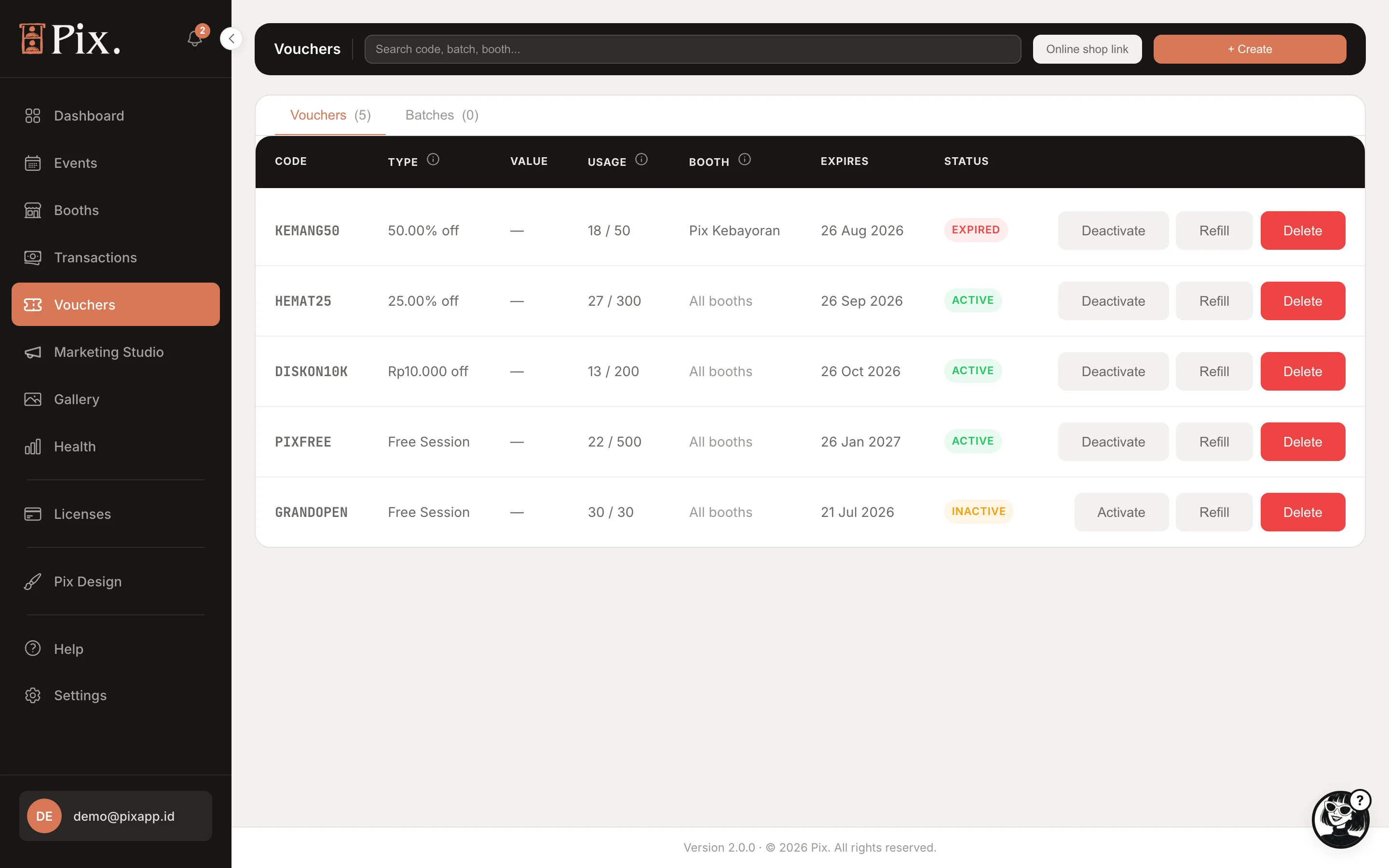
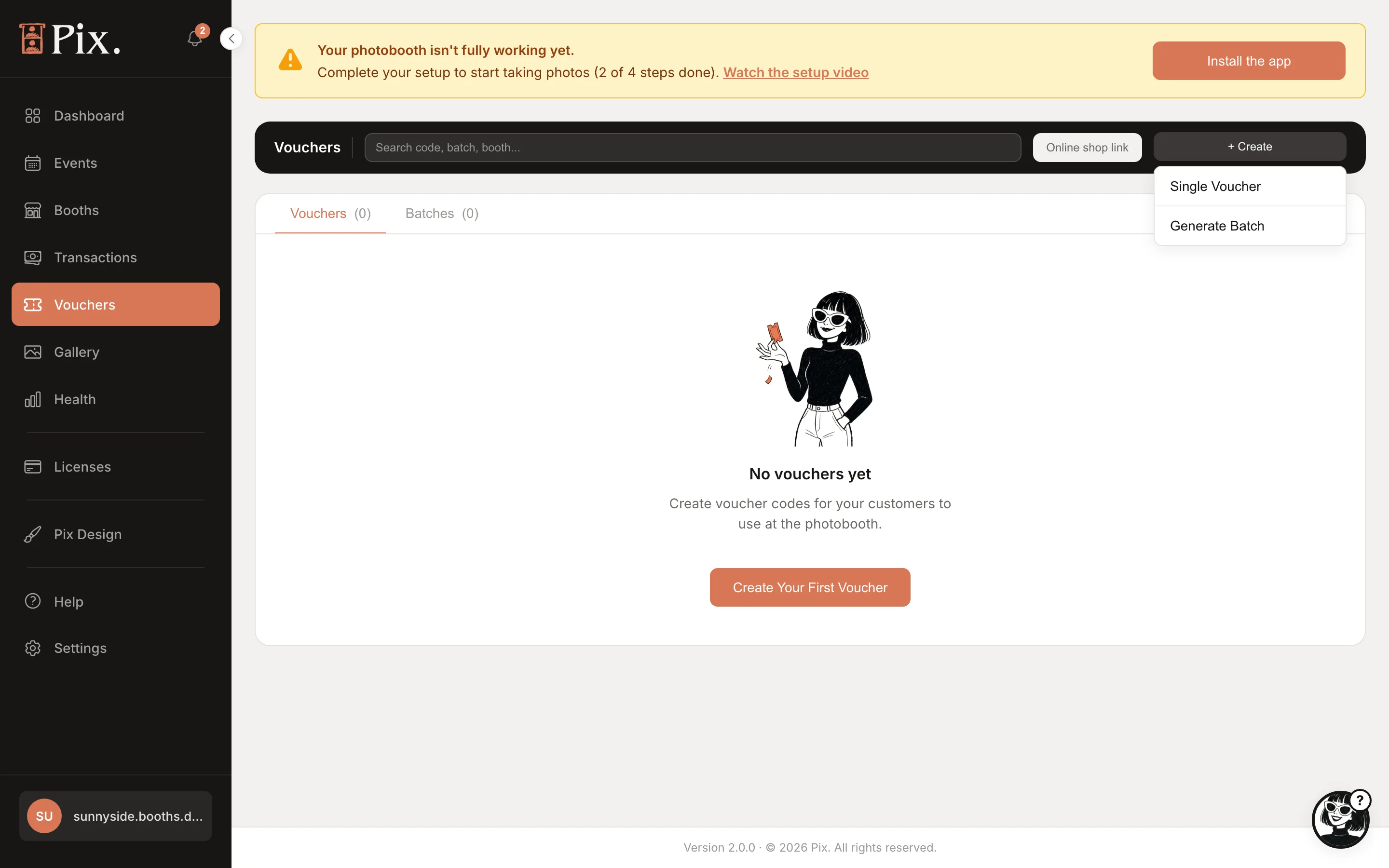
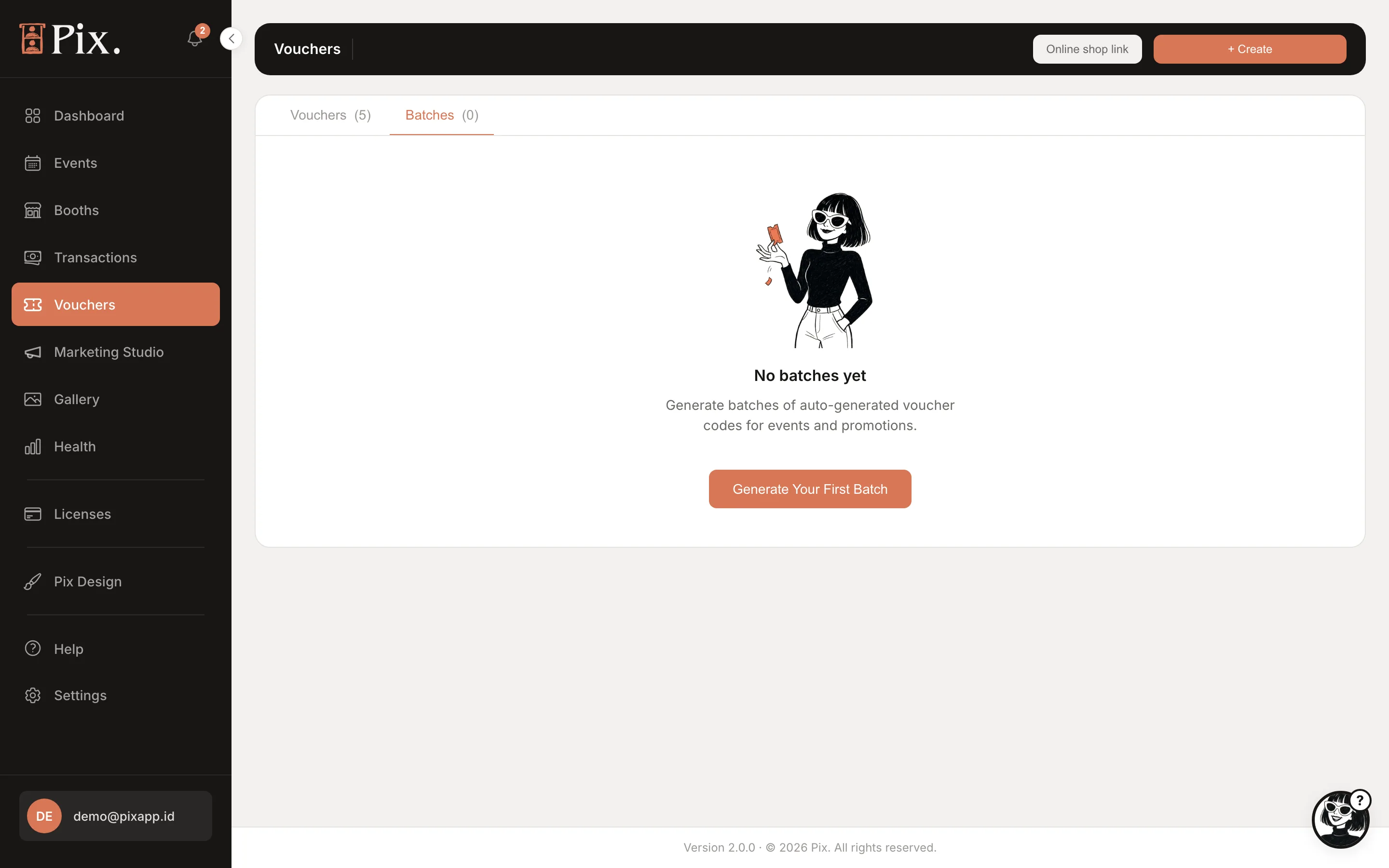
Two tabs, Vouchers and Batches, each with its count. The buttons at the top are Online shop link and + Create, which opens a menu with Single Voucher and Generate Batch.
Creating a Single Voucher
- Click + Create and choose Single Voucher.
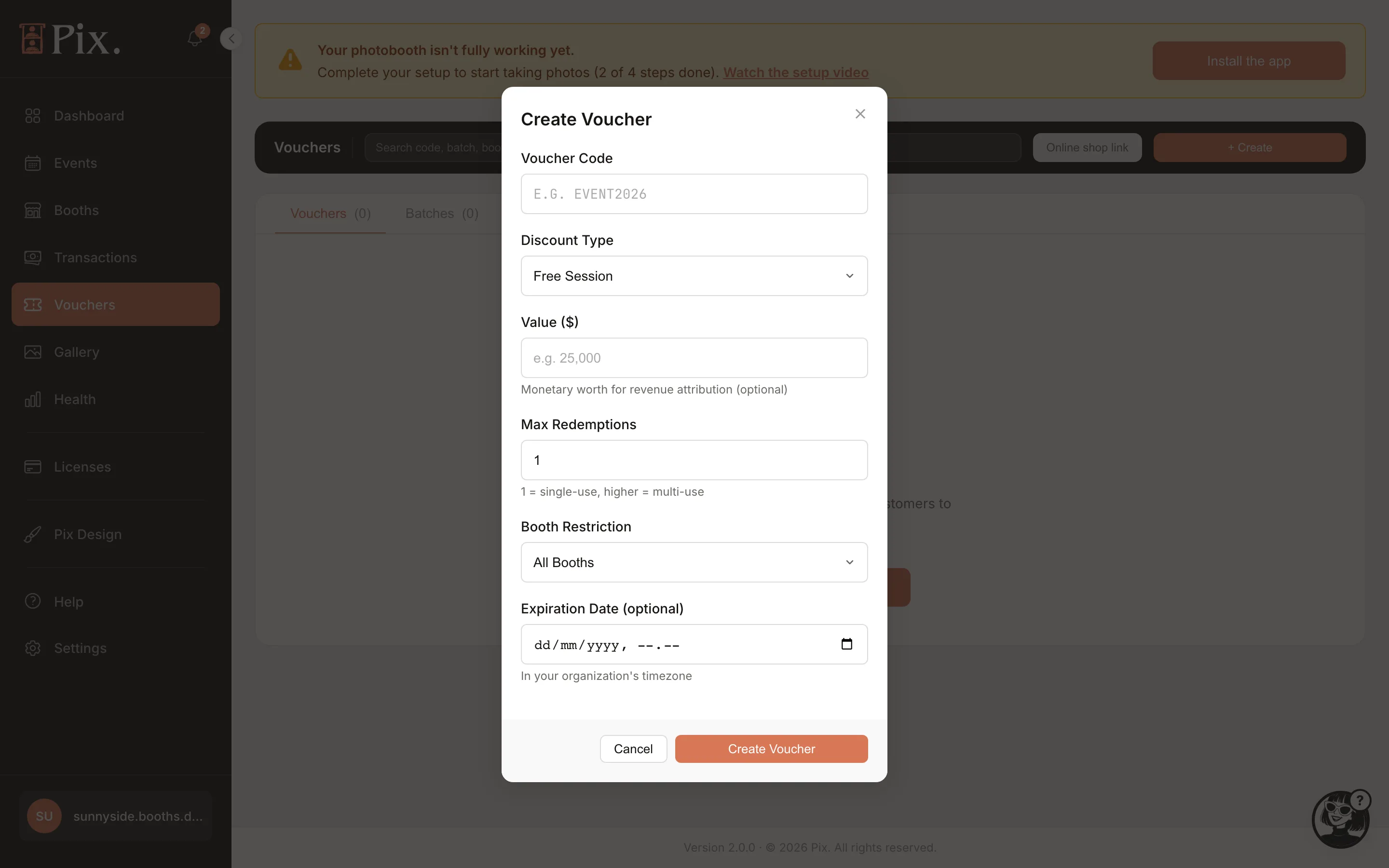
- Fill in the form.
- Save.
| Field | What it is |
|---|---|
| Voucher Code | The code the guest types |
| Discount Type | Free Session, Fixed Amount or Percentage |
| Discount Value | The amount or percentage. Not shown for Free Session |
| Value | Optional. What you sold the voucher for. It is counted as revenue when the code is redeemed, so leave it empty for free promo codes |
| Max Redemptions | How many times the code works. 1 for single use |
| Booth Restriction | All booths, or one booth only |
| Expiration Date | Optional. The code stops working after this date |
A Fixed Amount voucher carries a currency and works only at booths trading in that currency. Free Session and Percentage vouchers work everywhere.
Generating a Batch
- Click + Create and choose Generate Batch.
- Enter a Batch Name, the Number of Codes (up to 1000) and Max Redemptions per Code.
- Click Generate Codes.
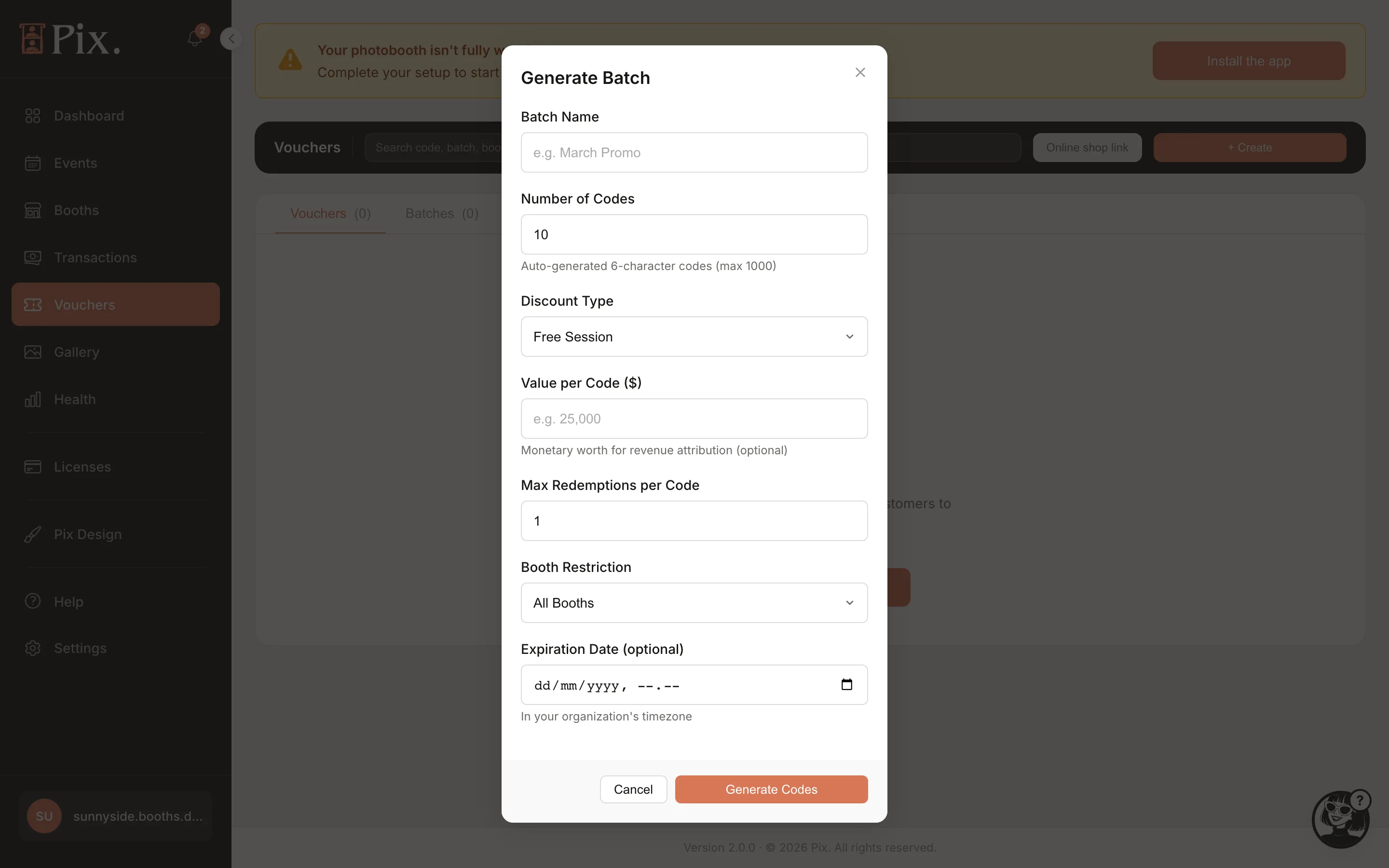
Every code in a batch is 6 characters and unique. Open a batch on the Batches tab to see Total Codes, Redeemed, Remaining and Total Value Redeemed, and the codes themselves.
Refill and Delete
Each voucher or batch row has two actions.
| Action | What it does |
|---|---|
| Refill | Opens Add Uses and New Expiration Date, so a code that ran out keeps its name and history |
| Delete | Removes the code. Photo sessions it was used on stay in Transactions |
The Online Shop Link
Online shop link copies the link to your online shop, where guests pick a package, pay, and receive a code the booth accepts. Each booth's own link, with a QR to print, is at the top of its Pricing tab.
How Guests Redeem
On the booth's Payment screen the guest opens the voucher box and types the code on the on-screen keyboard. Codes are not case sensitive. The length tells the booth what it is looking at:
| Length | Comes from |
|---|---|
| 6 characters | A voucher or batch code made on this page |
| 7 characters | The online shop (Pix Desktop App 1.1.101 or newer) |
| 8 characters | A group session code from a Multi-Booth cashier |
A code bought online or from a Multi-Booth cashier carries its package inside the code, so the booth accepts it even when the venue's internet is down. The redemption is reported once the booth reconnects.
Tracking
Every redemption appears in Transactions with the voucher code, and the Vouchers card on the Dashboard counts redemptions for the selected period. Marketing Studio > Performance keeps a running total.
Before a launch, make a Free Session voucher with one redemption and run the whole flow at the booth. You see the Payment screen, the print and the sharing page exactly as a guest would.