Pix Design Overview
Pix Design is the design area of the Pixture dashboard. Everything a guest sees or takes home from a photo session comes from here: the print template their photos land in, every screen on the booth, the colour filters they can pick, the frame drawn on animated GIFs and event videos, the share page they open on their phone, and (for beta accounts) the AI looks they can choose. Open it from Pix Design in the sidebar.
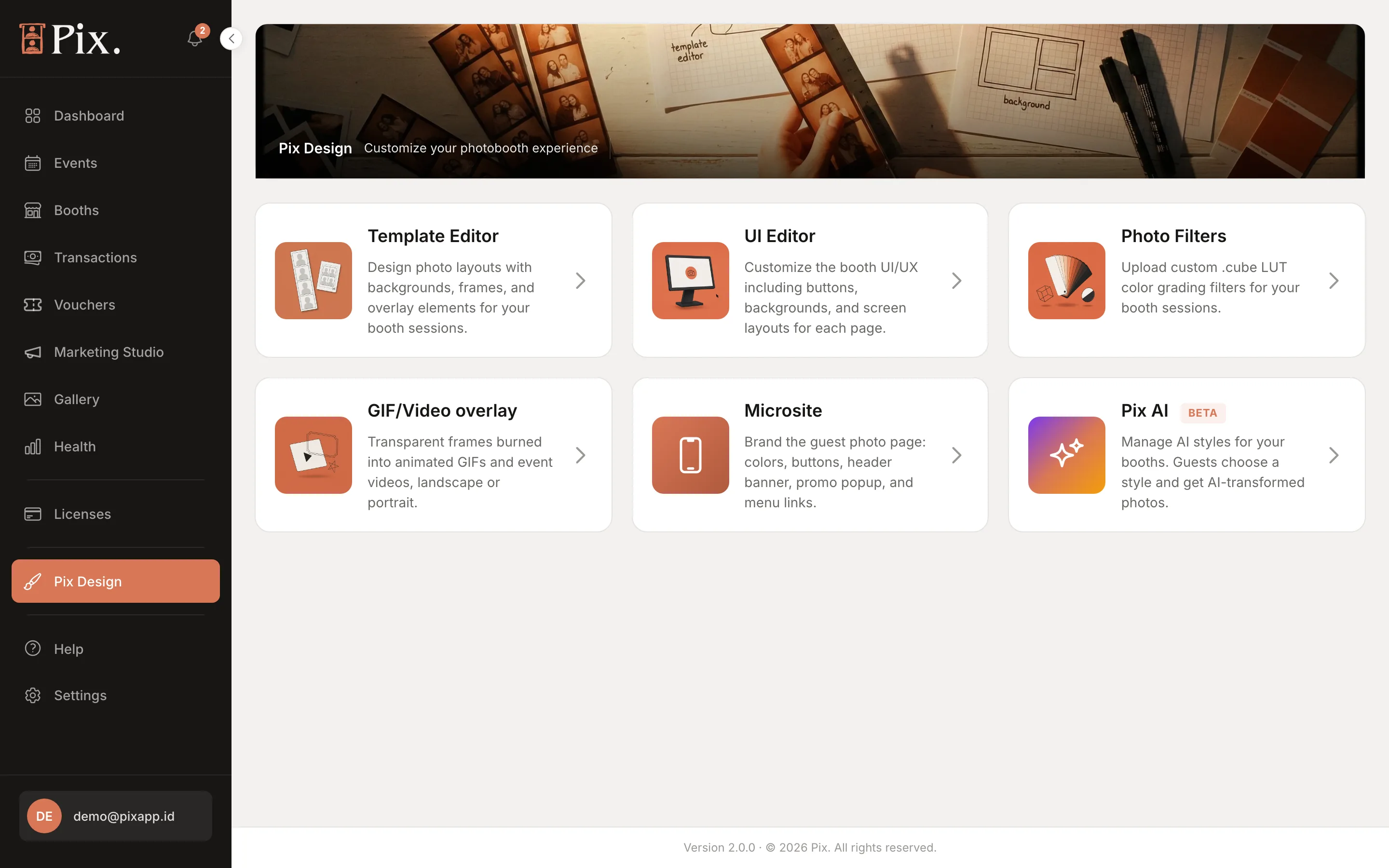
The Six Areas
The hub is a set of cards. Each opens one editor.
Template Editor. Design photo layouts with backgrounds, frames, and overlay elements. You upload a PNG with transparent windows, the editor turns the windows into photo slots, and the booth composites the guest's photos into it for printing and sharing. See Template Editor.
UI Editor. Customize the booth UI/UX including buttons, backgrounds, and screen layouts for each page. A UI project holds every booth screen, from the Start Screen to Sharing, together with the session settings that go with them: what starts a session, how long it lasts, how the Payment screen behaves. See UI Editor.
Photo Filters. Upload custom .cube LUT color grading filters next to the 14 built-in ones, then choose which filters each booth offers. See Photo Filters and Overlays.
GIF/Video overlay. Transparent frames burned into animated GIFs and event videos, landscape or portrait. Covered on the same page as the filters.
Microsite. Brand the guest photo page: colors, buttons, header banner, promo popup, and menu links. This is the page guests open from the QR code on the Sharing screen. See Microsite (Share Page).
Pix AI (Beta). Manage AI styles for your booths. Guests choose a style and get AI-transformed photos. Available to beta accounts; the card appears once Pix AI is on for your account. See Pix AI (Beta).
Pix Starter and Pix Pro
A new account starts with two ready-made 4x6" print templates, Classic Black and Classic White, and one screen design called Default Layout. That is enough to run a booth on day one.
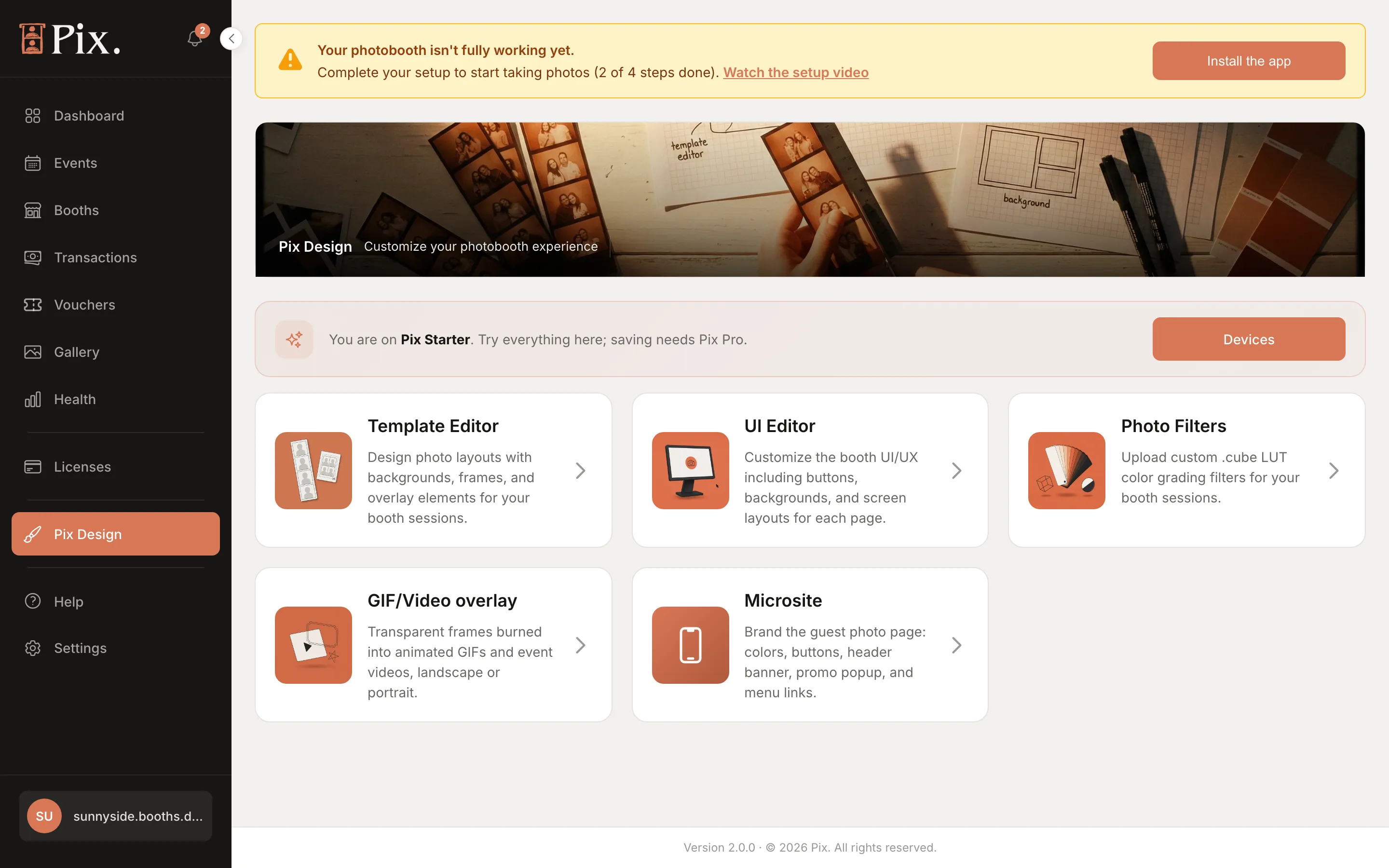
On Pix Starter the hub shows the banner "You are on Pix Starter. Try everything here; saving needs Pix Pro." In practice:
- Every editor opens. You can upload a PNG, place blocks on booth screens and try each tool.
- Creating a new project or saving one needs Pix Pro. The Template Projects header reads 2 / 2 and its button reads Upgrade to Create; the UI Projects page shows a banner saying you can try the UI editor freely, but saving a project needs Pix Pro.
- Prints and shared files carry the Pixture watermark until the computer runs Pix Pro.
Clicking Upgrade to Create opens the "Pix Pro keeps your work" modal with three choices: Not now, Start free trial and Buy Pix Pro.
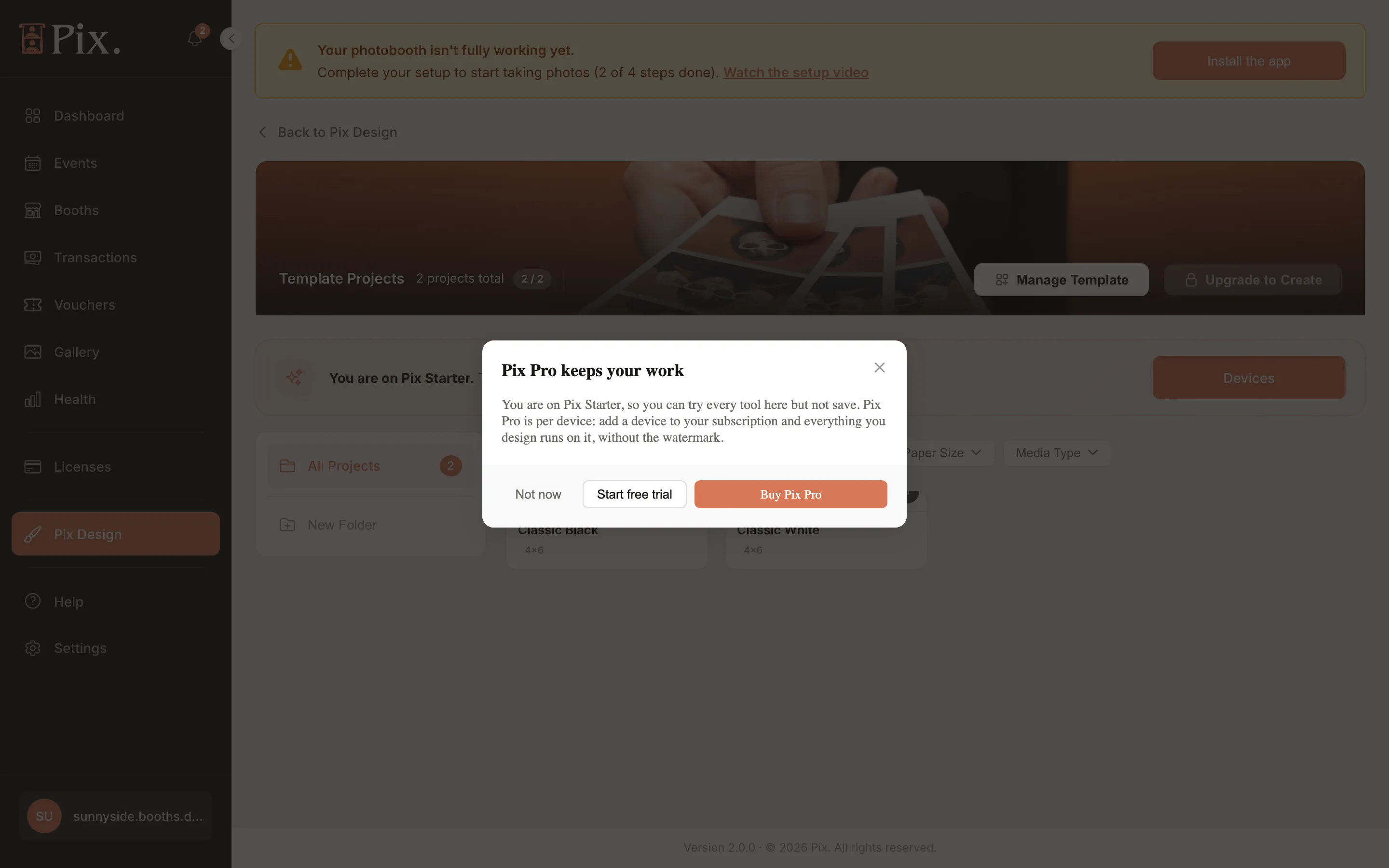
The free trial gives you Pix Pro on one computer for 3 days, no credit card required. After 3 days that computer goes back to watermarked; the designs you saved stay in your account. See Choose a plan for what each plan includes.
Where Designs Go Live
Designing something does not put it on a booth by itself. Each kind of design is attached in its own place:
| Design | Where you attach it |
|---|---|
| Print templates | Booths > booth > Templates tab, or Assign to booths on the template card |
| Screen design (UI project) | Booths > booth > UI Project tab, or Assign to booths on the project card |
| Photo filters | Booths > booth > Filters tab (every filter by default) |
| GIF/Video overlay | Booths > booth > Settings > GIF overlay |
| Microsite | Save to booths on the Microsite page |
| AI presets | The booth picker on each saved preset |
Events carry their own template set, screen design and overlay, chosen on the event's Setup tab. While an event runs, the booths in it use the event's choices instead of their own, and return to their usual set when it ends. See Events.
Booths pick up a saved design on their next idle refresh, usually within seconds, without a restart. A photo session already in progress finishes on the old design.
Duplicate before you experiment. Duplicate on a UI project's card menu gives you a copy to try ideas on without touching what guests see; assign the copy when it is ready.