Assigning Templates
A template only reaches guests once it is assigned. Assignment is the link between a template project and a booth: the booth's Templates screen shows exactly the templates assigned to it, and nothing else. One template can sit on many booths, and one booth can carry many templates. By the end of this page you will know the three ways to assign in the dashboard and how events change the picture.
Three Ways to Assign
From the template card
Best when one design should go to many booths.
- Open Pix Design > Template Editor.
- Open the card menu on the template and choose Assign to booths.
- Tick All booths, or tick individual booths.
- Click Apply.
The same modal appears on the first save of a new template, right after Name Your Template.
From the Booth filter
Best when you are already in the list and want to work booth by booth, without leaving the page.
-
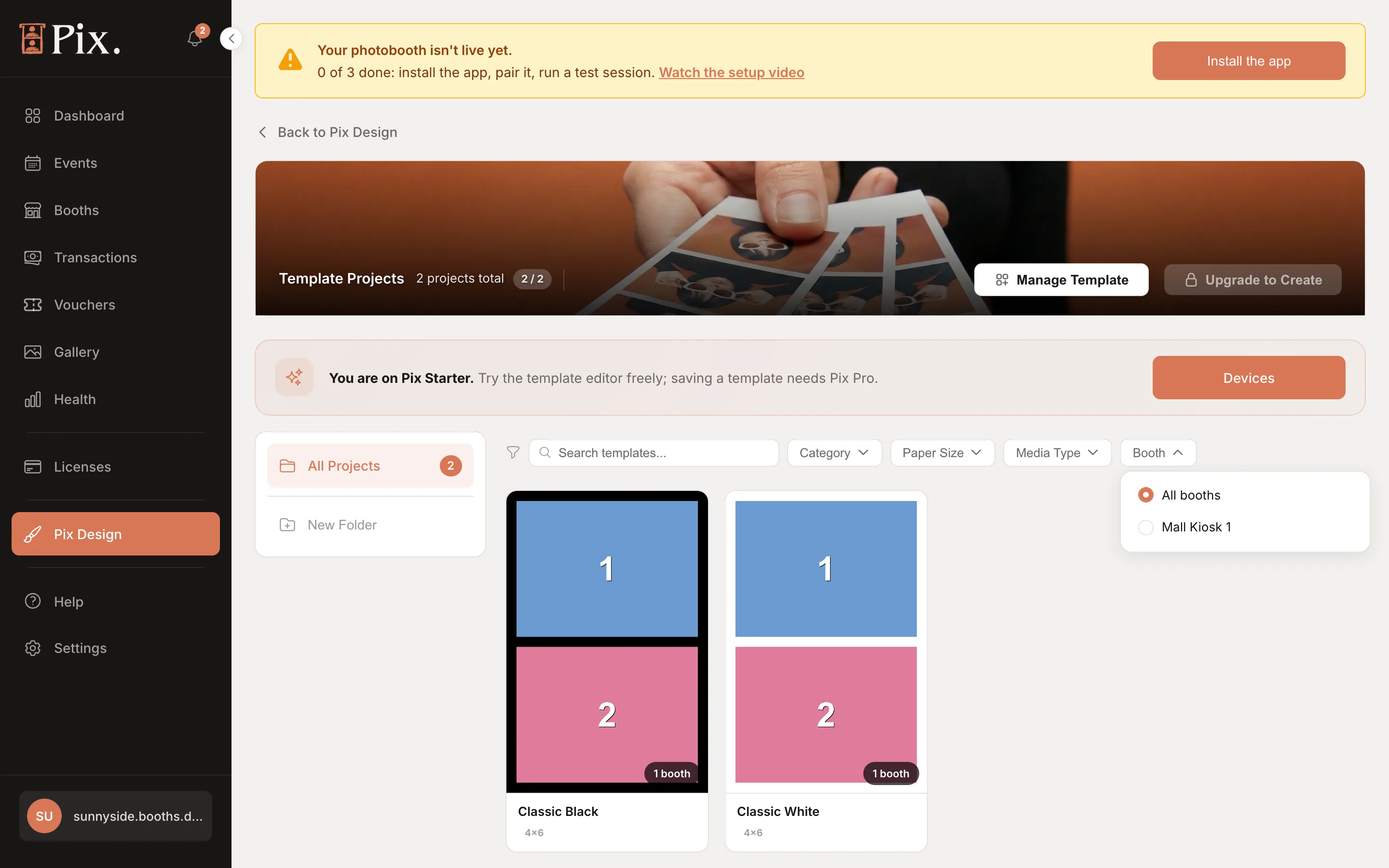
On Template Projects, open the Booth filter and pick a booth. The grid shows only that booth's templates. (Manage Template in the header does the same.)
-
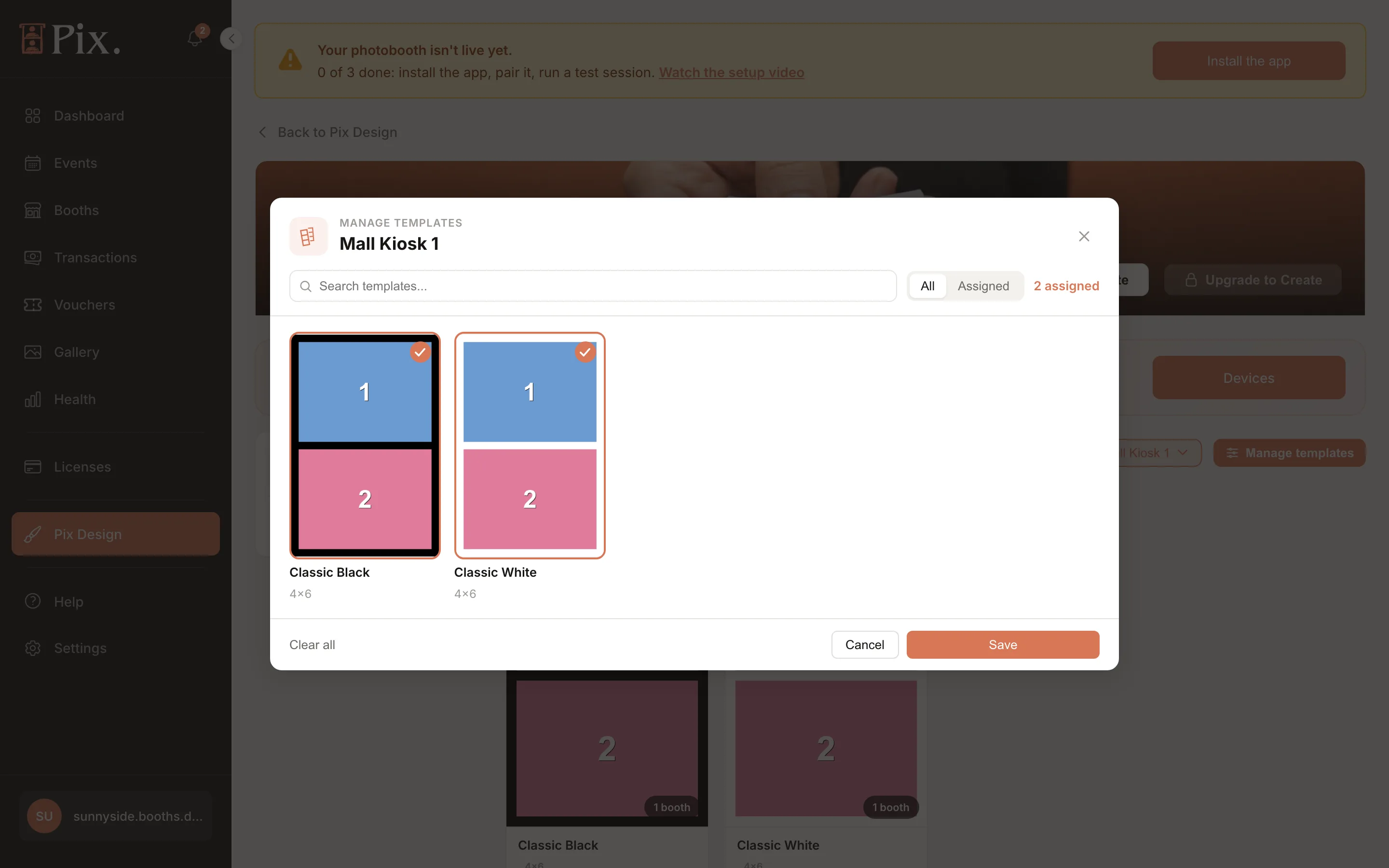
Click Manage templates. A window titled with the booth's name opens, with a search box, an All / Assigned switch and every template as a card.
-
Tick or untick templates, then click Save. The booth count badges on the list update straight away. Clear all unticks every template.
From the booth's Templates tab
Best when you are setting up one booth and want to see its whole set.
-
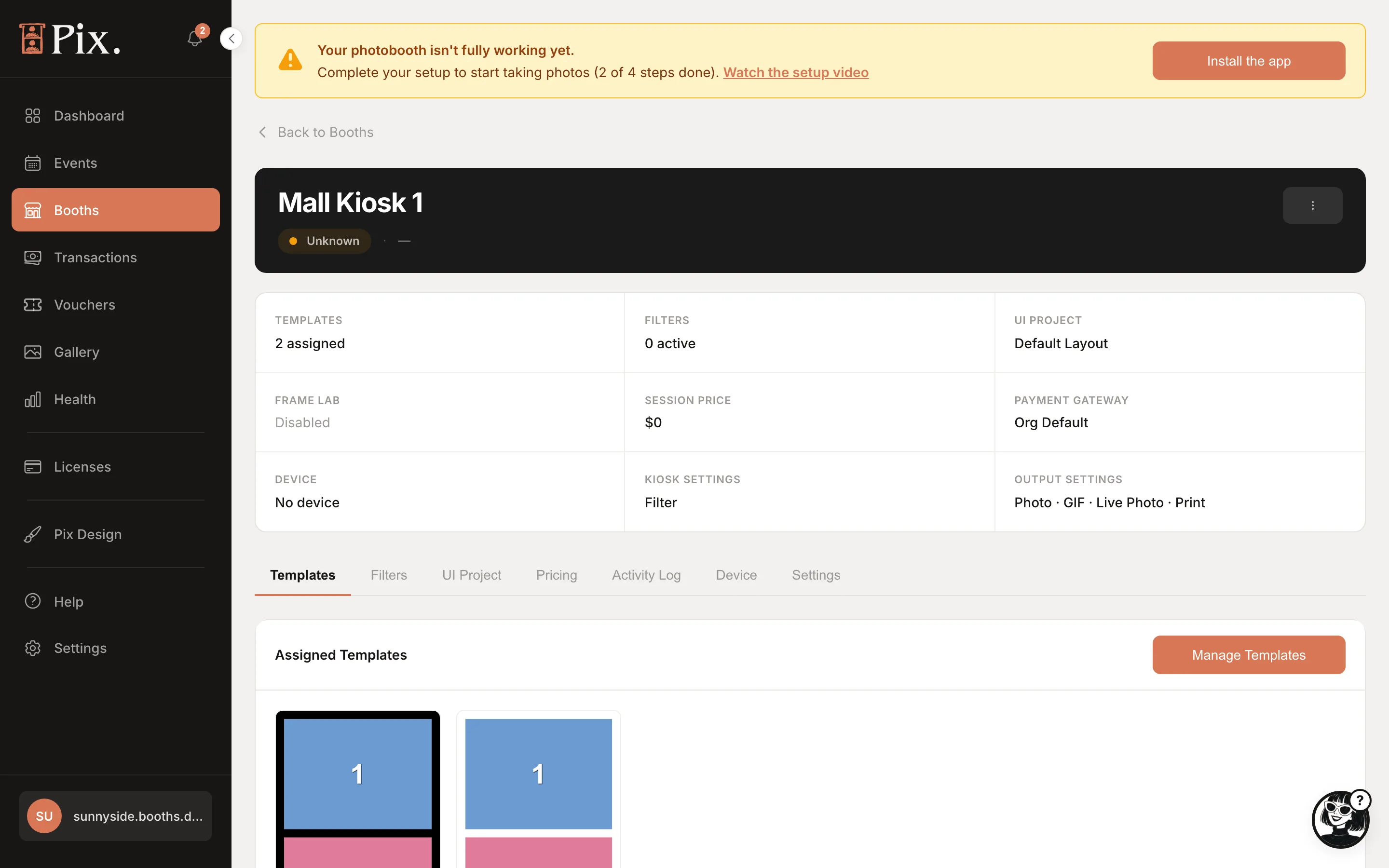
Open Booths, click the booth, then the Templates tab. The Assigned Templates card lists what the booth has, with an All Categories filter.
-
Click Manage Templates.
-
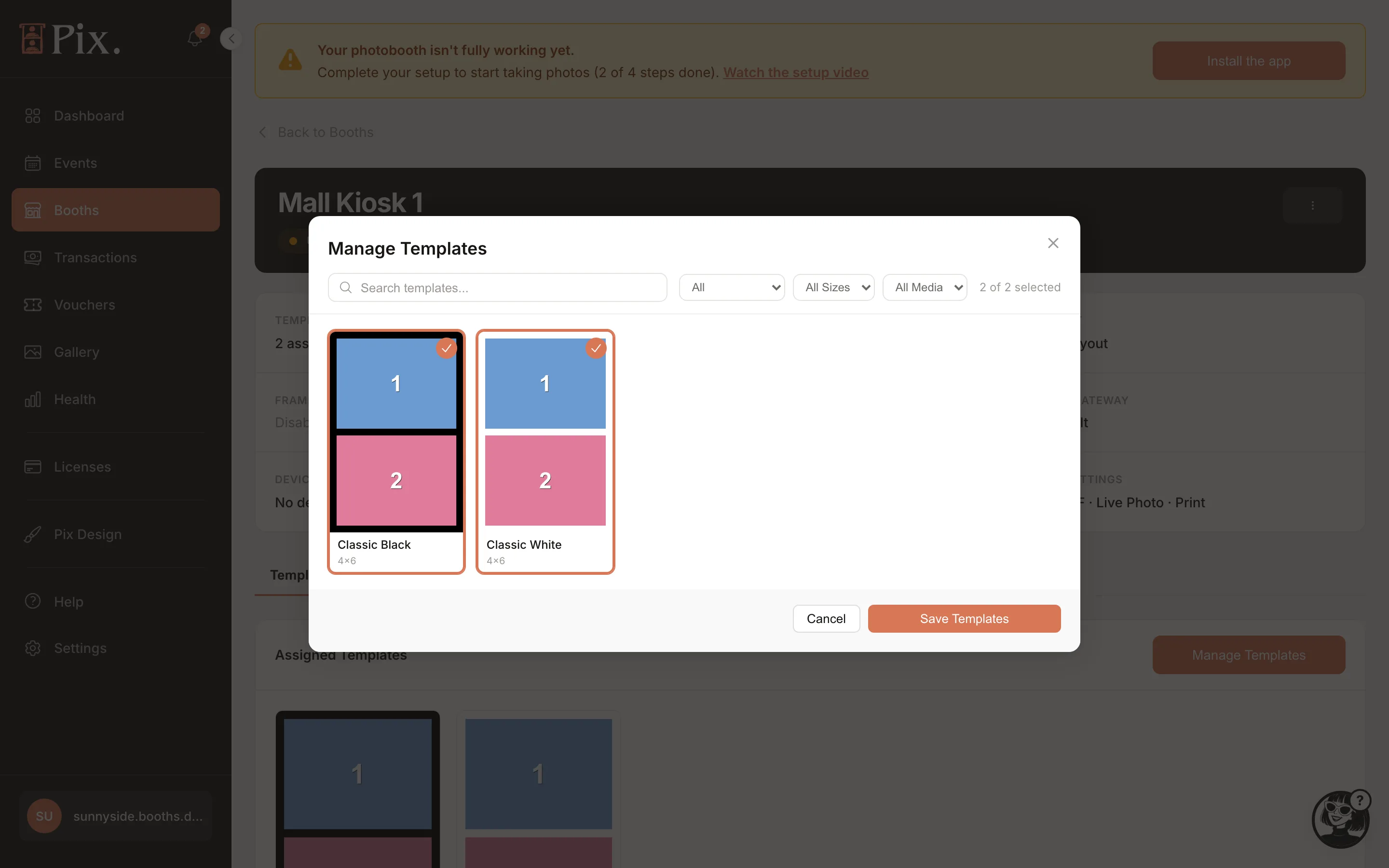
Use the filters to find designs: Assigned / Not Assigned, All Categories, All Sizes, All Media.
-
Tick the templates the booth should offer and untick any it should drop.
-
Click Save Templates.
One template on the tab carries a Default badge, marking the booth's default template.
What Happens Next
The booth picks up the change on its next idle refresh, usually within seconds, without a restart. A photo session already in progress finishes with the template the guest chose; the next session sees the new set.
On the booth, guests see the assigned templates as cards on the Templates screen, grouped by the category buttons if your templates carry categories. See Template Selection for the guest side.
A booth with no templates assigned has nothing for guests to pick. Keep at least one template on every booth that runs sessions, and match the paper: a 4x6" Normal template on a strip printer will not print as intended.
Events Use Their Own Set
An event carries its own templates, separate from the booths' everyday set. While the event runs (its dates plus one night of grace), every computer on the event shows the event's templates instead of its booth's own. When the event ends, the booths return to their usual assignments by themselves.
You set the event's templates on the event's Setup tab, on the Template tab of the booth mode settings (or on the wizard's Templates step when you create the event):
- Browse template packs opens the browser of free template packs from Pixture, when packs are available. Each pack brings its print layouts, a GIF overlay and a matching booth look, and Use this pack copies all of that into the event.
- Add templates (or Manage Templates) opens the same modal as on a booth, so you can pick from your own template projects.
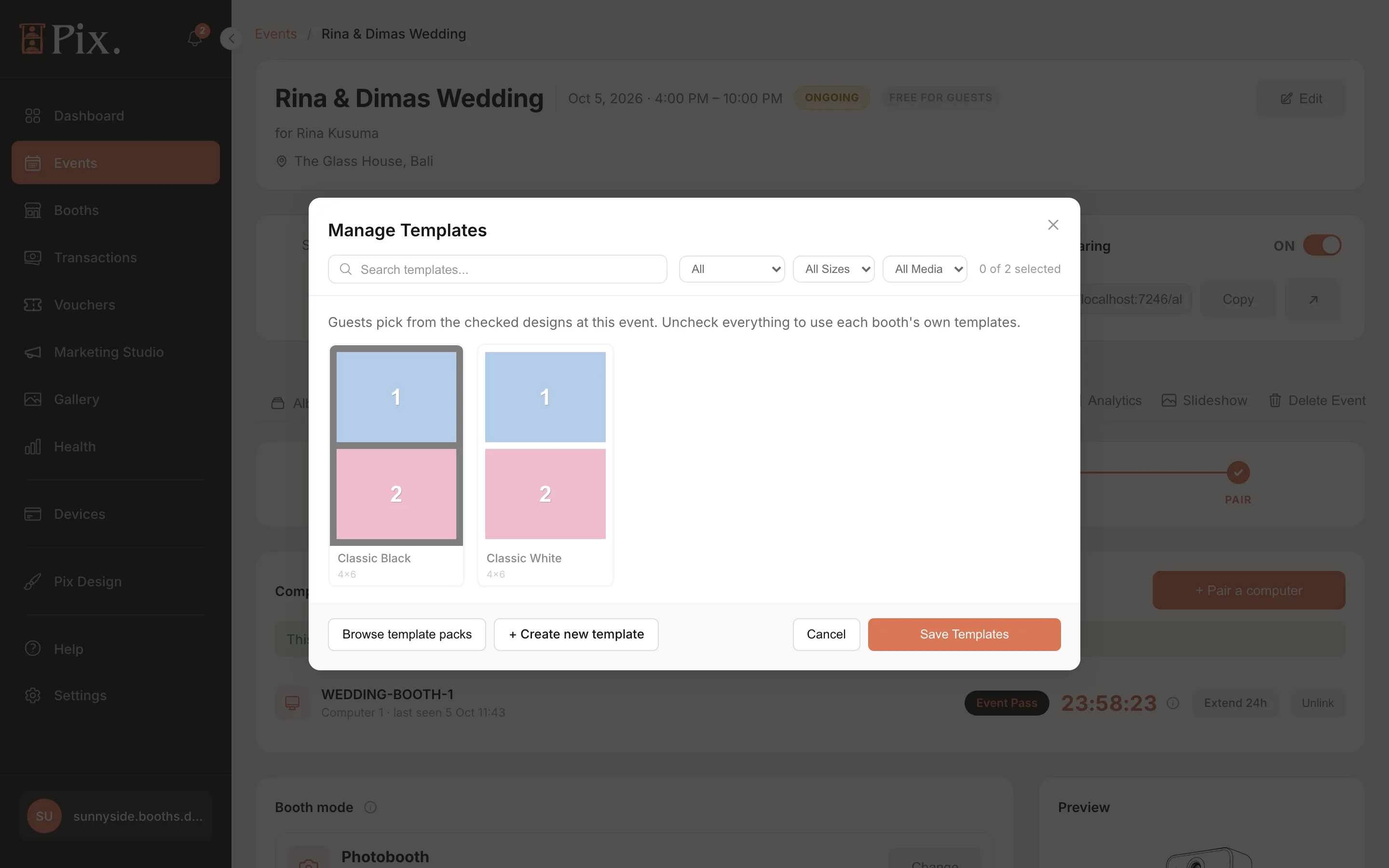
Until at least one template is assigned, the card warns: "Assign at least 1 template. Until you do, guests at this event have nothing to pick." The Templates picker on the Create Event form does the same job at creation time. See Events.
Checking Where a Template Is Used
Each card on the Template Projects list shows a booth count badge, such as "20 booths". Open Assign to booths from the card menu to see which booths are ticked and to add or remove some. Manage Template lists booths from the other direction.
Pix Starter
Pix Starter accounts come with two ready-made 4x6" templates, Classic Black and Classic White, and both can be assigned to any booth. Creating more templates needs Pix Pro. See Pix Design Overview.