Transactions
Transactions lists every paid photo session and every payment your booths and online shops took. Use it to reconcile a day against your payment gateway, find one guest's payment, or hand a client the takings from their event.
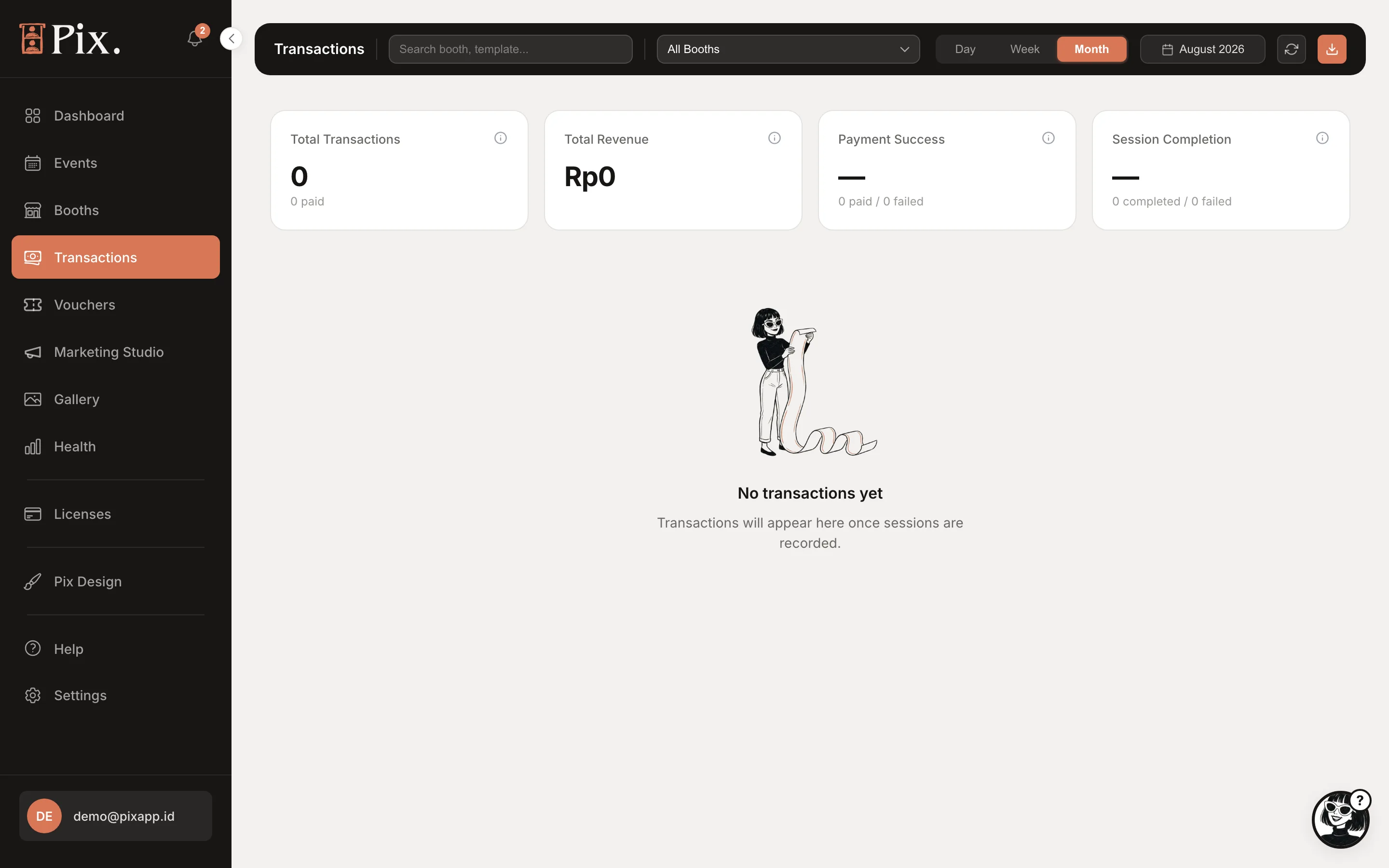
Filters and Search
| Control | What it does |
|---|---|
| Search | Matches the booth or template ("Search booth, template...") |
| All Booths | Limits the list to one booth |
| Day / Week / Month / Custom | The period, or your own start and end dates |
| "Showing" pills | Only on accounts whose booths trade in more than one currency. Pick a currency; totals are never combined or converted |
Stat Cards
| Card | What it counts |
|---|---|
| Total Transactions | Payments in the period |
| Total Revenue | Their sum, in the selected currency |
| Payment Success | The share of payment attempts that completed |
| Session Completion | The share of paid sessions that reached the end of the flow |
Toolbar
- Sync with payment gateway opens the Gateway Sync modal: pick a Start Date and End Date and click Run Sync. The dashboard asks your gateway for the payments it confirmed in that range and adds any the booths missed, for example after a venue's internet dropped mid-payment. Only members with access to all booths can run it.
- Export Excel downloads the filtered list as a spreadsheet for your bookkeeping.
Reading a Row
Each row shows when the payment happened, the booth, the template, the package, the amount and how it was paid: your QR gateway, a voucher, coin or card hardware, or free. Rows captured during an event carry an event chip, so the client's takings are easy to pick out.
Some rows carry a type label:
| Label | What it means |
|---|---|
| Bonus | A free session granted by Bonus Session after a paid one |
| Package | A Double, Group or Additional-session purchase |
| Frame Lab | A guest paid online for their own frame |
| Orphan Payment | A payment your gateway confirmed that no photo session claimed, for example when the guest paid and walked away before the session started |
| Imported | A row you uploaded from a spreadsheet |
| AI portrait, AI portrait + print | A portrait sold from the share page. Beta accounts only |
Validate on a row opens Transaction Validation, where you check the payment against your gateway's own record before deciding what to do with an orphan or a disputed charge.
Imported Transactions
Takings from before Pixture, or from a booth that ran on a different system, can sit in the same reports. On the booth's Settings tab, under Import Transactions, click Download CSV Template, fill it in, drop the .csv or .xlsx file (10 MB, up to 10,000 rows) and click Confirm Import. Imported rows carry the Imported label and count in the Dashboard totals. Delete All Imported Data removes them again.
Currencies
Each booth trades in one currency and reports are kept per currency, never converted. A booth in rupiah and a booth in US dollars each get their own totals, and the "Showing" pills switch between them.
Run the same date range on Transactions and in your gateway's own dashboard. If the gateway shows a payment that Transactions does not, run Sync with payment gateway for that day before assuming it is lost.