Queue Display
The queue display is the screen you put on a TV at your venue. It shows who is being called, who is next and how long the wait is, and it calls numbers out loud. You design it in Pix Design, under Queue display. It belongs to a Multi-Booth group with the Queue Line turned on, and it needs Pix Pro.
Open the editor
- Open Pix Design and tap the Queue display card. Or, on your group's Queue tab, tap Design.
- If you have more than one group, pick the group at the top.
- Change the settings. The live preview shows the real display.
- Tap Save.
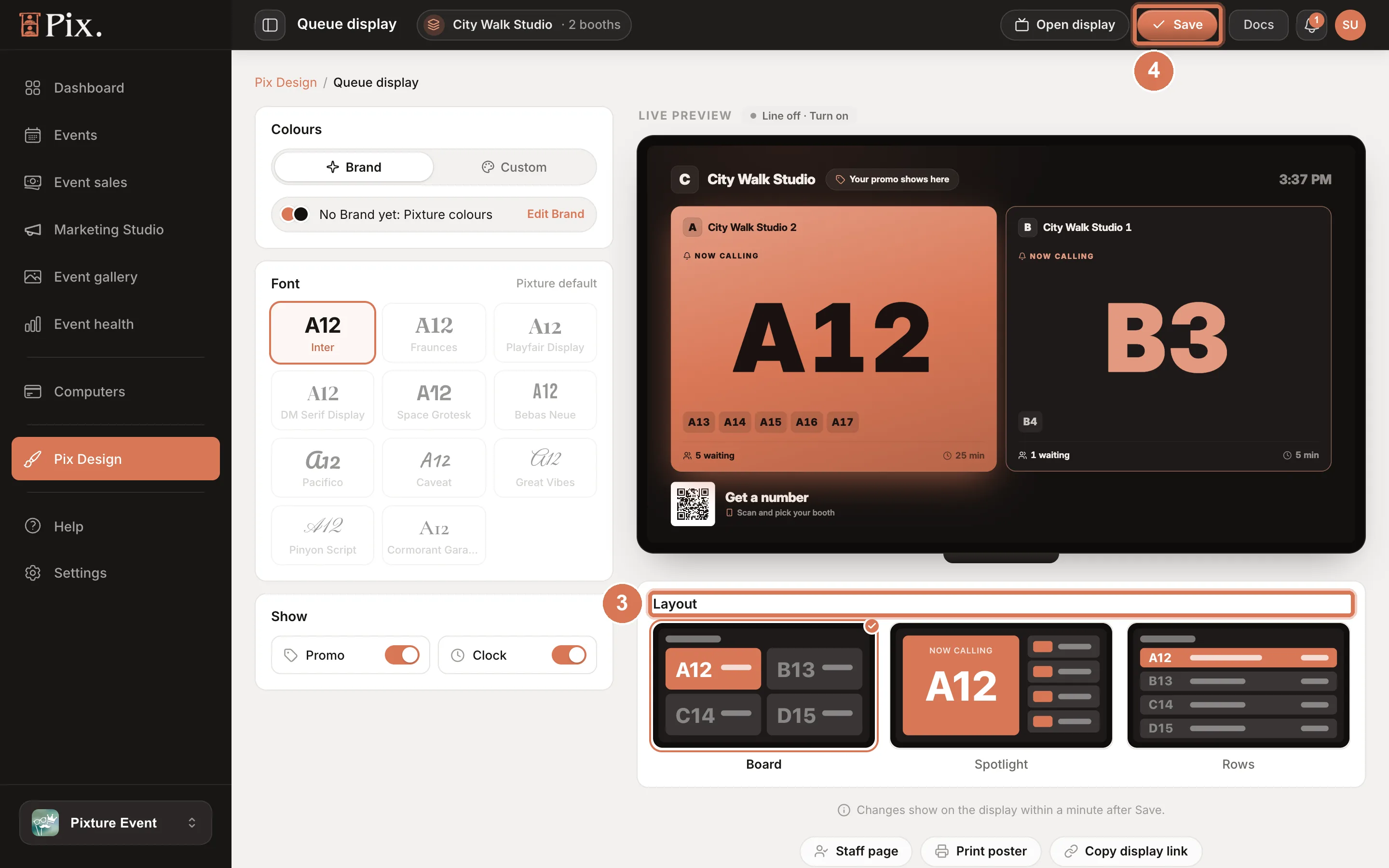
Changes show on the TV within a minute after you save.
Layout
Pick one of three layouts.
- Board: every booth on screen at once, each with the number it is calling and the numbers next.
- Spotlight: the number being called, big.
- Rows: one row per booth.
Colours
Choose Brand or Custom.
- Brand uses the colours and font from your Brand. With no Brand set yet, it uses your Website colours, or the Pixture colours.
- Custom lets you pick an Accent from the swatches or with the colour picker, and a Theme of Dark or Light.
Font
Pick a font from the samples, each shown as "A12". With Brand, the font comes from your Brand and cannot be changed here.
Show
Two switches:
- Promo shows your promo line on the screen.
- Clock shows the time.
Show it on the TV
On the Queue tab of your group, tap Open display. Open that page in the TV's browser, or open the page on a computer and connect it to the TV. Copy display link in the editor gives you the same link.
When a number is called, the display calls it with a voice, in Indonesian or English. When the line is idle, it shows the steps for getting a number, and a QR code to join.
Sound
Browsers do not play sound until someone has tapped the page. When the display opens without sound, it shows a Tap for sound pill. Tap it once and the voice and chime work.
For a TV that nobody touches, start the browser in a way that allows sound without a tap. In Chrome, start it with --autoplay-policy=no-user-gesture-required. If the TV browser already allows autoplay, no tap is needed.
If the display is silent:
- Look for the Tap for sound pill and tap it.
- Check the TV's volume and the computer's output.
- For an unattended TV, restart Chrome with the setting above.