Know Your Way Around the Dashboard
The Pixture dashboard is a website at pixture.io. Nothing to install: it works in any desktop or mobile browser, so you can check revenue, swap templates or pair a booth from your phone while standing next to the booth. By the end of this page you know what each sidebar item is for and where the small controls live.
Log In
- Go to pixture.io and open the login page. It is titled Welcome back!
- Enter your Email and Password and click Sign in, or use Continue with Google or Continue with Apple, whichever you signed up with. Forgot password? sends a reset link.
If you turned on two-factor authentication under Settings > Security, the page asks for the 6-digit code from your authenticator app. If you belong to more than one organisation, pick one under Select an organization.
The Sidebar
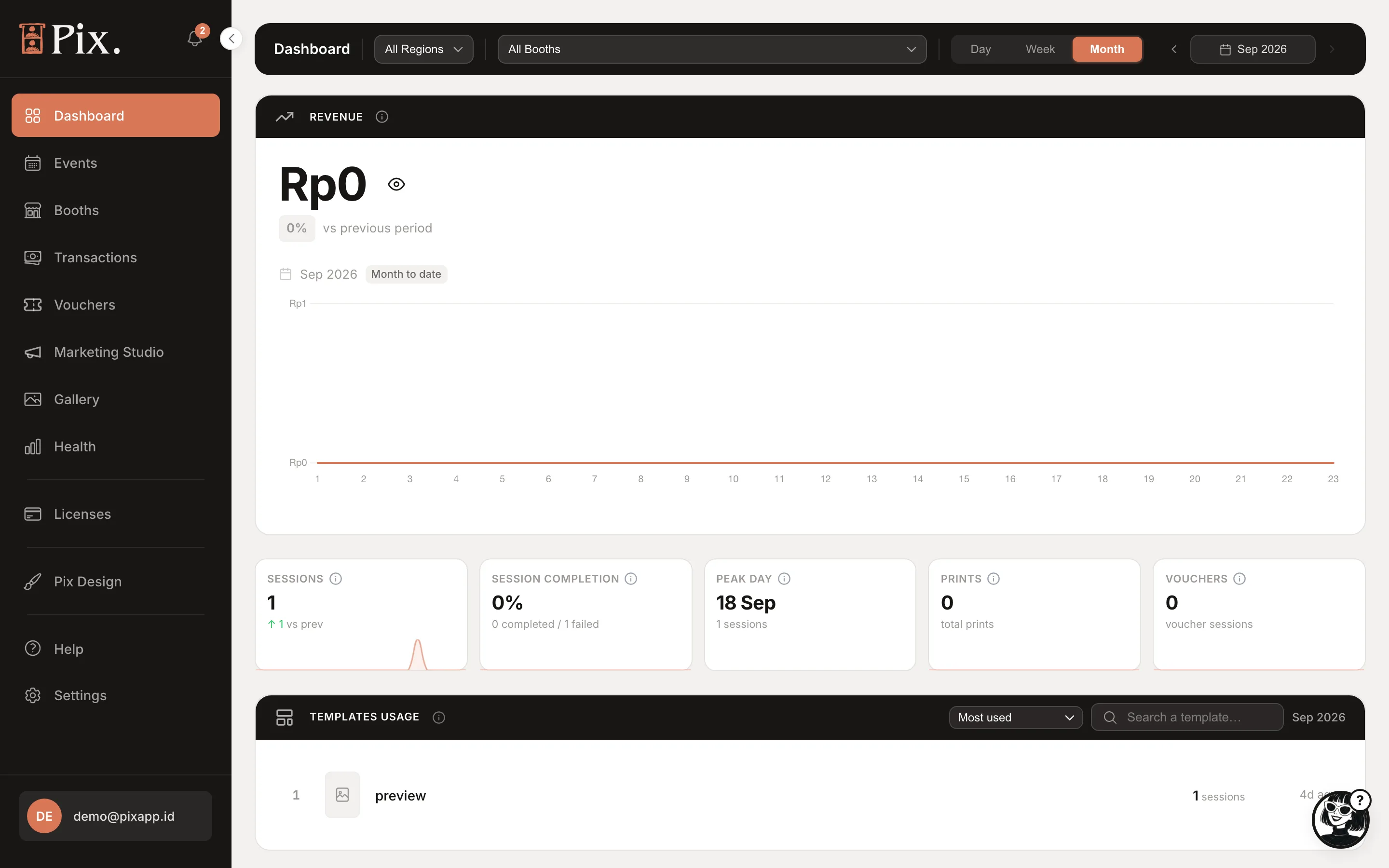
Every page of the dashboard is one click away in the left sidebar. Owners and admins see all of it; team members see what their role allows.
| Item | What it is for |
|---|---|
| Dashboard | Revenue, photo sessions, session completion, peak day, prints, vouchers, template usage, top booth revenue and a health summary, for the period you pick |
| Events | Dated setups such as weddings and expos, each with its own booths, pricing, template pack and public album |
| Booths | One entry per booth. Open a booth for its Templates, Filters, UI Project, Pricing, Activity Log, Device and Settings tabs |
| Transactions | Every paid photo session, with search, booth and date filters, an Excel export and a sync with your payment gateway |
| Vouchers | Free, percentage or fixed-amount codes, single or in batches, plus the Online shop link |
| Marketing Studio | Pix Pro only: marketing consent, audience, bonus sessions, Frame Lab, campaigns and performance |
| Gallery | Browse, download and delete the photos your booths produced |
| Health | Live booth status, issues, today's sessions, paper level, last seen, and error records to download |
| Devices | Your devices, subscription, next renewal and Event Passes. Buy license and Deactivate live here |
| Pix Design | Template Editor, UI Editor, Photo Filters, GIF/Video overlay, Microsite and Pix AI (beta) |
| Help | Opens a chat with Lucy, the in-dashboard assistant |
| Settings | Organisation, preferences, members, payment gateway, profile, Pixture billing, security and data |
The Small Controls
-
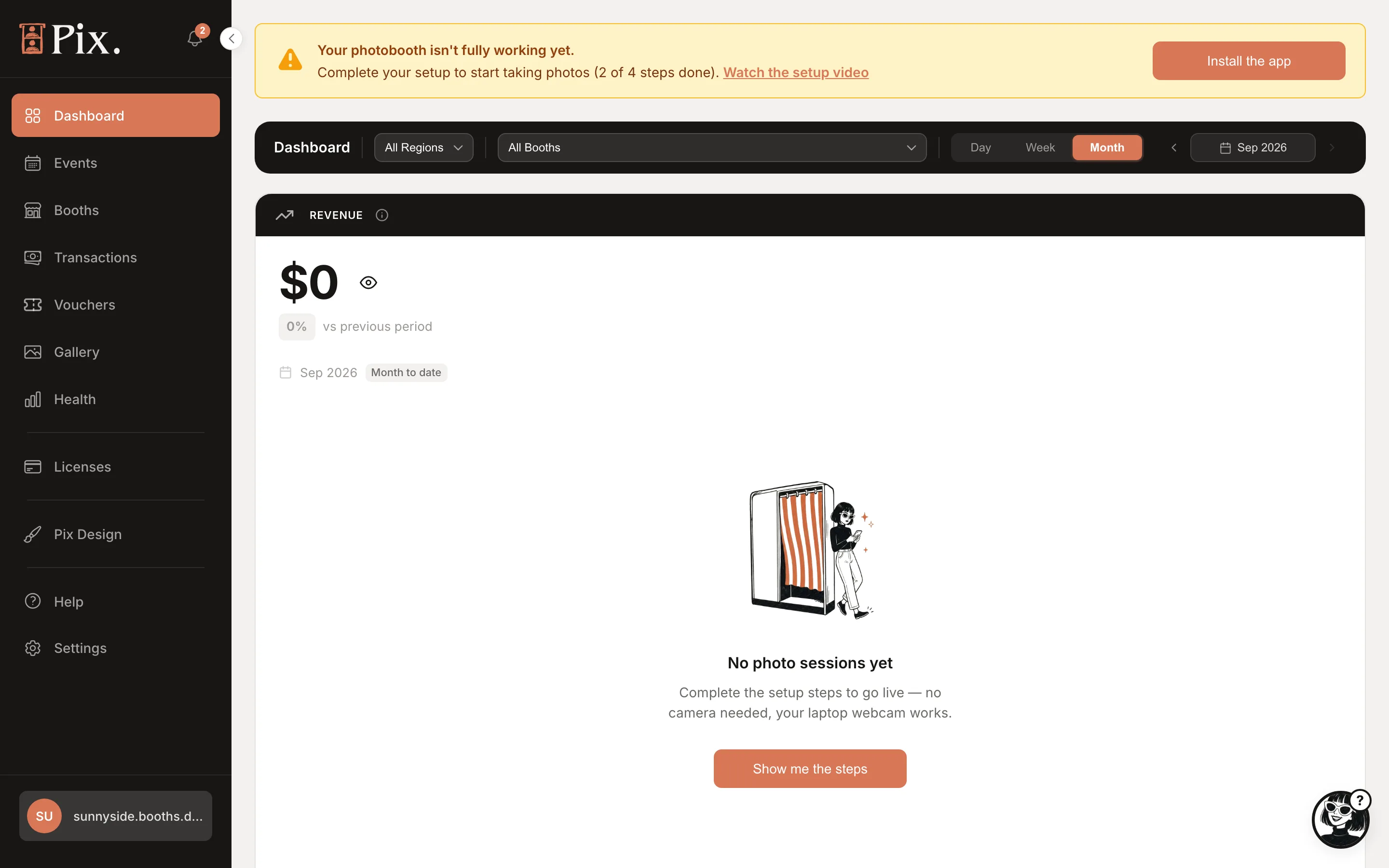
Account menu. The button at the bottom of the sidebar shows your avatar initials and email. Click it for Settings, Language and Log out. Beta accounts also see their Pix AI credits here.
-
The bell (Updates). Announcements from Pixture, next to the logo at the top. The Try Pix Pro free for 3 days popup can be reopened from here if you saved it for later.
-
The setup banner. On a new account every page carries the setup banner with Watch the setup video and Install the app (see Create Your Account). It disappears once the booth is paired and has run a session.
-
Region, booth and period filters. The Dashboard home has All Regions and All Booths pickers, Day / Week / Month pills and a month picker. Transactions, Gallery and Events use the same Day / Week / Month pills.
-
Hide the revenue figure. The eye icon on the Revenue card blanks the number, handy when a guest or a client is looking over your shoulder. The chip next to it compares with the previous period.
-
More than one currency. If your booths charge in different currencies, a Showing row of currency pills appears on Dashboard, Transactions and Vouchers. Totals are never combined across currencies.