Pixture Event, Pixture Kiosk and Overview
If your account has events, you have three workspaces: Overview, Pixture Kiosk and Pixture Event. Switch workspace with the switcher at the bottom of the sidebar. A workspace is not an organization: the organization switcher in your account menu is for people who belong to more than one.
The switcher only changes which workspace you are looking at. It does not change how a booth takes photos. Booth modes (Photo, 360/Slow-mo, Notes, Photographer, Mingle) are chosen for each event under Setup > Booth mode > Edit modes. See Events.
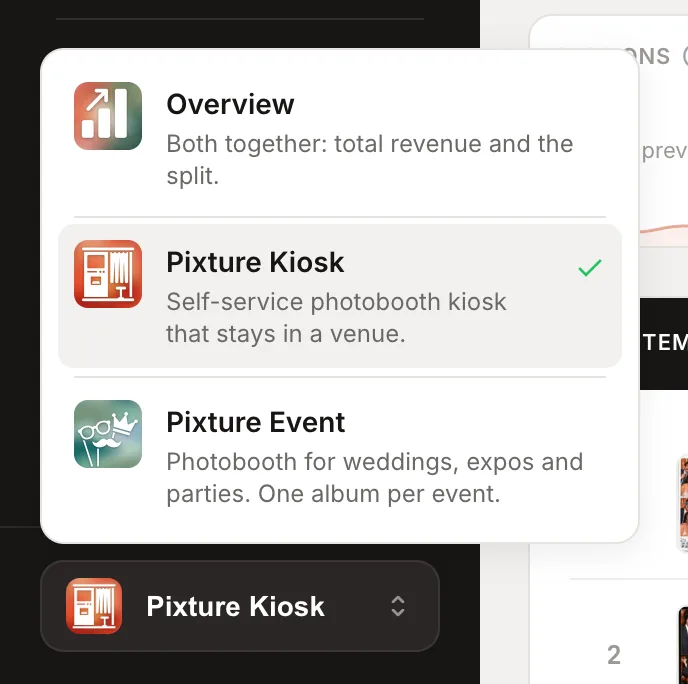
| Workspace | Use it for | Where you land |
|---|---|---|
| Overview | Both side by side | Overview |
| Pixture Kiosk | A self-service photobooth in one place, like a mall photobox | Kiosk dashboard, the dashboard as it always was |
| Pixture Event | A booth that runs for a set of dates, like a wedding, a party or a brand activation | Event dashboard |
The switcher only shows on accounts that have events. If you do not see it, nothing is missing: your dashboard works as before.
What changes in each workspace
The sidebar and the pages follow the workspace you are in.
| Page | Overview | Pixture Kiosk | Pixture Event |
|---|---|---|---|
| Dashboard | Both, split in two cards | Kiosk numbers | Event numbers |
| Events | No | No | Yes |
| Booths and Vouchers | No | Yes | No |
| Transactions | Everything | Transactions | Event sales |
| Gallery | Everything | Gallery | Event gallery, filter by event |
| Health | Every booth | Health | Event health |
| Marketing Studio, Computers, Pix Design, Settings | Yes | Yes | Yes |
Opening a page that belongs to one workspace takes you to that workspace. Events always opens in Pixture Event, and Booths and Vouchers always open in Pixture Kiosk. So a link someone sends you still lands on the right page.
How the money is split
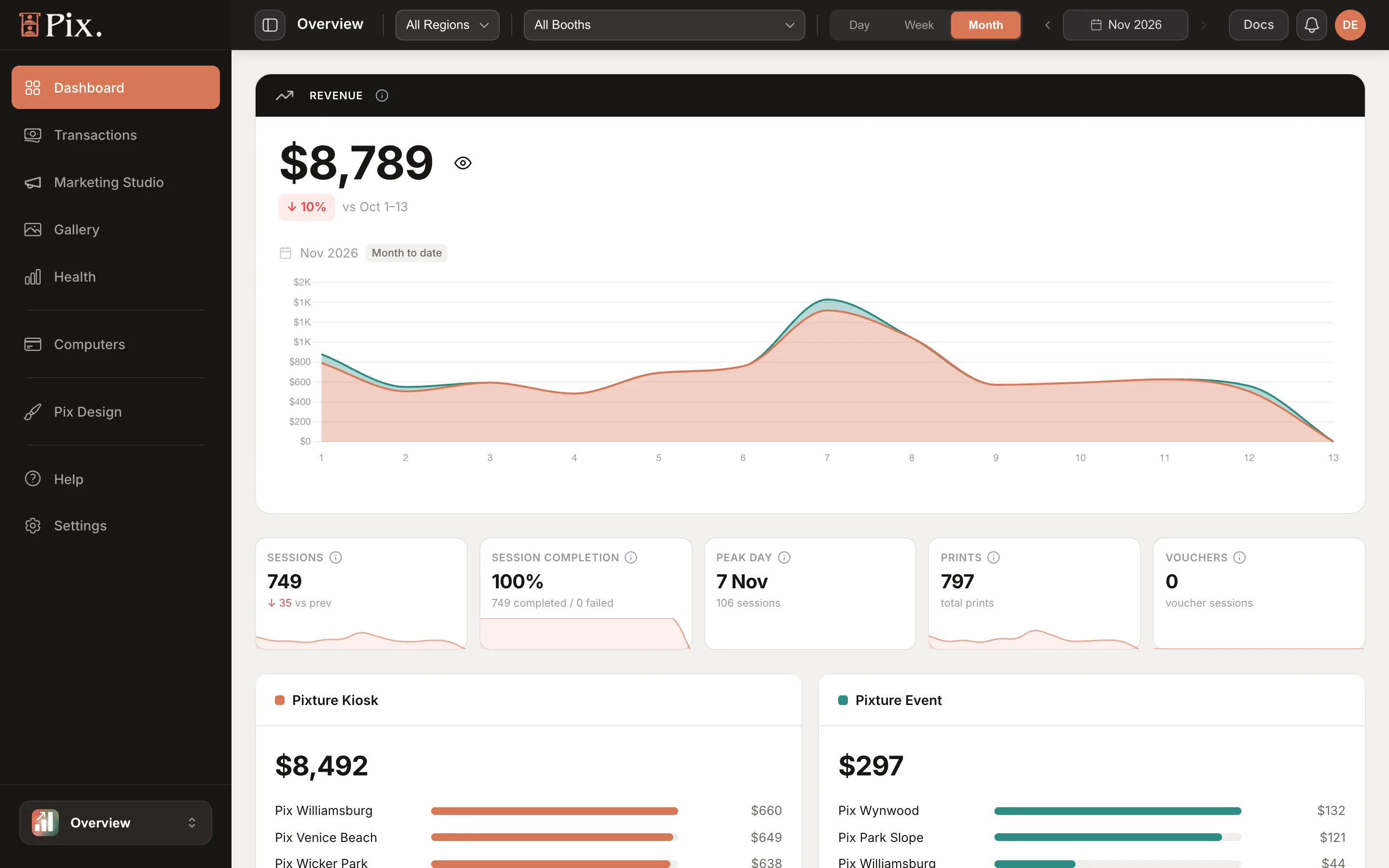
Every sale is counted once, in exactly one workspace. Pixture Kiosk plus Pixture Event always equals Overview.
A sale is Event money when it belongs to an event or comes from a booth set up for events:
- a photo session started for an event,
- anything sold on a booth that is an event booth,
- an extra print or AI portrait sold for one of those sessions.
Everything else is Kiosk money, including sales taken at the counter. Booth revenue on the Kiosk dashboard no longer includes event money. If you ran events on a Kiosk booth before, your Kiosk numbers will look lower than they used to, and the Event dashboard shows the difference.
The Overview
The Overview shows your total revenue with a chart that stacks Pixture Kiosk under Pixture Event, then one card for each. Each card shows its total, its share of the whole and its top booths. Change the period or the booth at the top and everything follows.
Choosing your workspace
The first time you open the dashboard, a window with a poster at the top asks How will you use Pixture? with the three choices. It opens once per browser, even if you already picked a workspace. Close it on a first visit and you stay in Pixture Kiosk.
After you pick or close it, Lucy highlights the switcher at the bottom of the sidebar and tells you what it is for. Tap Got it to continue.
If you told Lucy what you run when you signed up, you start in the matching workspace: events opens Pixture Event, kiosk opens Pixture Kiosk, and both opens the Overview.
Closed it and want it back? The updates bell in the top bar has an item called Pixture Event and Pixture Kiosk. Tap Open to see the window again. Closing it from there changes nothing.
Your choice is remembered in this browser. Switch any time from the sidebar.
Team members and roles
Roles decide who gets the extra workspaces.
- A role that can view events gets the switcher and all three workspaces.
- A role that cannot sees Pixture Kiosk money only, and no switcher. Revenue, Transactions, Gallery and the booth list leave out event sessions and event sales, so nothing from an event shows up where they cannot open Events. To give someone the other dashboards, turn on View events for their role under Settings > Members > Manage Roles.
- Booth access still applies in every workspace. A member limited to some booths only sees those booths' numbers, and their Pixture Kiosk plus Pixture Event still add up to their Overview.
- The Overview cards (Pixture Kiosk and Pixture Event totals) need the dashboard's Revenue card permission, and Event health needs the Health permission.
- Finance reports stay organization-wide for roles that can open them, since they are the books of the whole business.
The top bar
Accounts with the switcher also get a bar across the top of every page. It holds the page title, the page's own filters (dates, region, booth, search), a Docs link to this documentation, the updates bell and your account menu. The account menu has Settings, Language and Log out. On a phone, the button on the left opens the sidebar.